

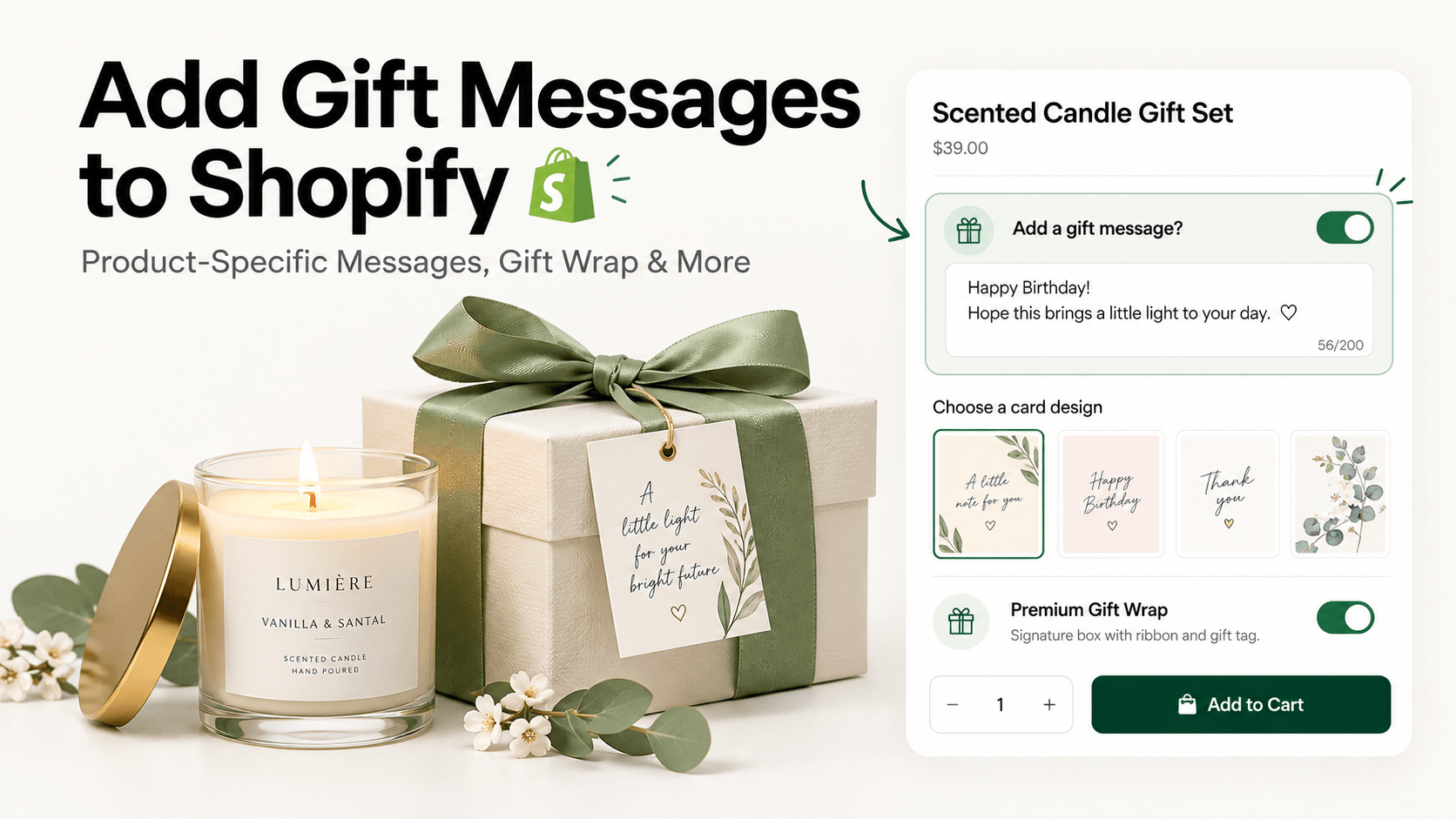
A gift message sounds like a simple text box, but the first decision is where the message belongs. If one message applies to the whole order, Shopify’s cart-level order note may be enough. If each gift in the cart can have its own message, the message should be attached to the specific product line instead.
That distinction matters when a customer buys two gifts for two different people.
Quick answer
To add a gift message to Shopify:
- Use a cart/order note when one message or delivery instruction applies to the whole order.
- Use a product-level custom field when the message belongs to a specific item.
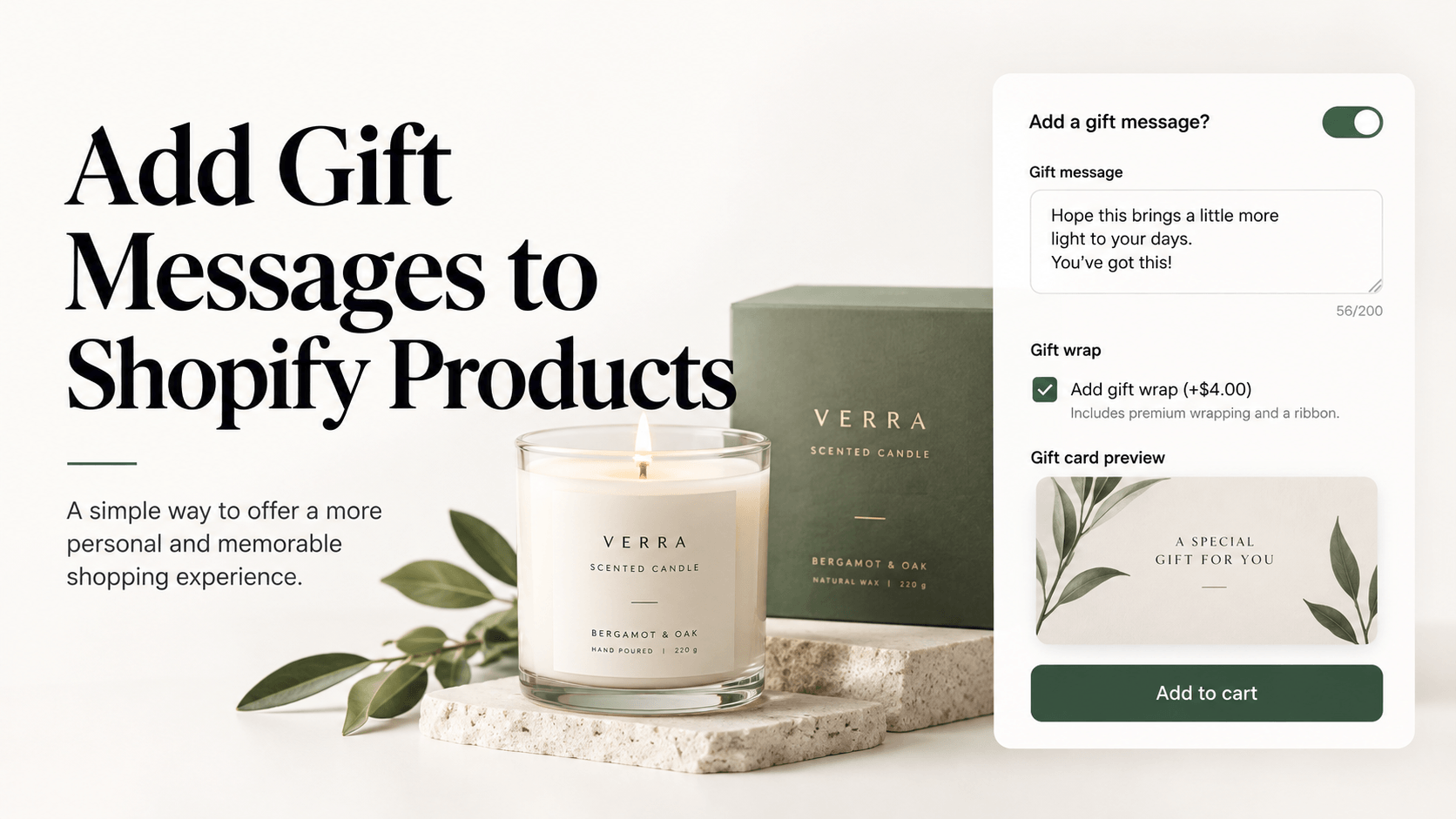
- Use a product-options app when you want to show the message field only after “Add gift message” is selected, enforce a character limit, charge for a card or gift wrap, or combine the message with other personalization options.
Shopify’s current Help Center explicitly distinguishes order notes from line item properties: order notes capture instructions about the order, while line item properties record customization information about specific products. This guide uses WowOptions for the per-product route.
What is the difference between a gift message and an order note?
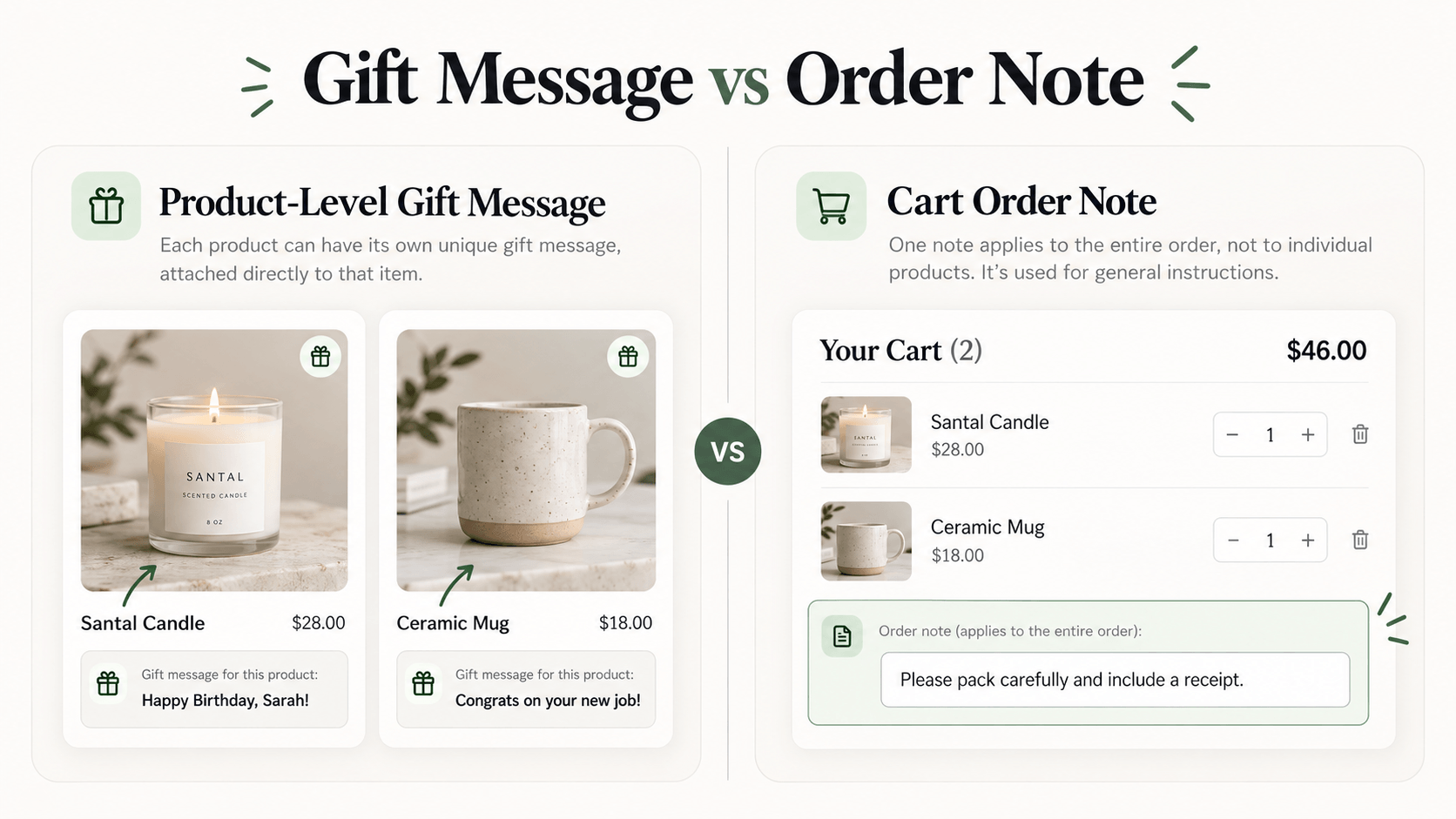
A gift message is usually content that should travel with one specific product.
Example:
- Candle for Sarah: “Congratulations on the new home!”
- Mug for Daniel: “Happy 30th!”
If both products are in one order, a single cart note is ambiguous unless the customer manually explains which message belongs to which item.
An order note is better for instructions that apply to the order as a whole, such as:
- Please leave the parcel with reception.
- This order is a gift. Do not include a printed invoice.
Shopify says order notes and line item properties are separate tools. Line item properties are used for customization information about specific products and are entered on the product page.
Why add a product-level gift message?
A product-level gift message can make fulfillment more precise.
The customer sees the option while choosing the gift rather than remembering to add a note later in the cart. If you combine it with a gift-card choice or gift-wrap add-on, the whole gifting decision stays together.
It can also keep the product page cleaner when the message is optional. Ask whether the customer wants a message first, then reveal the text box only when needed.
The important benefit is not simply “more personalization.” It is reducing the chance that a message becomes detached from the item it belongs to.
When Shopify’s native cart note is enough
Use the native order-note route when:
- one note applies to the entire cart;
- the note is mostly a delivery or preparation instruction;
- you do not need product-specific pricing or conditional fields;
- your current theme exposes the cart-note setting you need.
Shopify’s Help Center documents an Enable cart note setting for free themes and explains that the note can collect preparation and delivery instructions.
For a product-specific message, use a line item property or a product-options app instead.
Before you add the gift-message field
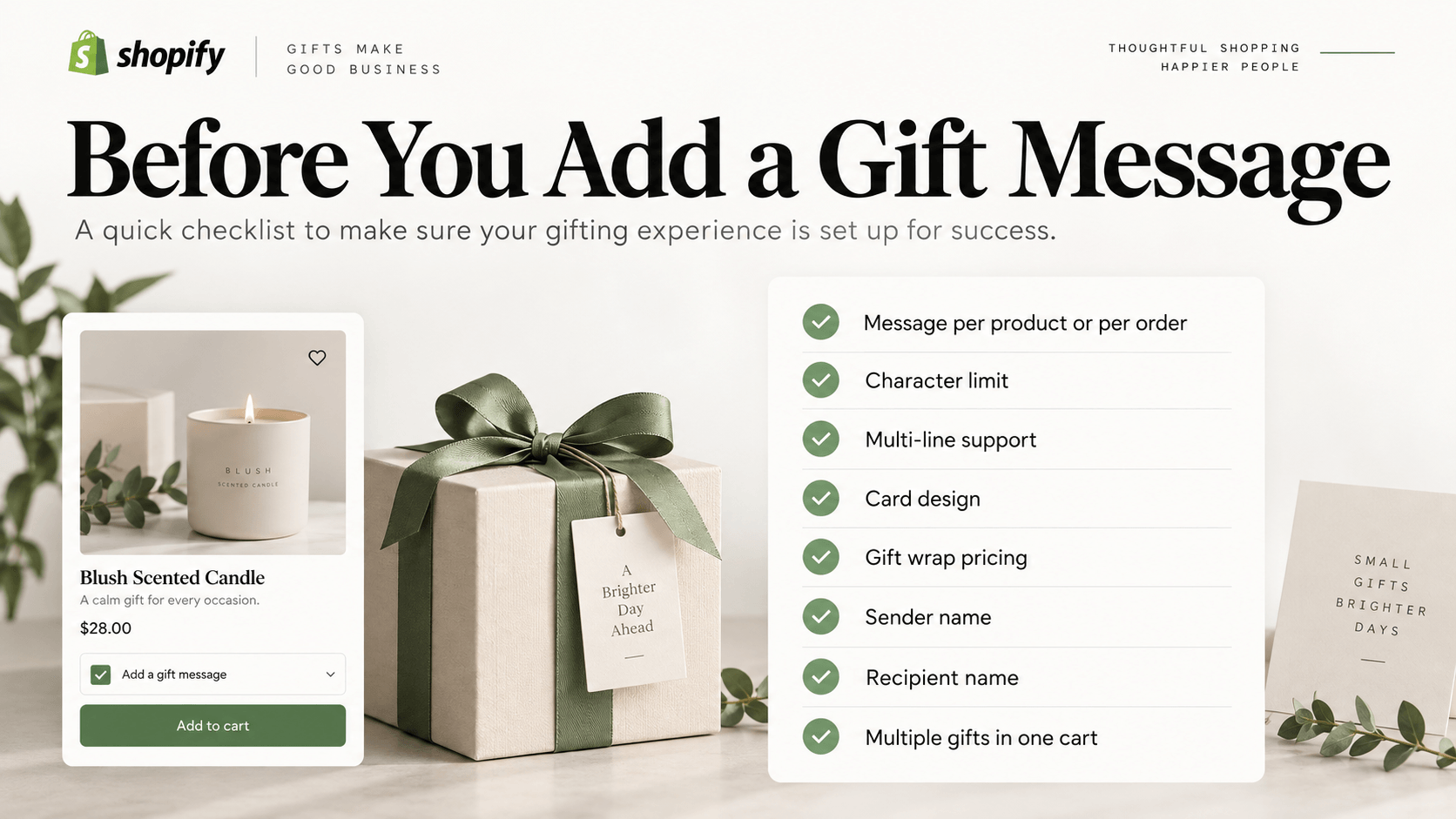
Decide:
- whether the message is per product or per order;
- the maximum message length;
- whether line breaks are supported;
- whether emoji or special characters are supported;
- whether the message is printed, handwritten, engraved, or sent digitally;
- whether the shopper chooses a card design;
- whether gift wrap costs extra;
- whether sender and recipient names are needed;
- what happens when the customer buys quantity two with two different messages.
If each physical unit can have a different message, test that exact workflow. Increasing one cart line to quantity two does not automatically create two separate message fields.
Step-by-step guide: add a gift message with WowOptions
We will use a scented candle sold as an optional gift.
Step 1: Keep the base product setup simple
Create the candle in Shopify and use variants for inventory-tracked choices such as size or scent when those choices have separate SKUs.
The gift message is not a variant. It is unique order information.
Step 2: Create a gifting option set
In WowOptions, create an option set named something like Candle Gift Options and assign it to the product.
If many products share the same gift-message rules, a reusable set can be useful. If some products use a tiny tag and others use a full-size card, keep their character limits separate.
Step 3: Add a clear trigger
Add a yes/no choice such as:
Add a gift message? - No - Yes
A checkbox or switch works well because the decision is independent and optional.
Step 4: Add the message field
For a short card, add a Short Text field. For a message that may need multiple lines, use a Text Area.
Label it clearly:
Gift message
Then add help text such as:
Maximum 120 characters. Printed exactly as entered.
Use the actual capacity of your card or tag. The number above is only an example.
Step 5: Show the message only when the shopper chooses yes
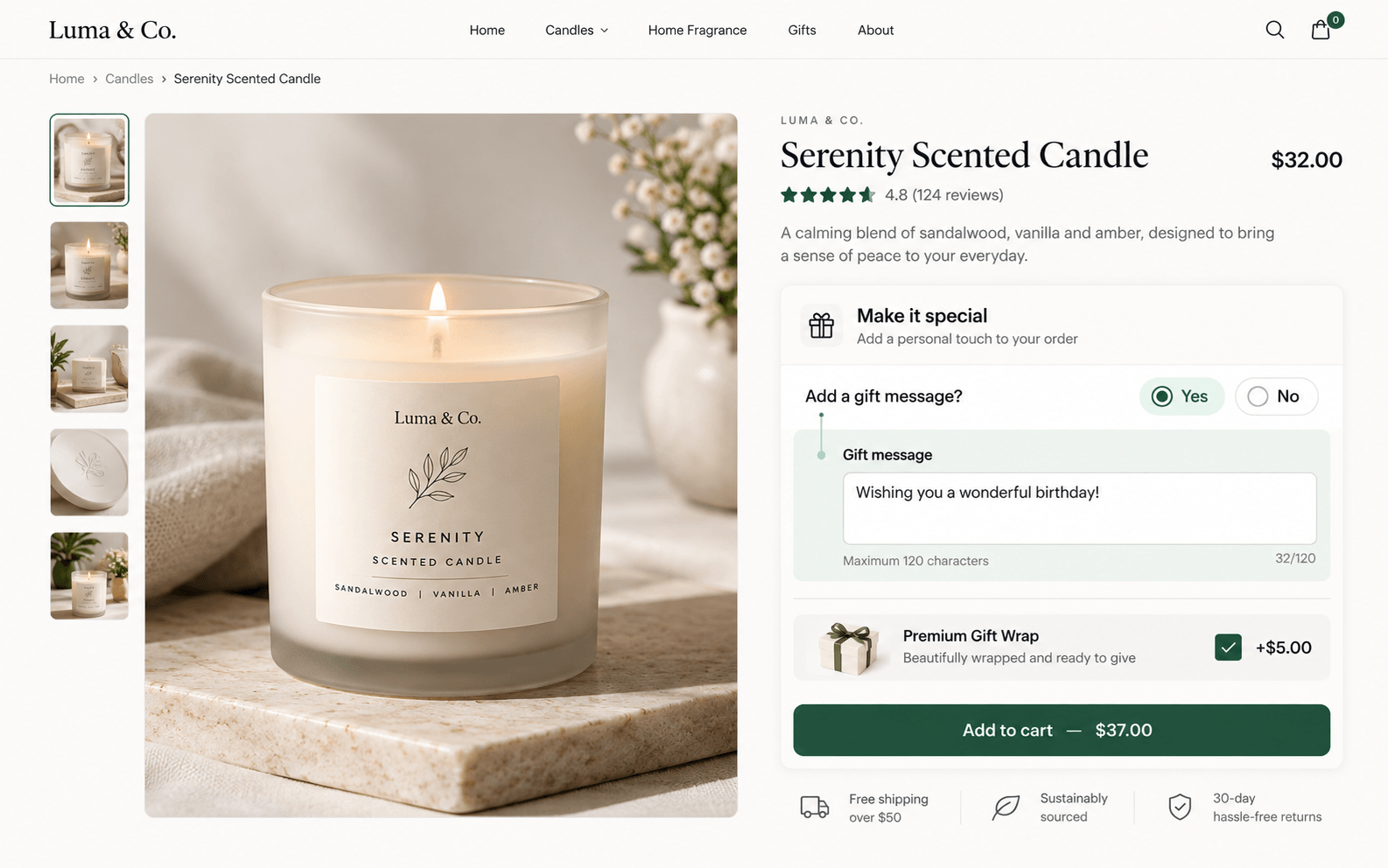
Use conditional logic to reveal the gift-message field after Add a gift message? = Yes.
This keeps the default product page focused on the product itself.
WowOptions currently lists Advanced Conditional Logic on the Advanced plan, so recheck the plan before publishing screenshots that rely on this feature.
Step 6: Add sender and recipient fields only if fulfillment uses them
You might need:
- To: recipient name
- From: sender name
Do not collect these fields merely because they are common on gift forms. If your team does not print them separately, they may be unnecessary friction.
Step 7: Add gift wrap or a premium card as a paid option
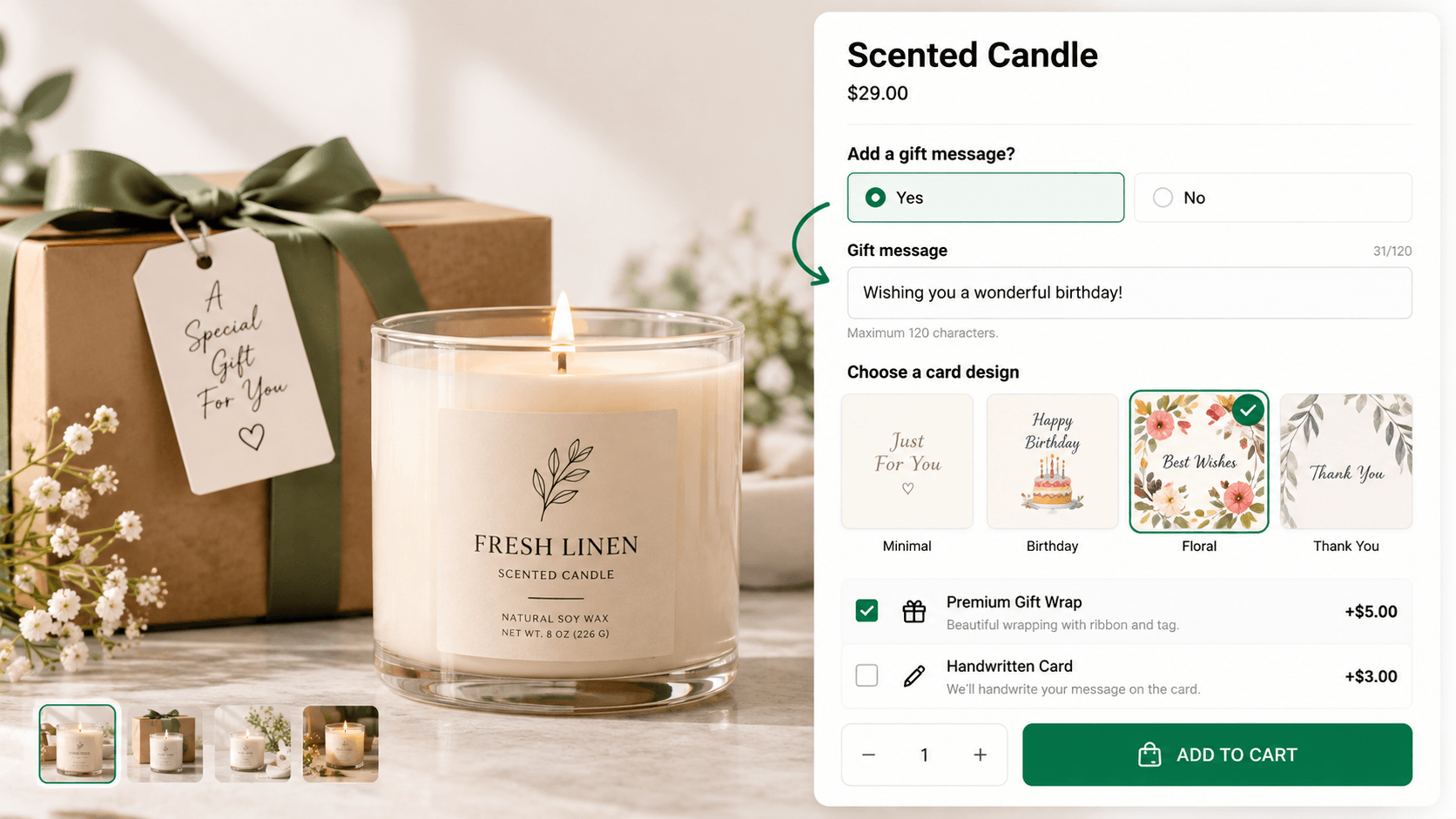
If the product can be upgraded with:
- premium gift wrap;
- rigid gift box;
- printed photo card;
- handwritten card;
show the price beside the choice.
A checkbox works well for a single optional add-on. Image swatches can be useful when the customer chooses among visual card designs.
Step 8: Add live preview only for visual card personalization
A simple text-only gift note usually does not need a live product customizer.
If the customer is choosing a printed card design, font, photo, or message placement, preview becomes more valuable. WowOptions lists Live Customizer on its Advanced plan, but using it should solve a visual decision rather than simply adding another feature to the page.
Step 9: Check how the message appears in the order
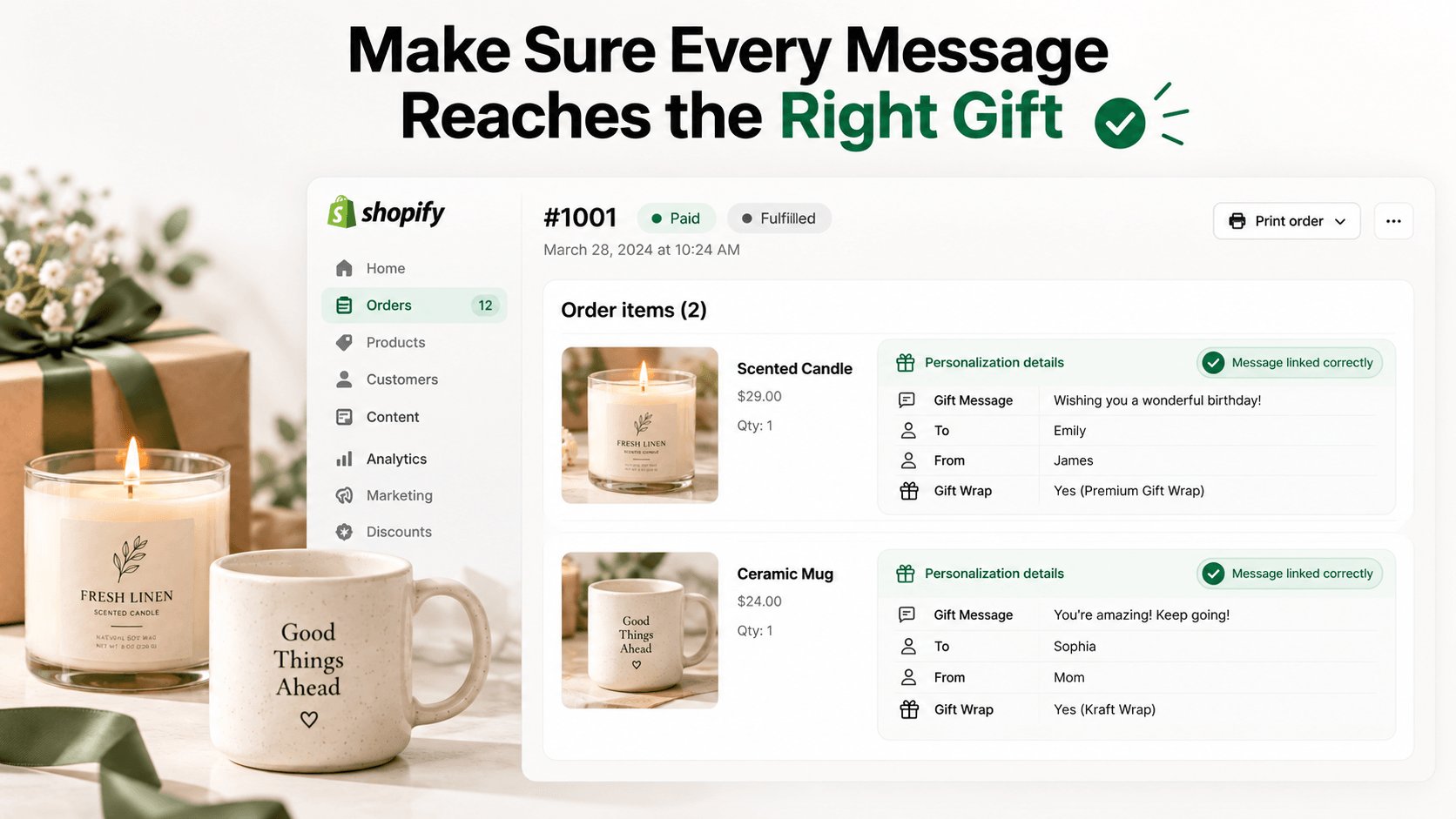
Place a test order and verify:
- the message appears with the correct product;
- sender and recipient fields are labeled clearly;
- gift-wrap selection and price are present;
- line breaks and special characters are preserved if you support them;
- your packing slip or production workflow exposes the information you need;
- staff can tell the difference between two gifts in the same order.
The last point matters more than the visual styling of the field.
Step 10: Test multiple gifts in one cart
Add two different products with two different messages.
Then test two units of the same product when each unit needs a different message. Depending on your storefront workflow, you may need the customer to add each personalization as a separate line item rather than simply increasing quantity.
Document the expected buying behavior on the product page if it is not obvious.
Example gift-message setup
| Need | Recommended control |
|---|---|
| Add message? | Checkbox or switch |
| Short one-line note | Short Text |
| Multi-line card message | Text Area |
| Sender name | Short Text |
| Recipient name | Short Text |
| Card design | Image swatch |
| Gift wrap | Paid checkbox |
| Show message only when needed | Conditional logic |
| Preview printed card | Live Customizer when visual placement matters |
Common gift-message mistakes
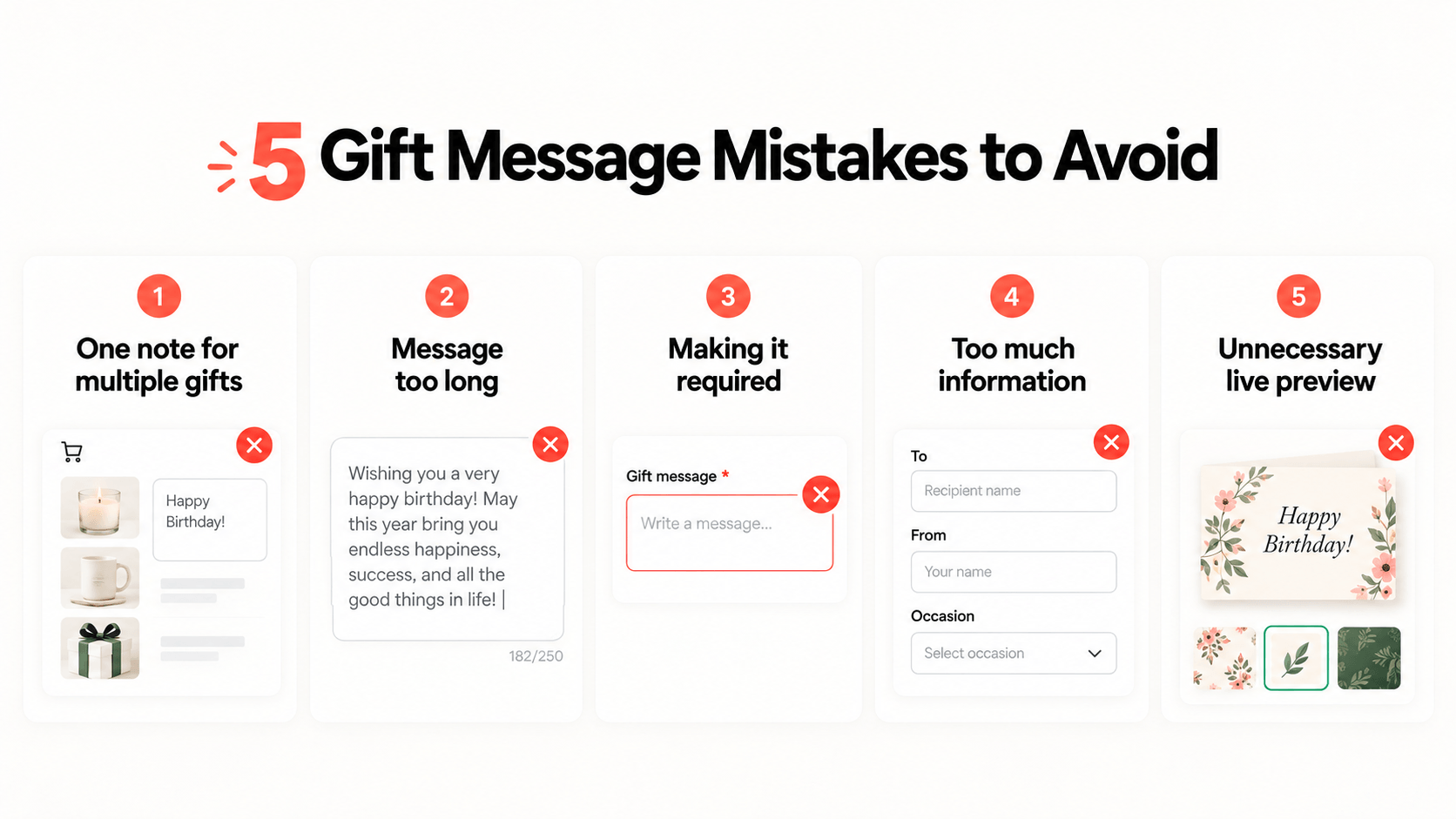
Using one cart note for several individually gifted products
Allowing more text than the physical card can hold
Making a gift message mandatory
Collecting data that no one uses
Adding a live preview to a non-visual workflow
Can I add a gift message in Shopify without an app?
Should a gift message be on the product page or cart page?
Can I charge for a gift message?
Can I show the message field only after gift wrap is selected?
Is WowOptions necessary for one gift-message box?
Not necessarily. A native cart note or a simple line item property can be enough for a basic use case.
WowOptions becomes more useful when gifting includes several connected options: a yes/no trigger, card design, message text, gift wrap, extra pricing, recipient fields, and conditional logic. If the card itself is visually personalized, the live customizer can also become relevant.
Next step: decide whether the message belongs to the whole order or one product, then build the field around that fulfillment reality.