

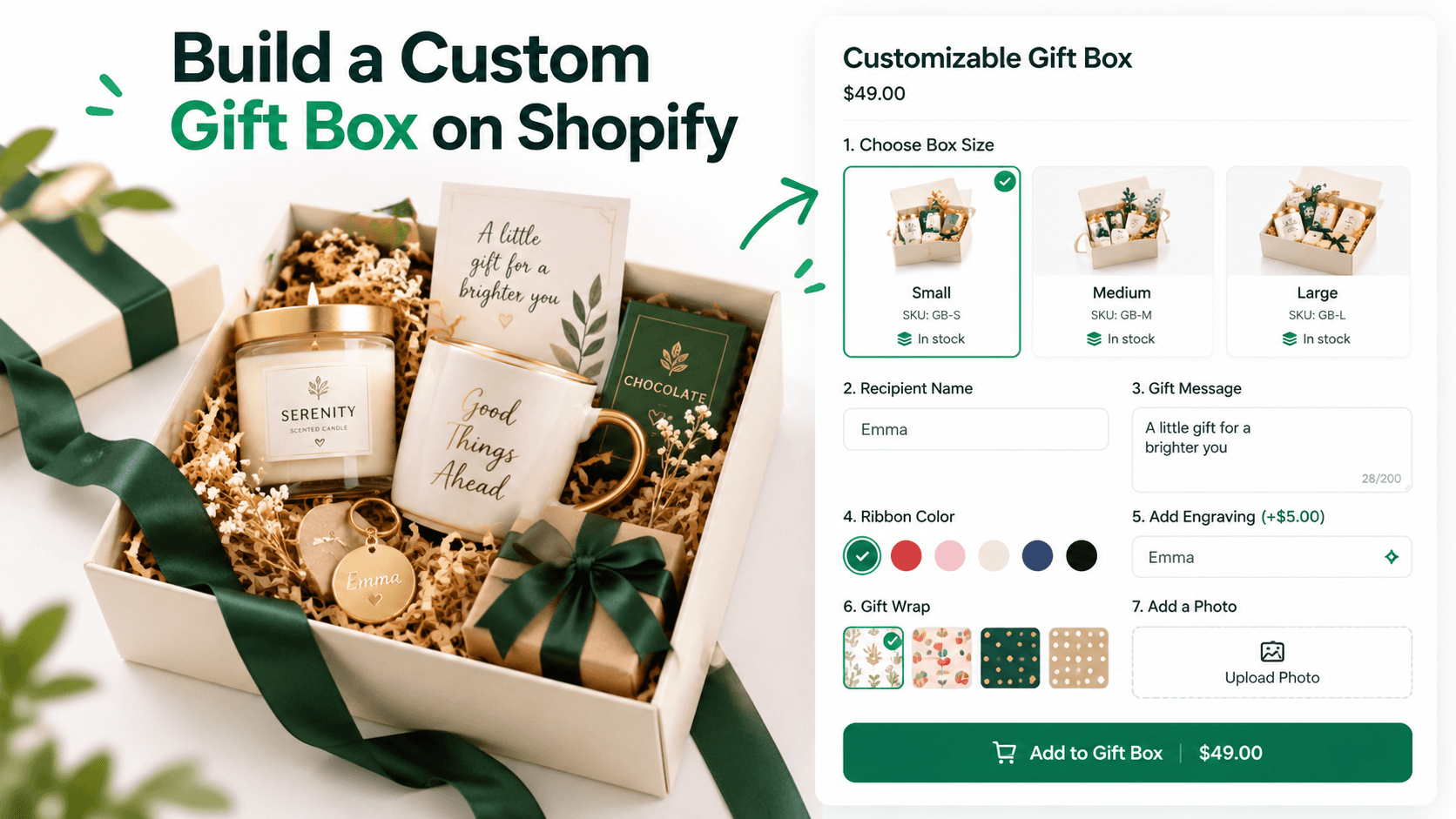
A custom gift box sounds like one product, but the setup can behave very differently depending on what the customer is actually choosing. If shoppers are only selecting presentation details, such as a box color, message card, ribbon, and engraving, a product-options app can handle the job cleanly. If shoppers are choosing separate inventory-tracked products to build the box, you also need to think about bundle inventory.
That distinction matters before you add a single field to your Shopify product page.
Quick answer
To build a custom gift box on Shopify, first decide whether you are selling a personalized gift box or a true mix-and-match product bundle. Use Shopify variants for stock-tracked choices such as a box size when each size has its own SKU. Use a product-options app for customer-entered text, gift messages, packaging choices, add-on pricing, images, and conditional fields. If each selected gift item must decrement its own inventory, use a bundle setup that supports mix-and-match inventory tracking rather than treating every component as a simple custom option.
This guide uses WowOptions for the personalization layer. Its current Shopify App Store listing includes 25+ option types, file uploads, swatches, add-on pricing, conditional logic, product swatches, quantity selectors, linked products, and a live customizer on the Advanced plan.
First, decide what kind of gift box you are building
“Build a gift box” can describe at least three different storefront experiences.
| Gift box model | Example | Best technical approach |
|---|---|---|
| Fixed box with personalization | One candle, one mug, one card, customer chooses ribbon and message | Shopify product plus custom product options |
| Fixed components with selectable variants | Box always contains a candle, tea, and chocolate, but shopper chooses scent/flavor | Shopify Bundles may work if the bundle structure fits |
| Mix-and-match box | Shopper chooses any 5 items from a catalog of 20 products | A mix-and-match bundle app or custom bundle implementation, plus product options for personalization |
Shopify’s own bundle documentation distinguishes fixed, multipack, and mix-and-match bundles. Shopify Bundles can create fixed bundles and multipacks, while Shopify directs merchants who need mix-and-match bundles toward compatible third-party bundle apps or a custom Bundles API implementation on eligible Plus stores. See Shopify’s bundle guidance.
This means you should not use a text field or checkbox list as a substitute for inventory logic if the individual gift items need real-time stock tracking.
What should be a Shopify variant, and what should be a custom option?
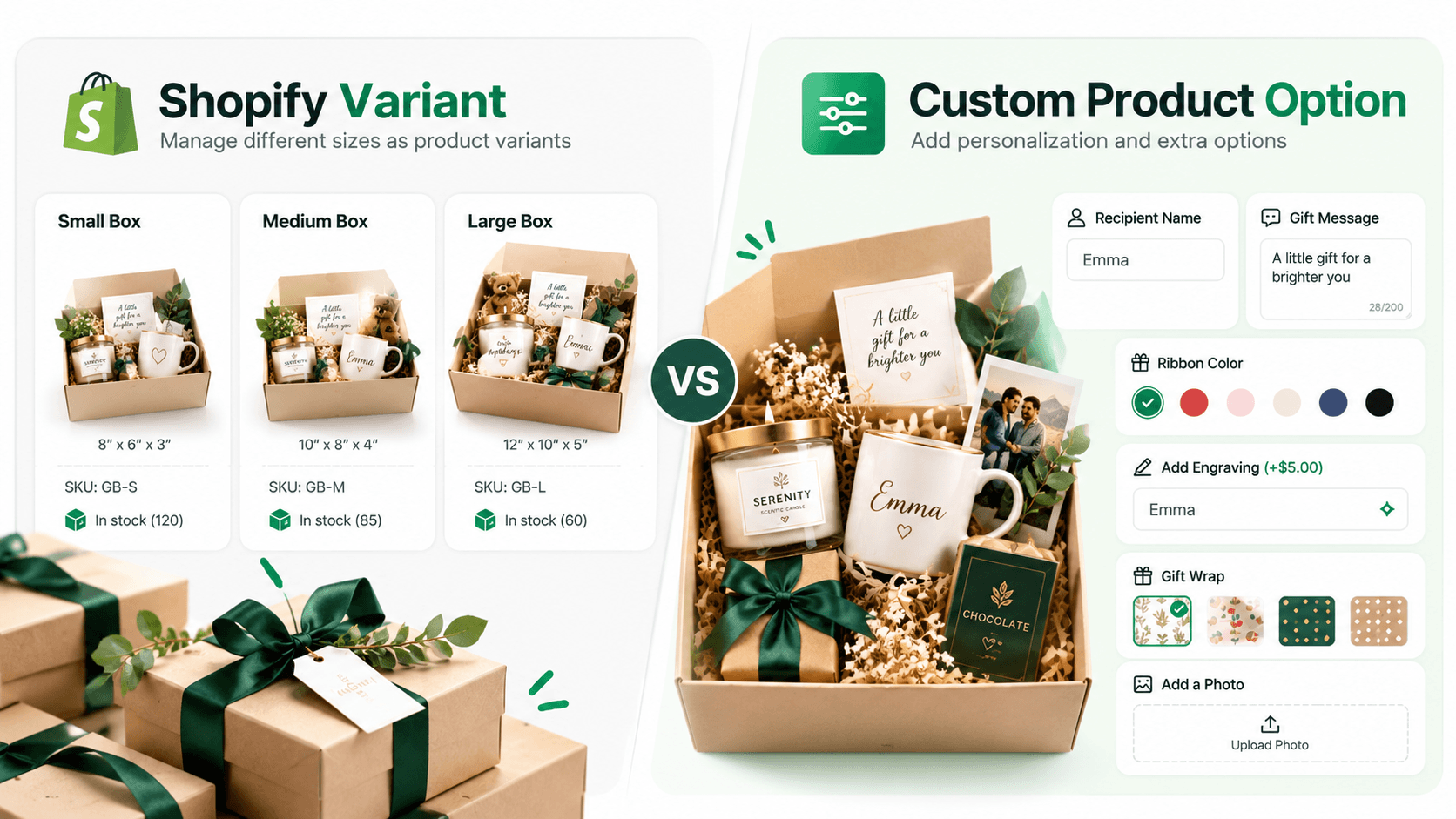
A useful rule is:
- Use a variant when the choice represents a stock-tracked version of the base product.
- Use a custom option when the choice records personalization, presentation, or an order-specific instruction.
For a gift box, variants might include:
- small, medium, and large box sizes;
- a standard box versus a premium wooden box when each has a separate SKU;
- prebuilt box themes that you inventory separately.
Custom options might include:
- recipient name;
- gift message;
- ribbon color;
- greeting card style;
- engraving text;
- delivery note;
- optional gift wrap;
- an uploaded photo for a printed card.
Shopify currently allows up to three product option dimensions and up to 2,048 variants per product. For customer-entered details and more flexible workflows, Shopify recommends either a third-party app or custom line item properties. See Shopify’s current variant guidance.
Plan the gift-box rules before opening an app
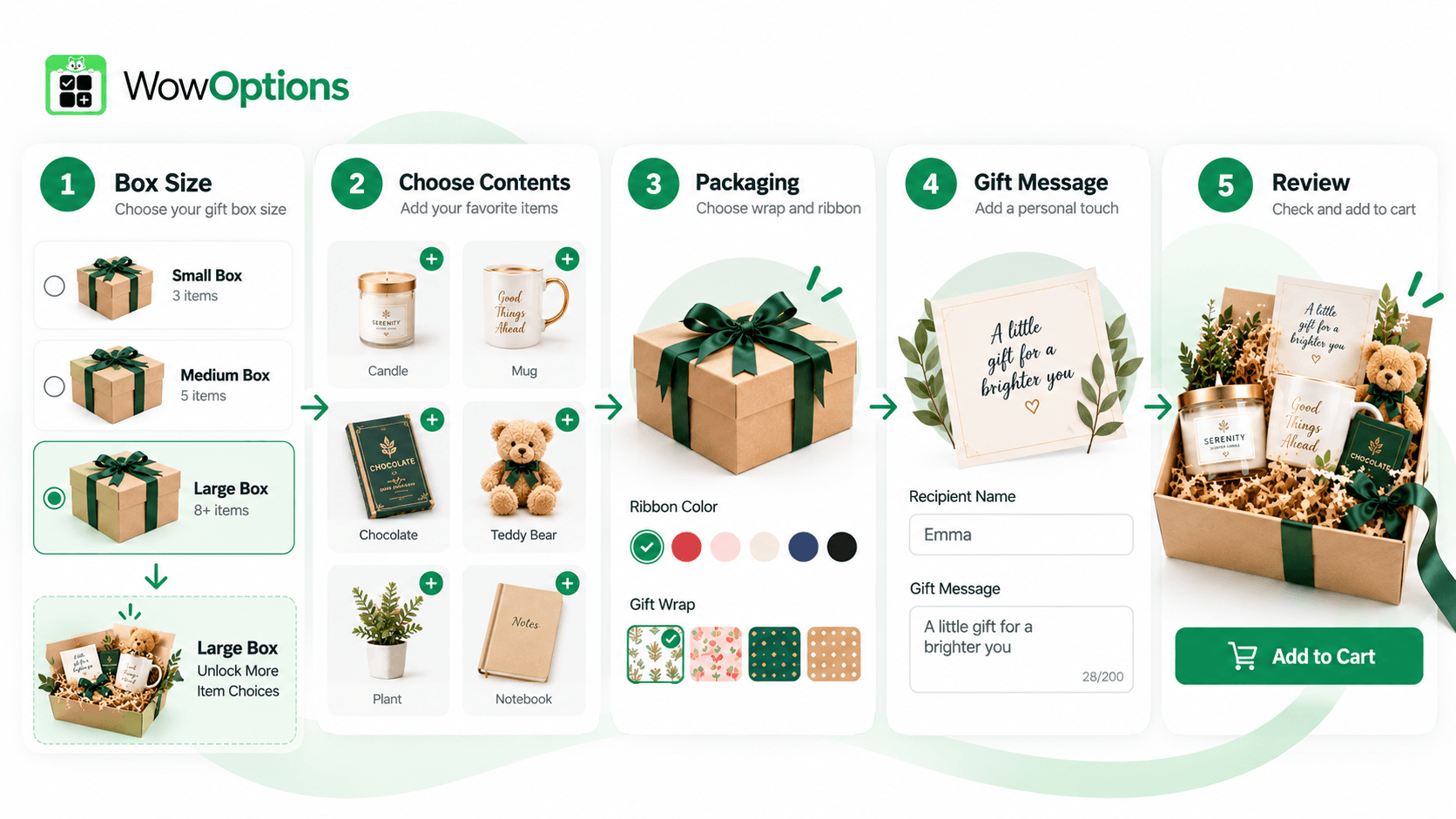
Write the buying flow in plain language first. For example:
- Choose a box size.
- Choose a gift theme.
- Pick up to four included items.
- Add an optional premium item.
- Choose ribbon and card design.
- Enter a gift message.
- Add an optional photo.
- Confirm the final box.
Then answer the operational questions behind that flow:
- How many items can fit in each box size?
- Which choices add to the price?
- Which components have their own inventory?
- Can two of the same item be selected?
- Do you need to restrict incompatible combinations?
- What happens when one component is out of stock?
- Does the packing team receive every choice clearly in the order?
This planning step prevents a common mistake: building an attractive selector that your fulfillment team cannot reliably pack.
Step-by-step guide: build a personalized gift box with WowOptions
The workflow below is best for a gift box where the base product is one Shopify product and the custom choices are presentation, personalization, add-ons, or non-inventory selections.
Step 1: Create the base gift-box product in Shopify
Create a product such as Build Your Own Gift Box.
Keep the product page focused on the base offer. Include:
- what the box includes;
- the base price;
- box dimensions;
- typical fulfillment time;
- whether personalized items can be returned;
- any holiday or event cutoff dates.
If box size affects inventory, shipping weight, or a real SKU, make size a Shopify variant instead of recreating it as a custom field.
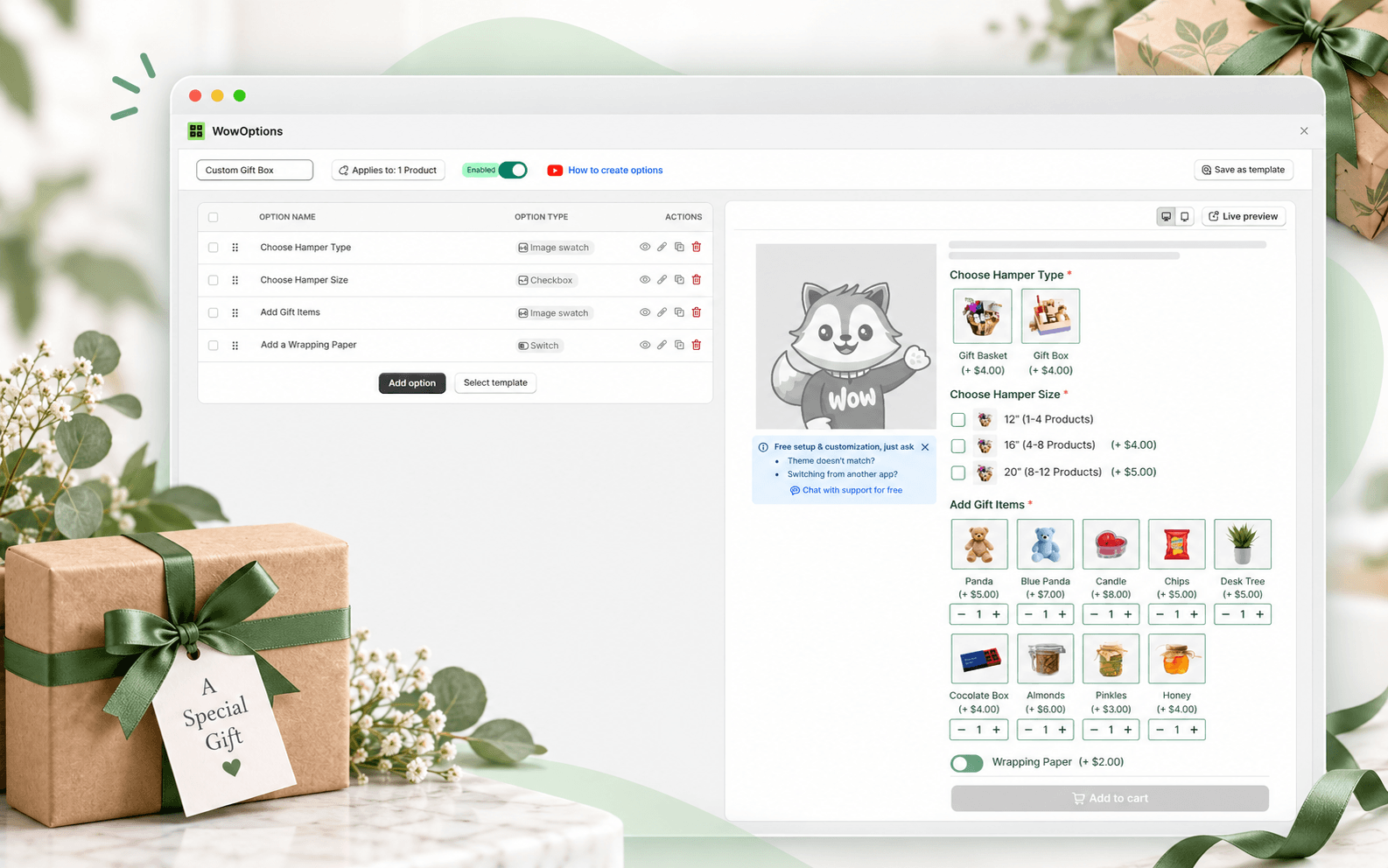
Step 2: Create a WowOptions option set for the gift box
In WowOptions, create a new option set and assign it to the gift-box product.
Use an internal name such as Gift Box Builder so it is easy to find later. If you sell several box products with the same buying flow, build one reusable option set and apply it to the relevant products or collection where appropriate.
Step 3: Add visual choices for the box and packaging
Use swatches or buttons for decisions that are easier to understand visually.
For example:
- Box color: kraft, black, ivory;
- Ribbon color: burgundy, gold, navy;
- Card design: birthday, thank-you, wedding, holiday;
- Filler style: kraft paper, white shred, tissue.
Image swatches are more useful than a dropdown when appearance is part of the decision. A shopper can choose “Ivory” faster when they can see what ivory actually looks like.
Step 4: Add the gift contents carefully
How you configure the contents depends on inventory.
If the choices are effectively configuration labels, such as “Lavender candle” versus “Vanilla candle,” and your fulfillment process does not require component-level inventory tracking inside Shopify, you can use image swatches, checkboxes, dropdowns, or product swatches.
If each selected item is a separate Shopify product that must be decremented independently, treat the box as a bundle problem first. Shopify’s own guidance says mix-and-match bundles require a compatible third-party bundle app or a custom solution. A product-options interface can still handle personalization around the bundle, but it should not be the only source of inventory truth.
That distinction is especially important during gift seasons, when one unavailable component can break a large number of open orders.
Step 5: Limit the number of selections
A gift-box builder should tell customers when the box is full.
For example:
- Small box: choose 3 items.
- Medium box: choose 5 items.
- Large box: choose 7 items.
Use the app’s selection or quantity controls where they fit your current plan and configuration. If your inventory model uses a dedicated mix-and-match bundle app, let that bundle system enforce the component count and use WowOptions for the surrounding personalization fields.
Avoid instructions such as “Choose any five” if the storefront technically allows seven. That creates a customer-service problem rather than a flexible buying experience.
Step 6: Use conditional logic to keep the page manageable
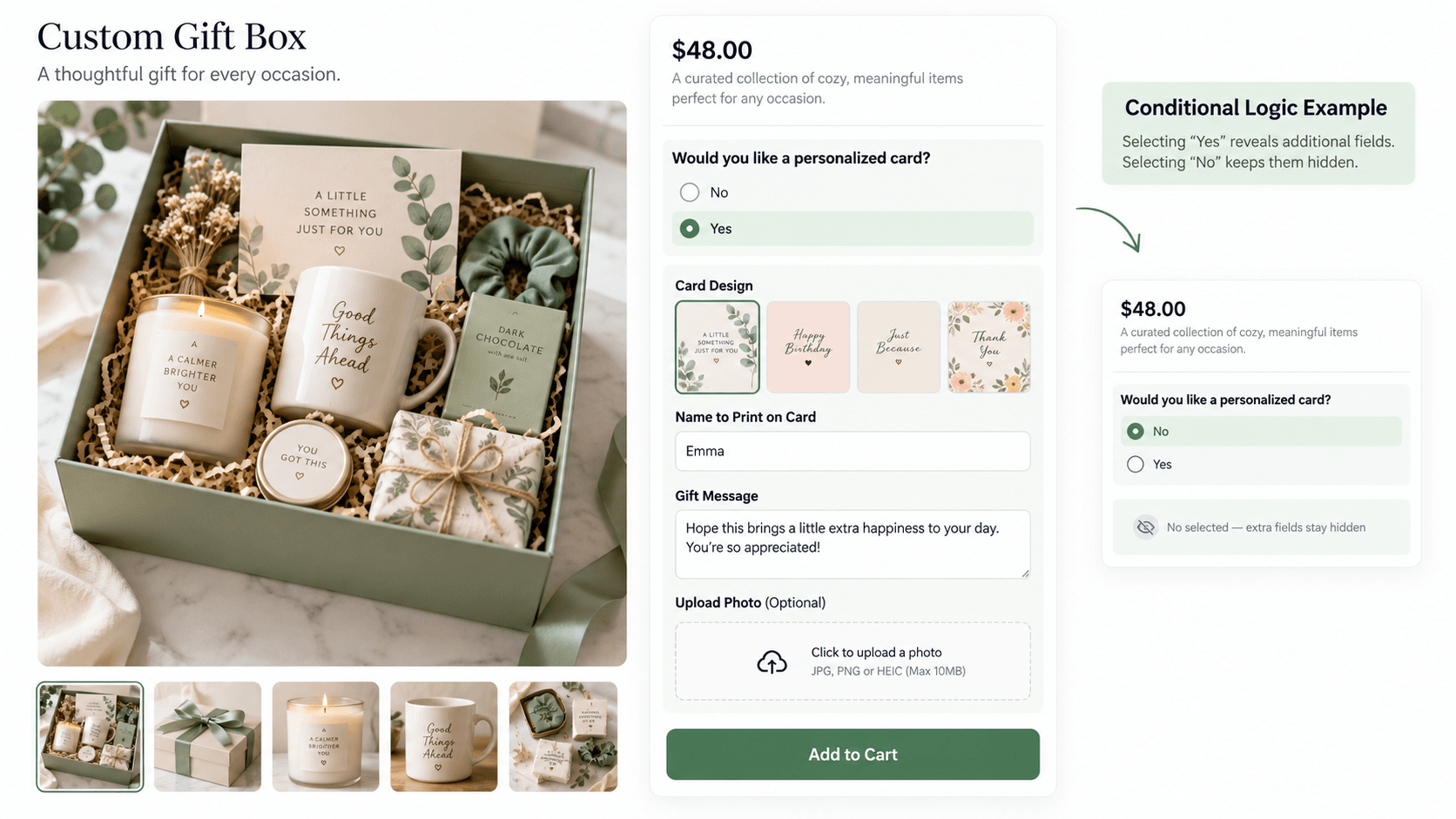
A gift box can become overwhelming if every possible field appears at once.
Conditional logic lets you reveal only the next relevant decision.
Example:
Would you like a personalized card? - No - Yes
If the shopper chooses Yes, show:
- card design;
- recipient name;
- message;
- optional photo upload.
If they choose No, keep those fields hidden.
You can also use conditional logic to change the flow by box size. For example, a small box can show three content groups while a large box can reveal extra choices.
Step 7: Add gift messages and recipient details
Use a text area for the main message and a shorter text field for the recipient name.
Good field labels reduce packing mistakes. Prefer:
- Name to print on card
- Gift message, up to 180 characters
instead of vague labels such as:
- Name
- Message
The more specific the field, the less interpretation your fulfillment team has to do later.
Step 8: Add paid upgrades only where the cost is obvious
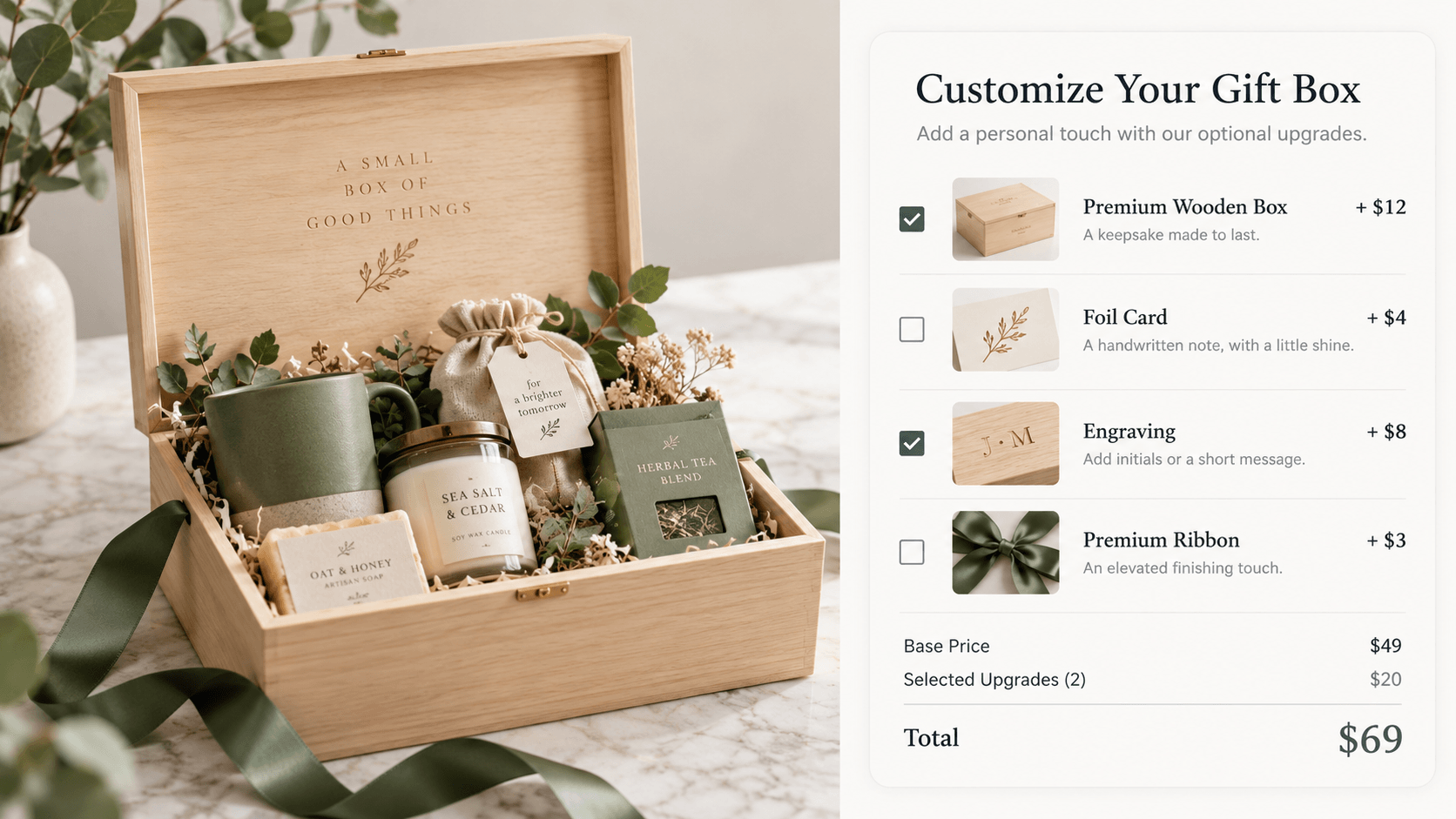
Useful gift-box add-ons include:
- premium wooden box;
- foil card;
- engraving;
- printed photo;
- premium ribbon;
- extra gift item;
- rush preparation where operationally supported.
Show the additional price next to the option. The customer should understand the price change at the same moment they make the choice.
Do not turn every small decision into a fee. A clean base offer with two or three meaningful upgrades is often easier to understand than a checkout path that feels like a sequence of surcharges.
Step 9: Use a live preview only if it adds useful information
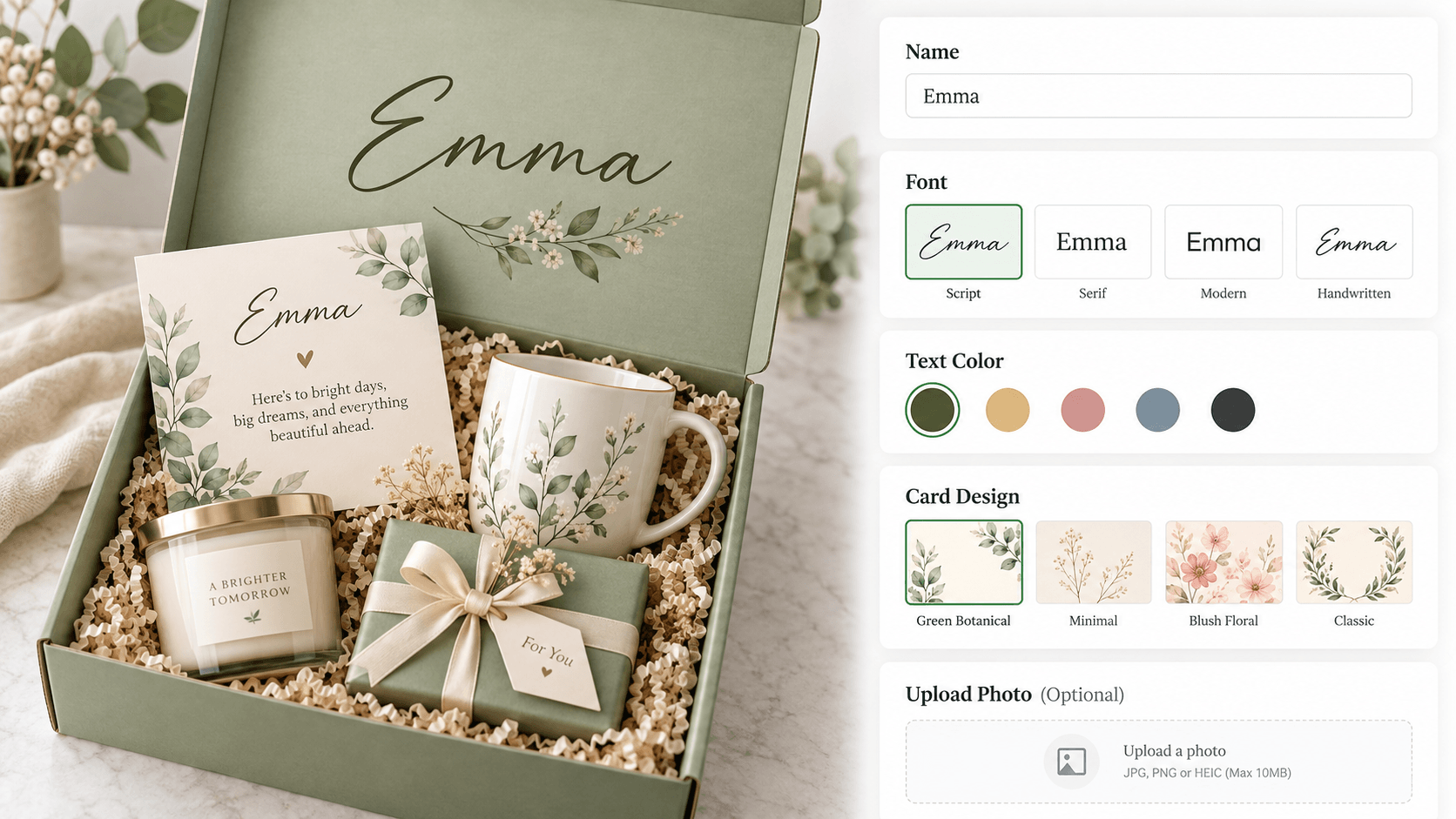
A live product personalizer can help when the customer needs to see a visual result, such as:
- a printed name on a gift box lid;
- a custom card design;
- a monogram on a pouch inside the box;
- an uploaded photo on a keepsake card.
It is less useful for hidden contents such as tea flavor or candle scent.
WowOptions’ current Advanced plan lists Live Customizer together with 25+ option types and Advanced Conditional Logic. Use live preview for the part of the box that is genuinely visual, rather than trying to turn every product choice into a canvas element.
Step 10: Test the order from storefront to packing table
Do not stop after the product page looks correct.
Place test orders that cover:
- the smallest valid box;
- the maximum allowed item count;
- a premium paid upgrade;
- a personalized card;
- an uploaded image;
- a combination that should be hidden or disallowed;
- mobile checkout.
Then open the order in Shopify admin and ask a fulfillment question: Could someone who did not build this product page pack the correct box from the order information alone?
If the answer is no, improve the labels or the workflow before publishing.
Example custom gift-box configuration
Here is a practical option map for a medium gift box:
| Customer decision | Suggested control | Notes |
|---|---|---|
| Box style | Shopify variant or image swatch | Use a variant if SKU/inventory differs |
| Gift theme | Buttons | Birthday, Thank You, Wedding, Holiday |
| Main items | Image swatches/bundle selector | Use bundle inventory logic when components are separately stocked |
| Premium extra | Checkbox or product upsell | Make added cost visible |
| Ribbon color | Color or image swatch | Visual choice |
| Personalized card | Switch | Reveals dependent fields |
| Recipient name | Text input | Add a sensible character limit |
| Gift message | Textarea | State the print limit clearly |
| Photo card | File upload | State accepted file requirements |
| Box-lid personalization | Text + Live Customizer | Useful when visual placement matters |
When Shopify Bundles is enough
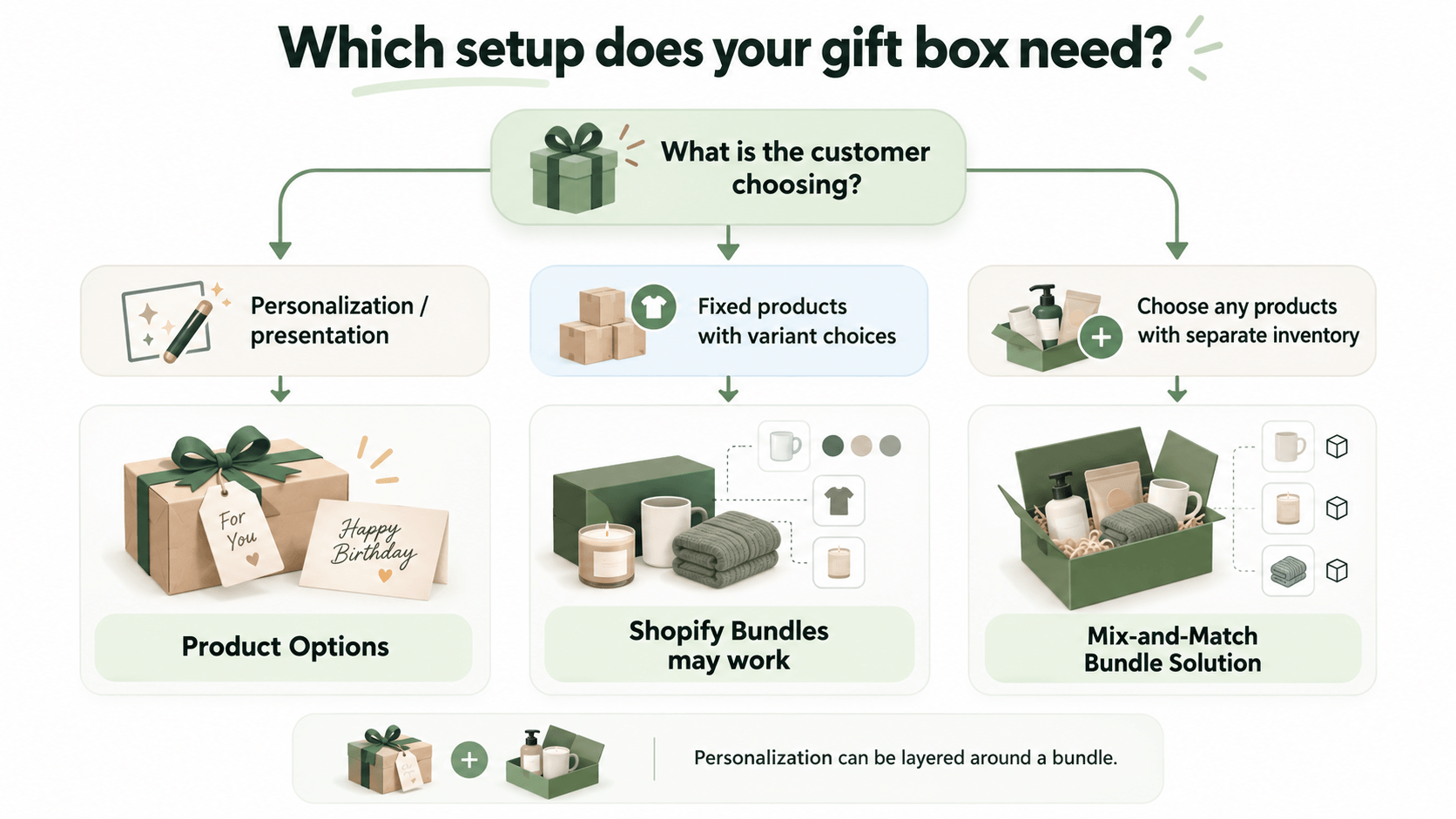
Shopify Bundles can be a good fit when your gift box is a fixed bundle or multipack and the component structure fits Shopify’s supported model.
Use it when:
- the component list is predetermined;
- customers only choose supported variants of those components;
- you need component inventory to update from Shopify’s bundle system;
- the gift-box personalization is minimal or can be handled separately.
For a true choose-any-items build-a-box experience, Shopify’s documentation currently treats that as a mix-and-match bundle use case, which generally requires a suitable third-party bundle app or a custom eligible implementation.
Where WowOptions fits
WowOptions is most useful for the customer-choice and personalization layer of a gift box. It can collect custom text, swatch selections, file uploads, paid add-ons, conditional fields, and visual personalization without requiring you to code each form manually.
Its strongest fit is a store where the gift box needs more than simple variants, but the merchant still wants one manageable product page instead of a custom-built configurator.
It is not a reason to ignore inventory architecture. If every box component must be tracked as a separate sellable product, solve that inventory requirement first and layer personalization around it.
Common gift-box mistakes to avoid
Showing every option at once
Group the flow and reveal dependent fields only when needed.
Using options for stock that must be tracked as products
A checkbox does not automatically become an inventory-aware bundle component. Use the correct bundle model.
Letting customers choose more than the box can hold
Match selection limits to physical capacity.
Charging surprise add-on fees
Show extra cost beside the choice.
Using vague order labels
A packing team needs “Ribbon: Burgundy” and “Card message: …,” not a list of unexplained internal field values.
Treating live preview as a manufacturing proof
A storefront preview helps shoppers understand a design, but it does not replace your print, engraving, or artwork quality-control process.
Frequently asked questions
Can I build a custom gift box on Shopify without coding?
Can customers choose multiple items for one gift box?
Can I charge extra for premium gift-box items?
Should I use variants for gift-box choices?
Can WowOptions create a live gift-box preview?
Final takeaway
A good Shopify gift-box builder starts with operations, not widgets.
Decide what is inventory, what is personalization, how many choices each box can hold, and what your packing team needs to see. Then use the right combination of Shopify variants, bundle logic, and custom product options.
For the personalization side, WowOptions gives you custom fields, swatches, conditional logic, add-on pricing, uploads, and a live personalizer in one app. That makes it a practical fit for merchants who want to turn a gift box into a guided buying experience without turning the product page into a custom development project.