

Before launching a Shopify bundle, settle what customers receive, what they pay and how your team will fulfill the order. Then prepare the product-page placement, offer terms and campaign timing so the promotion is clear from the first visit.
This checklist helps you bring those decisions together. It applies to quantity packs, predetermined sets, qualifying gifts and optional accessories.
Copyable 12-point bundle launch checklist
Mark each item only after someone has checked it in the theme and checkout your customers will use.
| Done | Check | Owner | Pass condition |
|---|---|---|---|
| ☐ | Eligible products | Merchandising | Only planned products trigger the offer |
| ☐ | Tier and gift rules | Merchandising | Both qualifying and non-qualifying carts behave correctly |
| ☐ | Variant selection | Store QA | Every selected SKU reaches checkout |
| ☐ | Price and savings | Finance | Selected items, quantities, discount and merchandise subtotal match across product page, cart and checkout |
| ☐ | Discount combinations | Store QA | Codes and automatic discounts do not break the promise |
| ☐ | Gift inventory | Operations | Sold-out reward has a safe fallback |
| ☐ | Component stock | Operations | Allowed quantities can actually ship |
| ☐ | Shipping and taxes | Operations | Eligible rates and tax totals are correct |
| ☐ | Published theme | Store QA | Offer shows on the right theme, template and market |
| ☐ | Mobile use | Store QA | 320px and 375px views work with real taps |
| ☐ | Launch and stop time | Campaign owner | Time zone, start and manual/automatic stop are assigned |
| ☐ | Rollback | Campaign owner | Old state and responsible person are documented |
For the seasonal version, see the Black Friday bundle margin checklist.
Run the checks before marking them done
Use test products or a controlled test store for stock and rollback checks so you do not disrupt live shoppers. Record the selected products, variants and expected merchandise total before starting.
- Eligible products: Open an included product and an excluded one. The offer should appear and apply only where its targeting allows.
- Tier and gift rules: Try the qualifying quantity, one unit below it, and a cart edit that crosses the threshold. The discount and gift must follow the stated rule after each change; an item described as free must not leave an unexplained charge.
- Variant selection: Choose a different available variant for each item, then add the pack. Compare the exact variants and quantities in the cart and checkout with your selections.
- Price and savings: Calculate the selected items' regular total and discount. Compare the expected merchandise subtotal with the product page, cart and checkout. Check shipping and tax separately.
- Discount combinations: Test the same basket without a code, with each intended code, and with any automatic promotion that could apply. The result must match the combinations you advertise.
- Gift inventory: Use an unavailable reward in a controlled test. Confirm the offer follows your chosen fallback, such as becoming unavailable, rather than promising a gift you cannot ship.
- Component stock: Test a pack that exceeds the available quantity of one component. The store should block it unless your stated stock policy deliberately permits orders you can fulfill later.
- Shipping and taxes: Enter a representative delivery destination for each market you plan to serve. Confirm available shipping rates and tax treatment against the store's configured rules; reconcile these charges with the final total.
- Published theme: Open the actual customer-facing theme, product template and market. Confirm the correct offer appears once and adds the intended items.
- Mobile use: At 320px and 375px widths, select a tier and variants, choose any optional add-on, and add to cart. Labels, totals and controls must remain readable and usable without horizontal page scrolling. Repeat on a phone with real taps.
- Launch and stop time: Have the campaign owner check the configured schedule and store time zone. If the offer needs a manual start or stop, assign that action and confirm access to the controls.
- Rollback: Record the previous offer state, then rehearse pausing the test offer. Refresh its product page and cart, confirm that new purchases no longer receive the stopped promotion, and check how existing carts behave before ending a live campaign.
1. Define the offer and its contents
Start with one sentence that explains the purchase: “Two hand-wash bottles for $2,160” or “Buy three creams and receive one linen cloth.” A clear promise makes the rest of the setup easier.
List the included products, quantities and permitted variants. For a mixed set, name every component. For a quantity pack, decide whether shoppers can choose a different size or color for each item. Keep optional accessories separate from required contents.
A useful offer has a reason to exist. Refills can suit a household that uses more than one bottle; a desk set can save someone from finding the pouch, notebook and pen separately. Choose the bundle format that fits that buying need.
2. Set a price the store can support
Choose the price rule before writing the savings badge. Percentage off, an amount off each item and a fixed pack total mean different things. In the USD hand-wash example, two bottles at $1,200 each with 10% off total $2,160. A fixed-price field for a three-item pack expects the total for all three.
Calculate the money left after product costs, payment fees, packing, fulfillment and any shipping subsidy. Include the cost of a gift even when the shopper receives it free. The bundle discount calculator can help you choose a planned price from those inputs.
Show savings against the genuine regular prices of the same products and variants. If customers can choose differently priced variants, explain the selected total clearly. Use the pricing comparison when deciding between a fixed total and a percentage.
3. Prepare the product-page placement
In WowBundle, confirm that Offer → Applies to contains the products or collections intended for the promotion. For a focused first offer, Specific products keeps the target clear.
In Settings → Theme setup, keep the WowBundle app embed enabled. It provides the storefront integration. The optional WowBundle Bundles block lets you choose another supported position on a compatible product template; keep the embed enabled when using it.
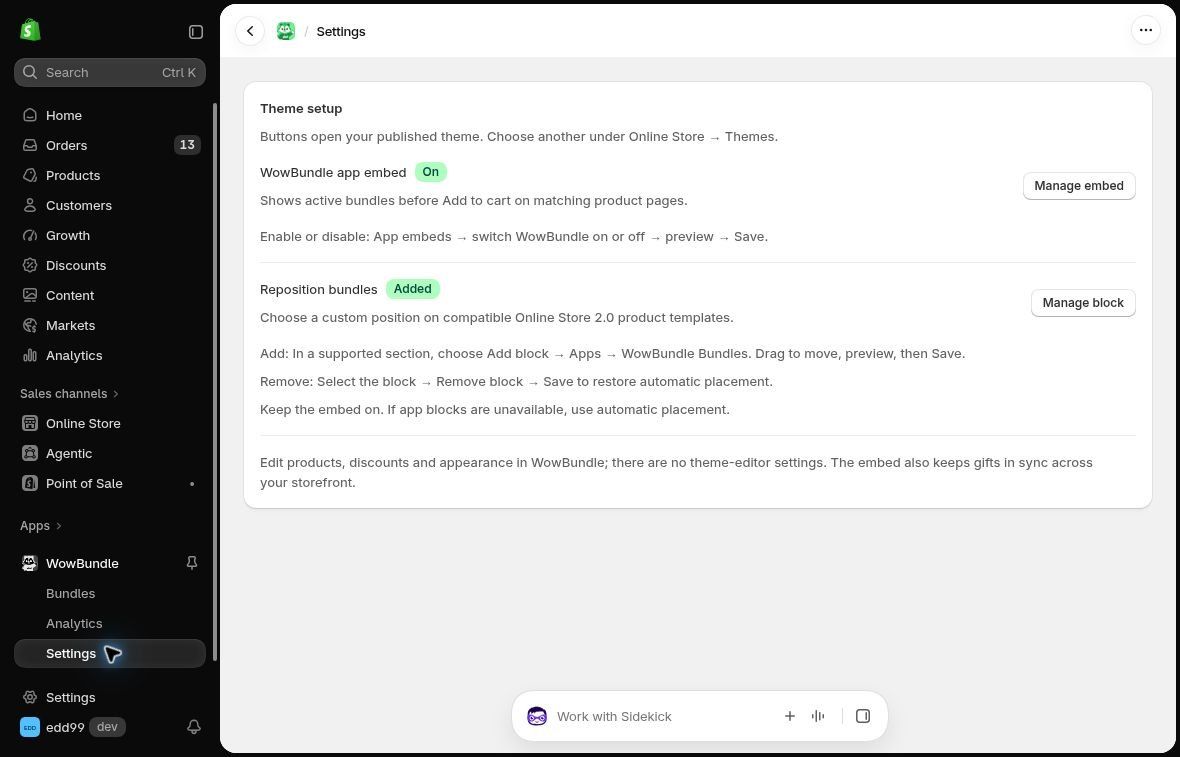
Use the embed for the storefront connection and the optional block to choose placement.
Put the offer close to the relevant buying controls. Keep the quantity, included items and total readable on a phone, and show an optional accessory’s price beside its choice. The mobile bundle design guide covers presentation in more detail.
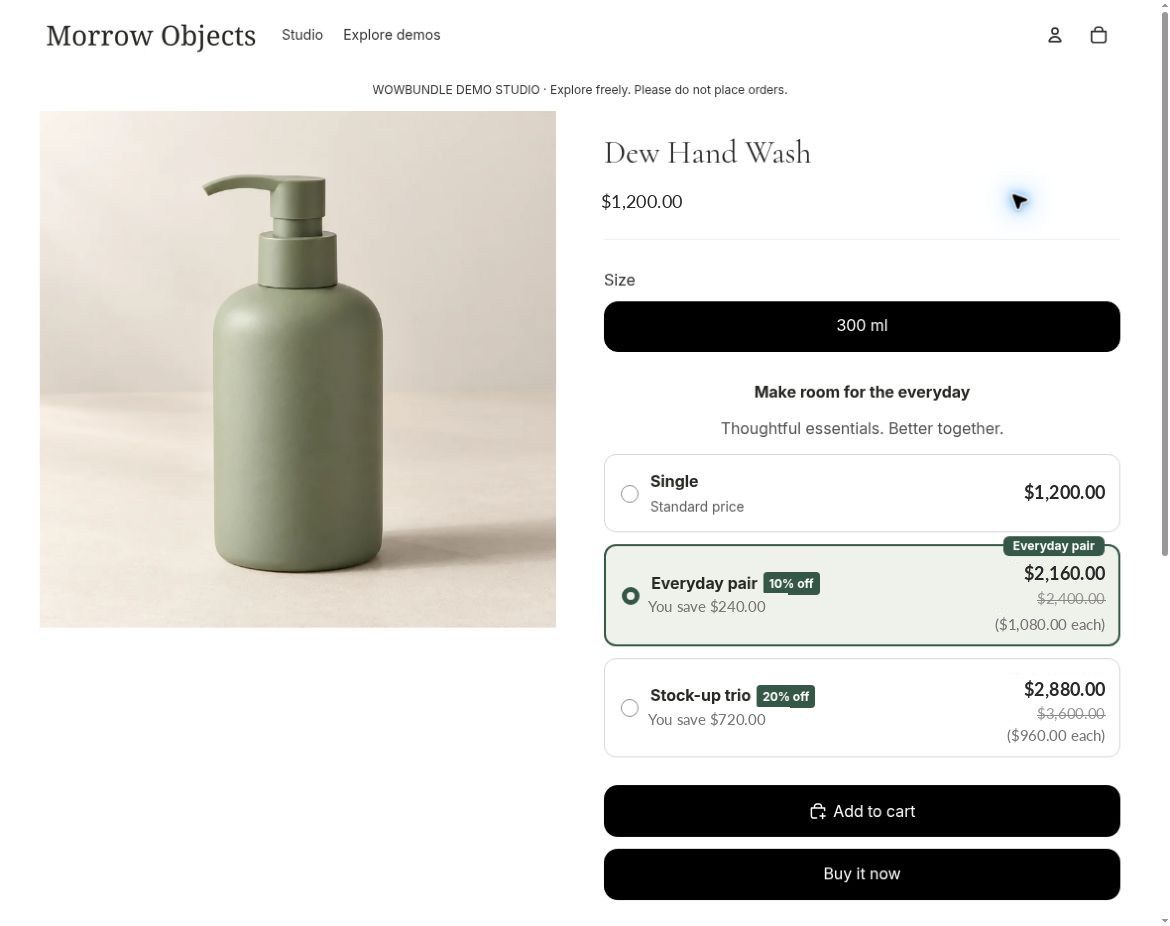
The product page is where shoppers need to understand the quantities and total. Review its placement in the theme they actually use.
4. Make the terms easy to find
State the conditions that affect the purchase beside the offer:
- Which products and variants qualify
- How many units the customer buys and receives
- Whether an accessory is optional and what it adds to the price
- Which purchase earns a gift or shipping reward
- Any relevant per-order limit, shipping restriction or end date
Use a clear label such as “Save 10%” when the prices support it. Only call a tier “Most popular” when purchasing evidence supports that description. A paid accessory should show its price instead of being described as a gift.
Decide how the promotion fits your other discounts and store policies. Shopify’s discount-combination rules depend on the discount classes, eligibility and combination settings. Avoid promising that every code can be combined with the offer.
5. Plan stock, packing and customer support
Tell the packing team exactly what belongs in the purchase, including gift variants and quantities. Decide which stock record represents the sale: the individual included products or a kit you have already packed. Reserve the physical stock accordingly.
Choose a plan for a gift or component running out. That might mean pausing the offer or making a clearly communicated change. Avoid leaving a campaign message promising an item you cannot supply.
Agree on how returns and cancellations will be handled under your store’s policy. The people answering customer questions should know the offer’s contents and conditions, especially if a set and its individual products are sold separately. Use the bundle inventory guide for the stock and fulfillment decisions.
6. Assign the launch and end time
Name one person responsible for starting the offer and one person who can answer stock or fulfillment questions. Write down the intended start, end and time zone. Coordinate email, advertising and product-page messages around that same schedule.
In WowBundle, Publish activates a new draft. Use Save for changes to an active or paused offer, Resume to make a paused offer available again, and Pause to stop an active offer. Do not assume that saving a paused offer makes it available.
Before sending campaign traffic, confirm that the advertised products and price appear together in the cart. When the promotion ends, pause the offer and update any campaign messages that still mention it.
Start with one clear offer
Use WowBundle to build the quantity choice, mixed set, qualifying gift or optional accessory that fits your customer’s purchase. Keep the contents, price, terms and fulfillment plan together, and give the campaign owner a clear start and end action.
After launch, use customer questions, actual order details and the money remaining after costs to decide whether the offer is useful. Adjust the offer when products, costs or customer needs change.