

A Shopify quantity bundle can let shoppers choose a different variant for every item, provided the app supports per-item selection. Someone buying three pairs of socks can choose three colors and sizes instead of receiving three copies of one choice.
For a percentage-based offer, the bundle total should reflect the prices of the variants the shopper actually chooses. A larger size or different finish can change the total when its regular price is different.
Here’s how to set up that experience, plus a simpler native discount alternative.
What can shoppers choose, and why offer the choice?
For a same-product quantity offer, each item comes from the product’s existing variants. A two-mug offer might let the shopper choose a small chalk mug and a large olive mug. Someone buying for two people can choose the right size for each; someone stocking up can choose several colors without adding every item separately.
That is different from choosing any two unrelated products across your catalog. If you want a predetermined kit containing several products, see the mixed-product bundle guide. A customer-built box has a different selection workflow again.
Before building the offer, check your product’s option names, variant prices and availability. “Color” and “Size” should tell shoppers what they’re choosing without making them decode internal SKU names.
Shopify Apps for Bundle Variant Selection
The question is whether each item can have its own size or color, not whether the store supports product variants in general.
| App | Useful for | Check with your actual catalog |
|---|---|---|
| WowBundle | Per-item choices within a product-page quantity offer | Mixed-price and out-of-stock selections at checkout |
| Kaching Bundles | Quantity offers with variant selectors in the tier | Separate selectors for every unit and the final order lines |
| Shopify Bundles | Fixed multipacks with supported component options | Combined vs separate options and the bundle option limits |
| Simple Bundles & Kits | Kits that also need component SKU and stock workflows | Exact bundle type, variants and fulfillment integration |
For a mixed-color pack, test red/medium, blue/large and red/large in one purchase. Confirm inventory and the order record, not just the preview.
Method 1: use an app with per-item choices
An app is the practical route when you want several variant selectors inside one quantity offer.
Adding Variant Choices in WowBundle
The steps below configure an existing offer. If you need to create your first one, start with the quantity-break setup guide.
1. Check theme placement
In WowBundle’s Theme setup, confirm that the app embed is on. Manage embed opens the theme controls. The optional app block lets you reposition the offer on compatible product templates; keep the embed enabled when using it.
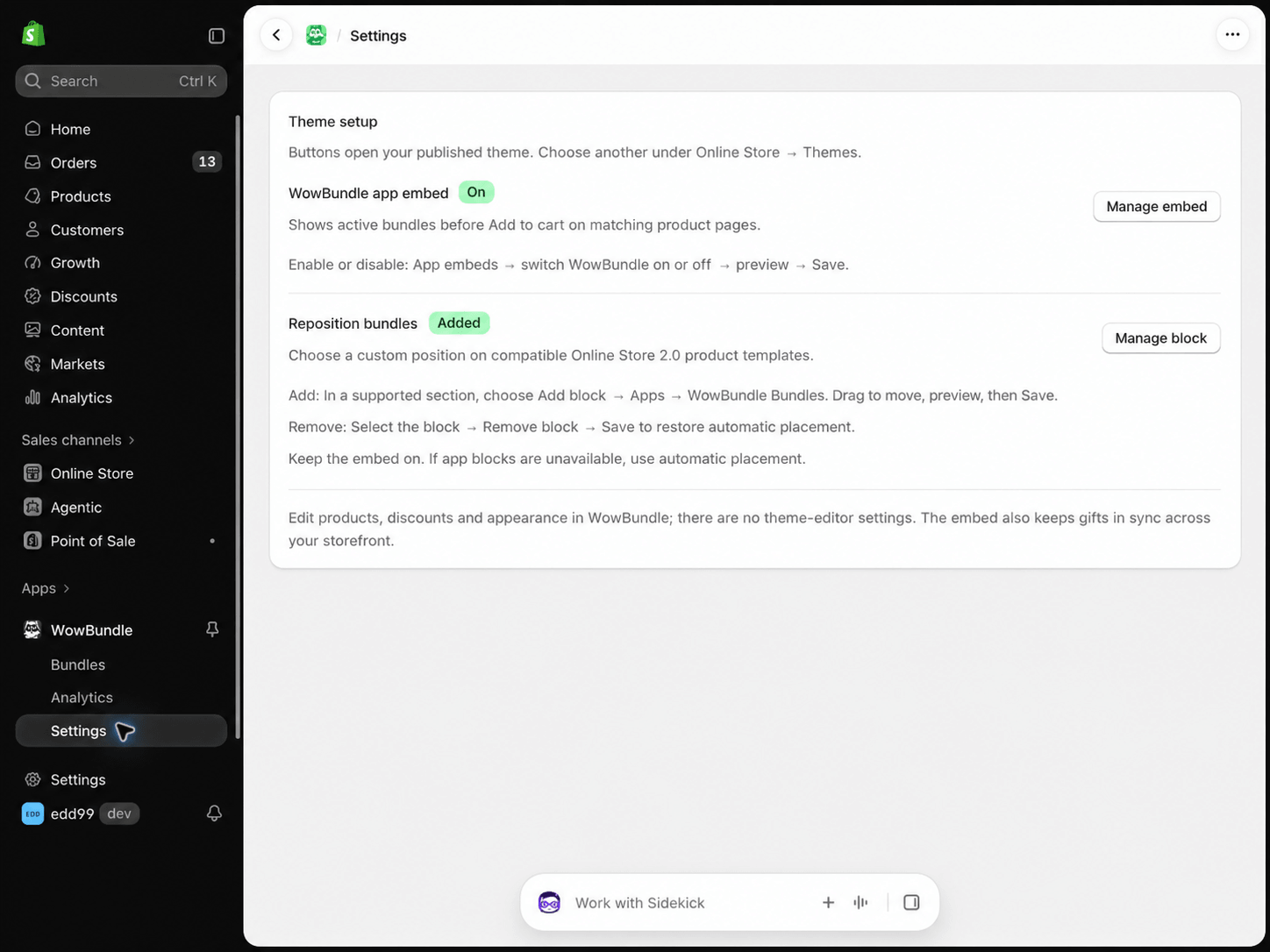
The embed enables storefront placement. The optional block changes where the offer appears.
2. Target the product
In the offer editor, open Offer and find Applies to. Choose Specific products for a focused offer and select the product you want shoppers to buy. The screenshot below uses hand wash to show this shared targeting control; use your own product with variants.
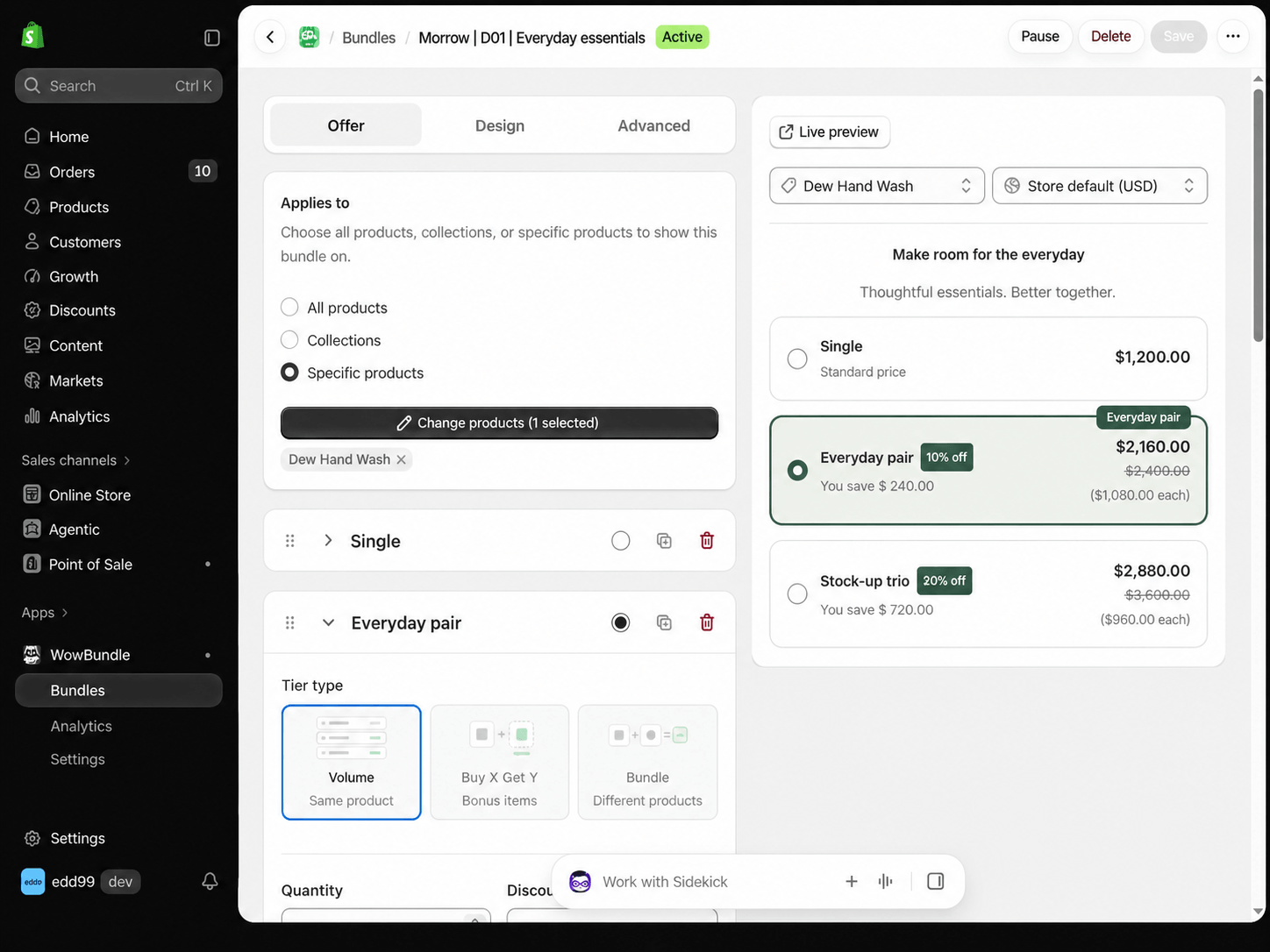
Targeting controls which product pages show the offer. It does not turn a same-product tier into a catalog-wide builder.
3. Set the quantity, discount and item choices
Open the tier you want to edit. Choose Volume, enter the Quantity, then select the Discount type and value. For the three-pair example below, the settings are quantity 3, % off, and 10.
Enable Let customers pick a variant for each item. Give the tier a clear title, such as “Three pairs,” so the shopper understands the commitment before opening the choices.
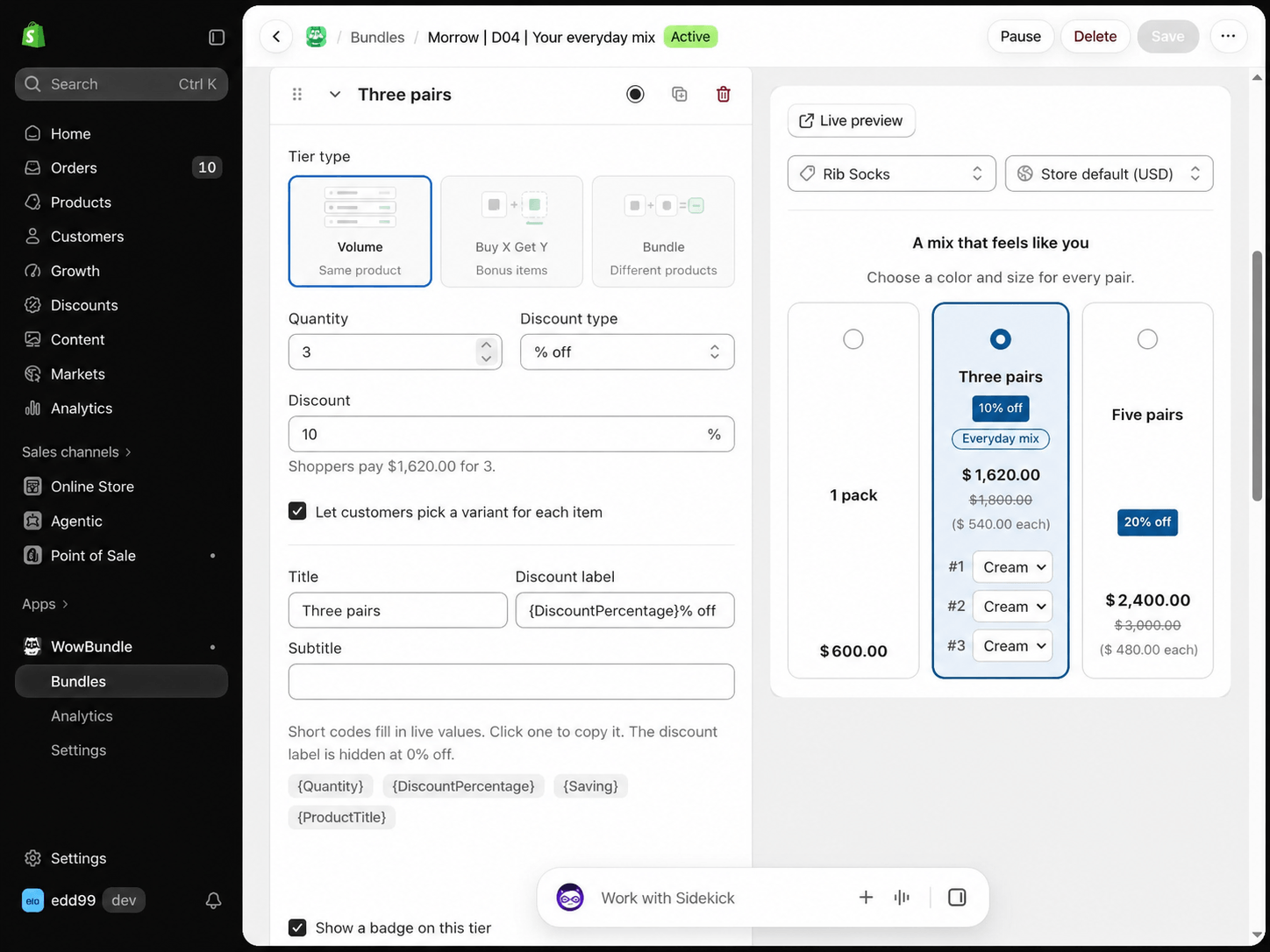
Enable this setting to let shoppers choose each pair separately.
4. Apply the changes and check the choices
Inspect the editor preview. Use Save for changes to an active or paused offer, Resume to reactivate a paused offer, or Publish for a new draft. Confirm the selected variants and total in the cart before promoting the pack.
A three-variant test worth doing
Choose three available variants with different prices or SKUs. Change one choice at a time. Make sure the widget, cart and checkout agree on the selected variants and any savings. Repeat once with an unavailable variant. If the app blocks the selection on the product page but checkout still accepts it, the offer is not ready.
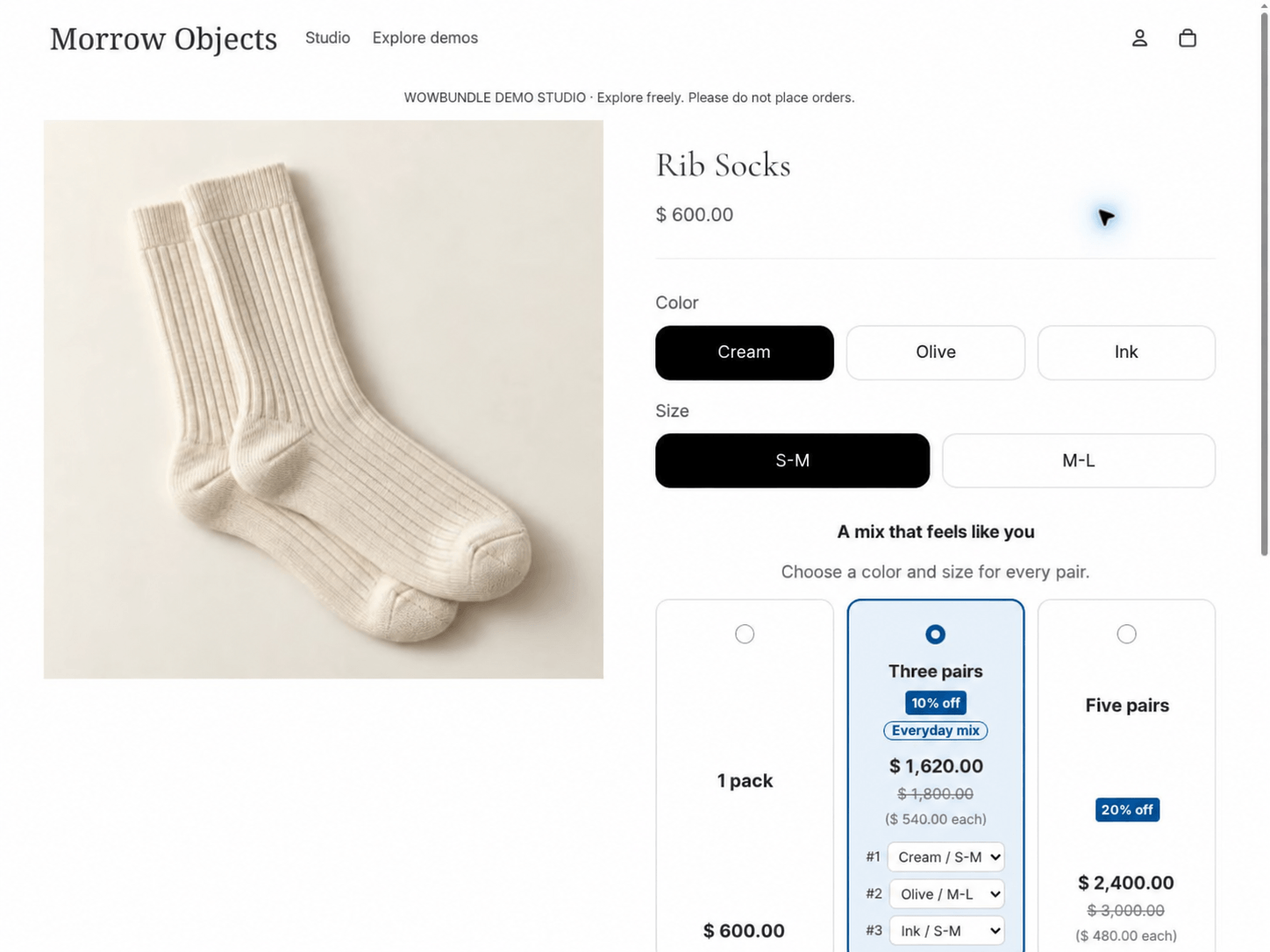
This product-page example shows separate choices for the three pairs; verify the selected variants again in the cart.
What happens when variants have different prices?
A percentage discount can be checked against each selected variant’s regular price. Don’t calculate the whole pack from the cheapest variant unless that is genuinely how you intend to price it.
For three sock variants priced at $600 each, 10% off makes each pair $540 and the pack $1,620.
The mug pair needs a different calculation. The demo prices below are in US dollars (USD):
| Selected mug variant | Regular price | 10% discount | Price after discount |
|---|---|---|---|
| Chalk, 300 ml | $1,200 | $120 | $1,080 |
| Olive, 450 ml | $1,600 | $160 | $1,440 |
| Pair total | $2,800 | $280 | $2,520 |
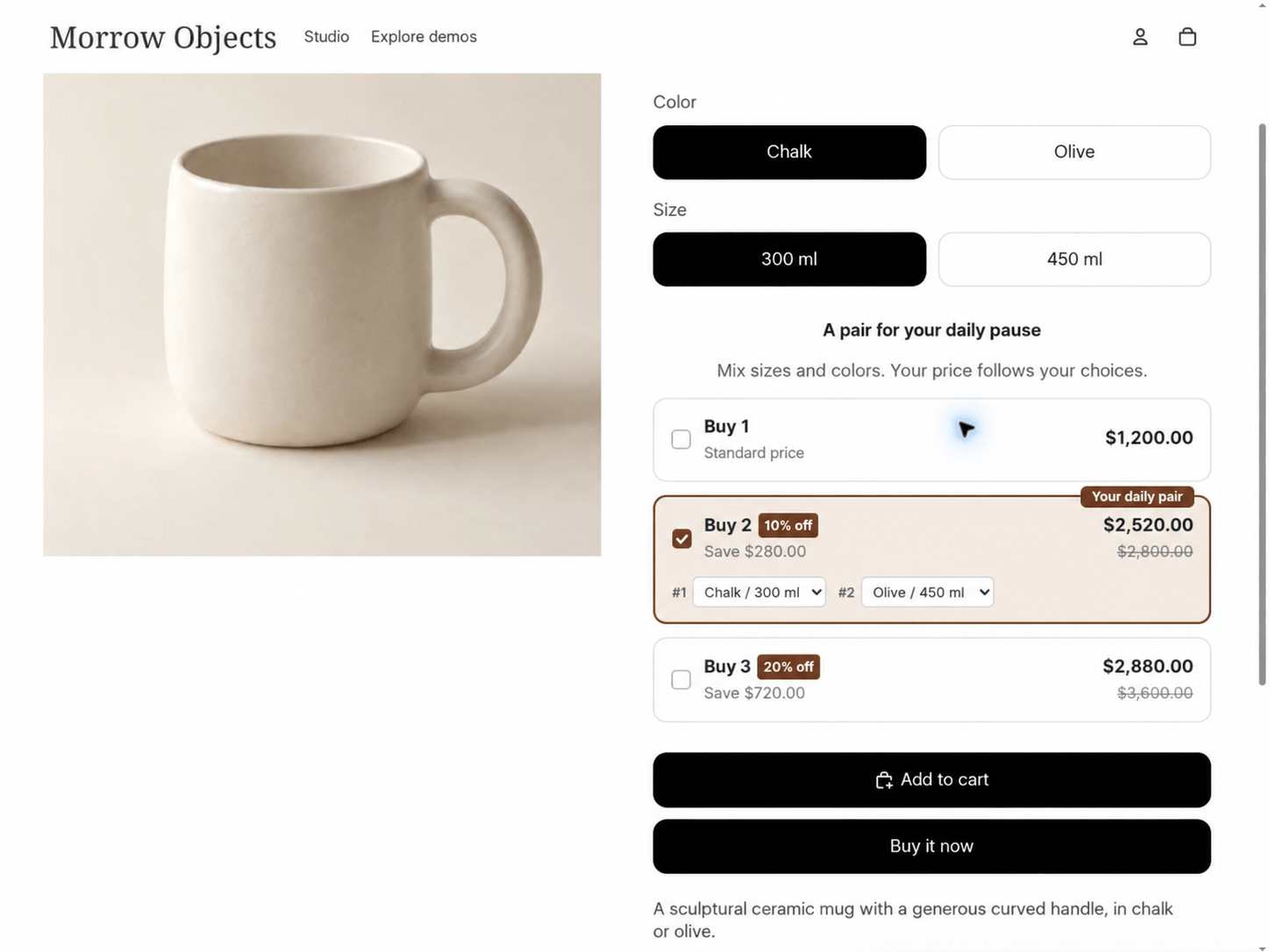
The selected pair reflects the two different variant prices.
$2,520 divided by two is $1,260 on average per mug. Neither mug has an individual price of $1,260 in this example. If you display an average, label it as an average instead of suggesting that every variant has the same price.
A fixed pack price changes the calculation. Compare the trade-offs in our fixed-price versus percentage-discount guide.
Method 2: apply a native quantity discount
You can reward shoppers for buying multiple variants without installing a bundle app. They add their preferred variants separately, and Shopify applies a discount once the eligible quantity is reached.
In Shopify admin, go to Discounts → Create discount → Amount off products. Choose Automatic discount, enter a title, select a percentage, and limit eligibility to the intended product or collection. Check that the variants you want to include are eligible. Set a Minimum quantity of items, then review combinations and active dates before saving. Shopify documents the settings in its amount-off discount guide.
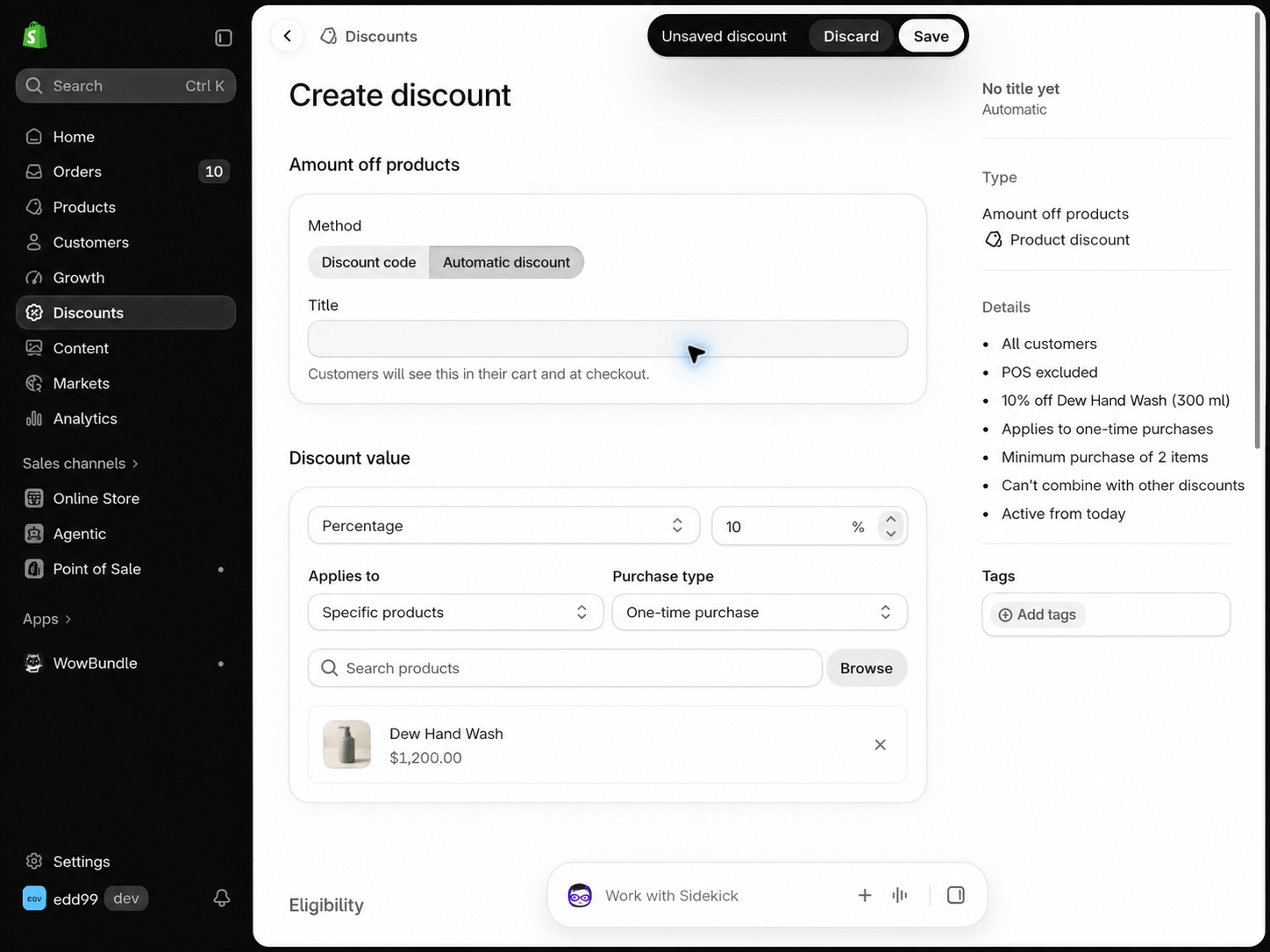
An unsaved example of the native product-discount controls.
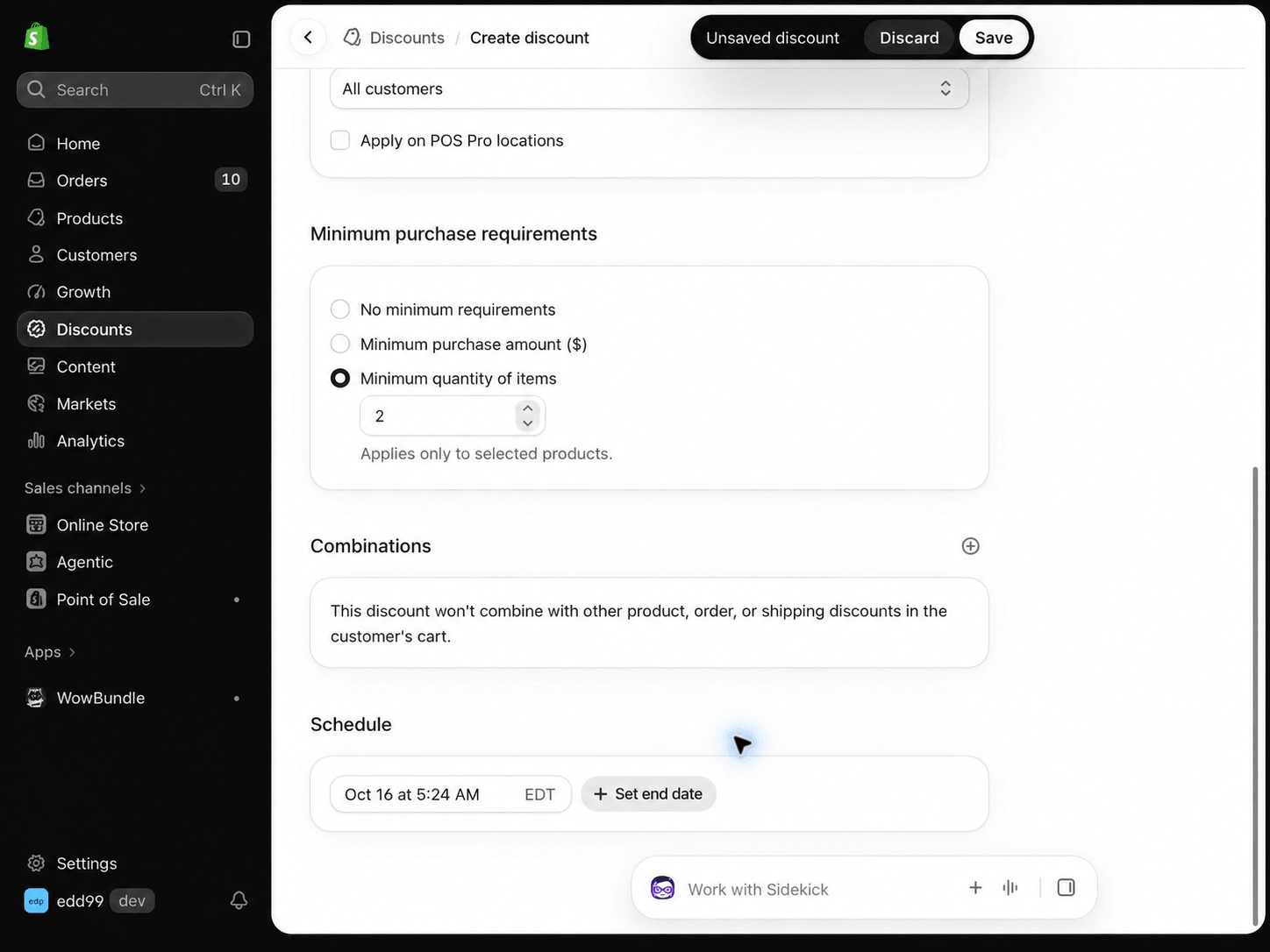
The minimum counts eligible items. This example also shows discount combinations turned off.
For example, a 10% discount with a minimum of two eligible mugs lets a shopper add one small mug and one large mug. Only the items within the discount’s eligibility scope count toward that minimum.
This route does not create a multi-selector bundle widget. Explain the offer on the product page and give shoppers a clear route to each variant. It suits a simple promotion when separate additions are acceptable.
Which Shopify variant limit applies?
The general Shopify product limit and the Shopify Bundles app limit are different.
Check the limit for the setup you use:
- A regular Shopify product supports up to 2,048 variants across three options. Some themes, apps and channels have compatibility limits above 100 variants.
- The Shopify Bundles app allows up to 100 variants and three options per bundle.
Four sizes and three colors produce 12 combinations when every combination is offered. Choosing a size and color for each item does not mean creating a separate bundle variant for every possible pack. Ask the app provider which limit applies to your setup.
The general Shopify ceiling does not establish the app’s capacity for your setup.
Use WowBundle to offer a size or color choice for each item in a pack. Start with one product and a useful quantity, then make the choices and their prices easy to understand.