

A free gift can show a charge when its discount no longer applies: the cart may have fallen below the required quantity or spend, the selected product may be ineligible, or another promotion may have changed the result. Start with the gift’s final line price and the offer’s qualifying rule to identify which condition no longer applies.
A crossed-out regular price is not necessarily a charge. A $300 reference price beside a $0 final price means the item is free; a $300 line price included in the cart total means the customer is paying for it.
What makes a gift free?
A gift with purchase is a normal product whose price is reduced to zero when a stated buying condition is met. The condition might be “Buy three eligible creams” or “Spend $75 on these products.” Showing the gift beside that condition helps customers understand what they need to buy.
Keep the qualifying rule, the gift’s identity and its price together in your offer copy. That makes the promotion easier to follow when a customer changes the cart.
This guide covers gift-price checks for native Shopify discounts and app-based offers. Demo prices are in US dollars ($), before tax and shipping.
| What the customer sees | Likely area | First check |
|---|---|---|
| Native Buy X Get Y gift has its regular price | Reward was not eligible yet | Make sure the shopper added X and Y in the right quantities |
| Gift discount disappears after another code | Discount combinations | Test the gift without the code, then with it |
| App gift looks free on the product page but not at checkout | App offer/cart mismatch | Reproduce the exact product, variant and quantity |
| Gift is unavailable | Inventory and publication | Check the reward variant, market and stock policy |
| Gift becomes paid after changing quantity | Threshold no longer met | Return the basket to the qualifying level |
Check the exact order of events before changing several rules at once. Shopify's built-in Buy X Get Y never adds the gift item automatically. An app-based reward may use a different flow.
Check these five causes first
| Possible cause | What to check | Next action |
|---|---|---|
| The cart no longer qualifies | Required quantity or eligible spend, after the latest cart edit | Restore the qualifying purchase or check the cart against the lower-quantity rule |
| The wrong product or variant is selected | The qualifying product and the exact gift in the rule | Select the intended qualifying product and gift |
| The reward is discounted but not free | The reward’s discount value | Choose Free if the intended offer is a free gift |
| Another discount changes the result | The same cart with and without the intended code | Review both discounts’ eligibility and combinations |
| The rule is inactive or restricted | Active dates, customer eligibility and usage limits | Match the promotion’s availability to its terms |
If a live offer is charging for an item it describes as free, pause that offer while you investigate. Keep the customer’s current charge clear and make unwanted items easy to remove.
1. Read the actual charge
Open the full cart and find the gift’s final price, quantity and discount label. Add the final line amounts and compare them with the merchandise subtotal. Check tax and shipping separately at checkout so they are not mistaken for a gift charge.
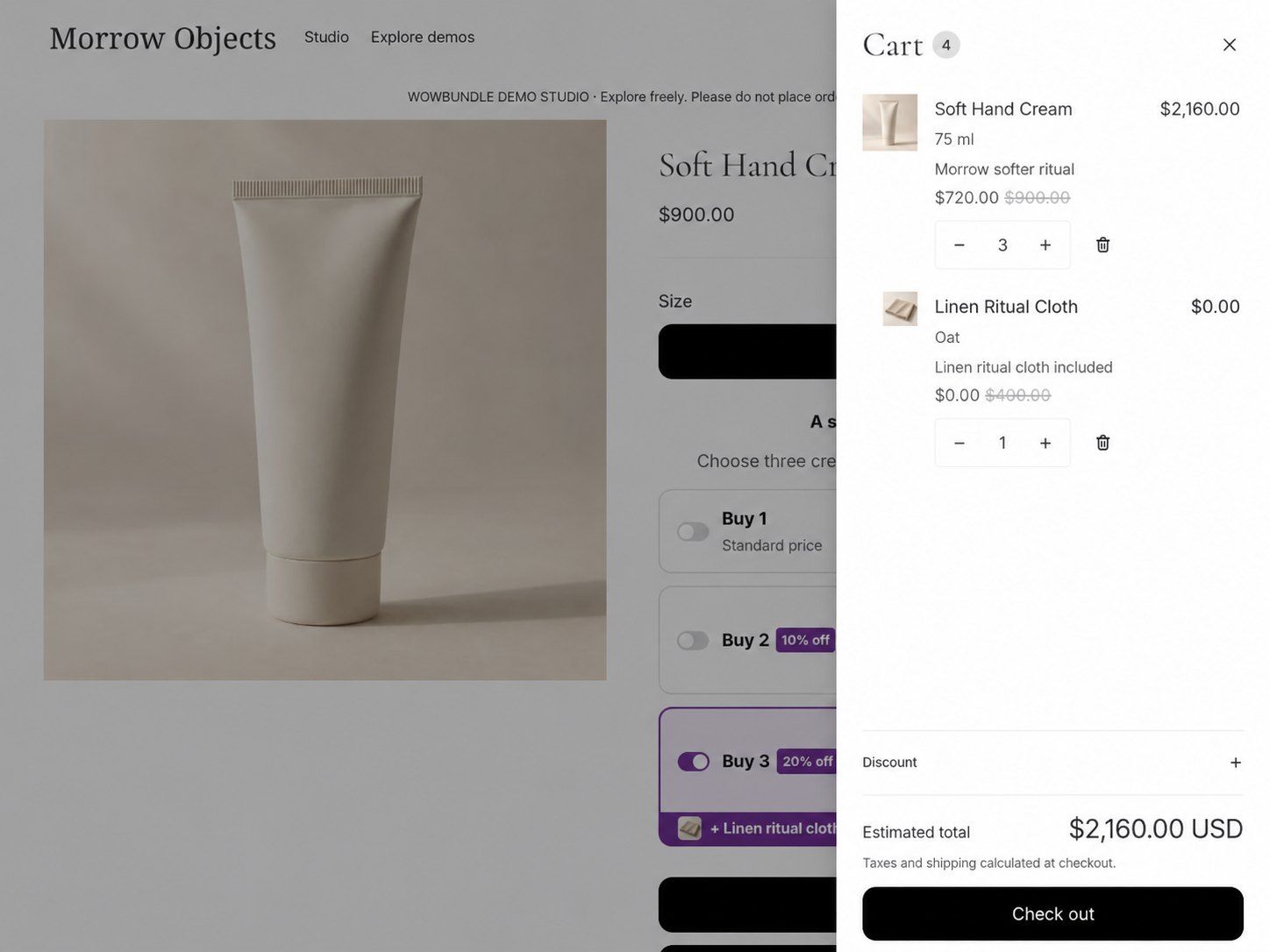
In this USD demo, the cloth’s regular price is $400 and its final qualifying-cart price is zero. The $300 mentioned in the explanation is a separate illustrative amount.
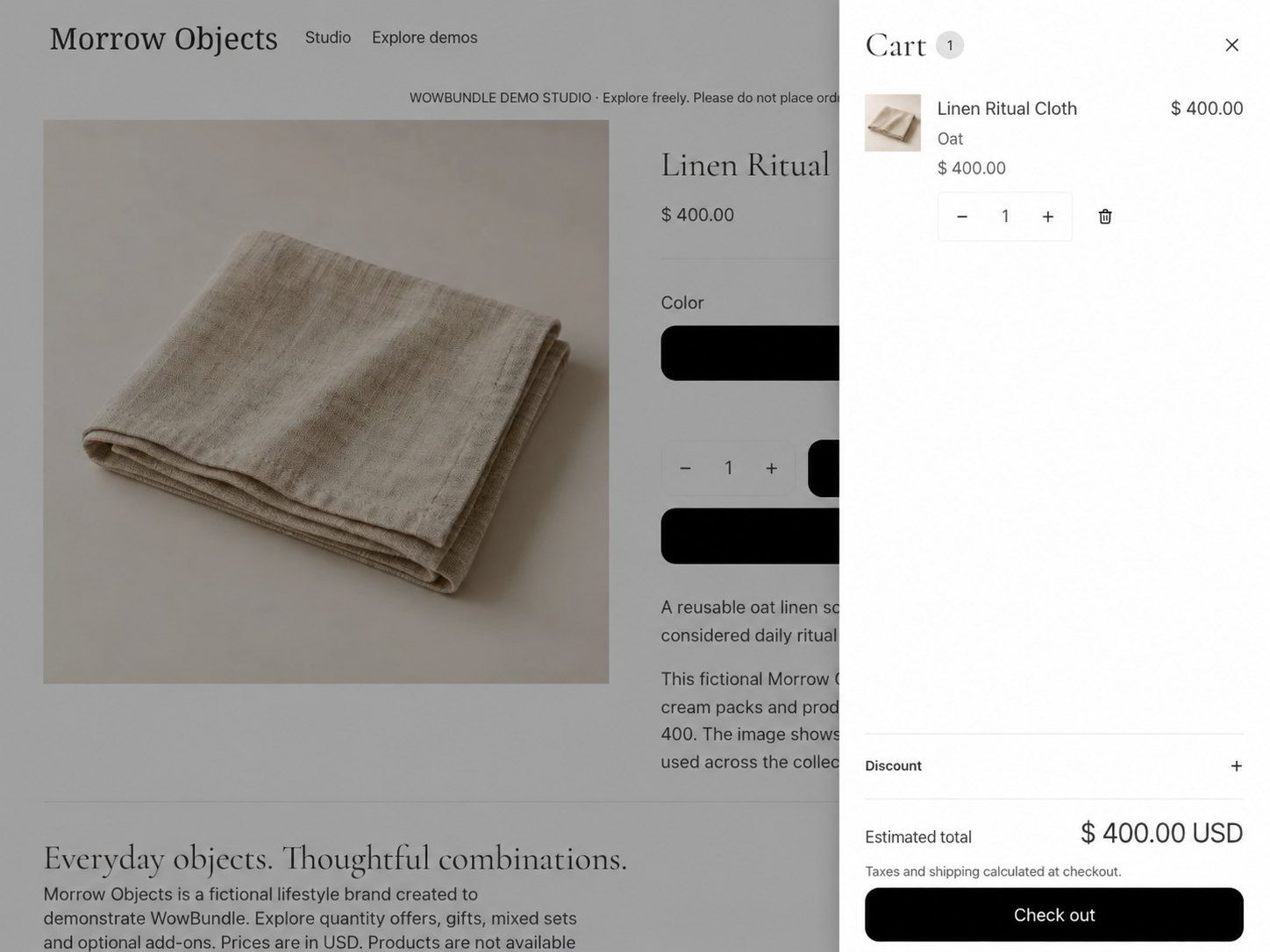
For comparison, this separate demo basket contains only a cloth added at its regular $400 price. It is an ordinary paid purchase without the qualifying creams, not a gift repriced by an app error.
2. Check which products count toward the rule
A cart can contain three items without meeting a three-item condition. Only eligible products count. Check the product, variant, and quantity named in the offer, including any customer or market restrictions.
For native Shopify Buy X Get Y, inspect Customer buys and Customer gets. Make sure X contains the intended qualifying products and quantity, while Y identifies the correct reward.
For a minimum-spend rule, use the qualifying amount rather than the checkout grand total. Native Buy X Get Y counts the selected Customer buys products and excludes tax and shipping. It uses their full prices before other discounts; a product already receiving another combinable product discount does not count toward that minimum. An app’s spend rule can use a different basis, so check the calculation for the rule you are using. Shopify’s minimum-purchase requirements
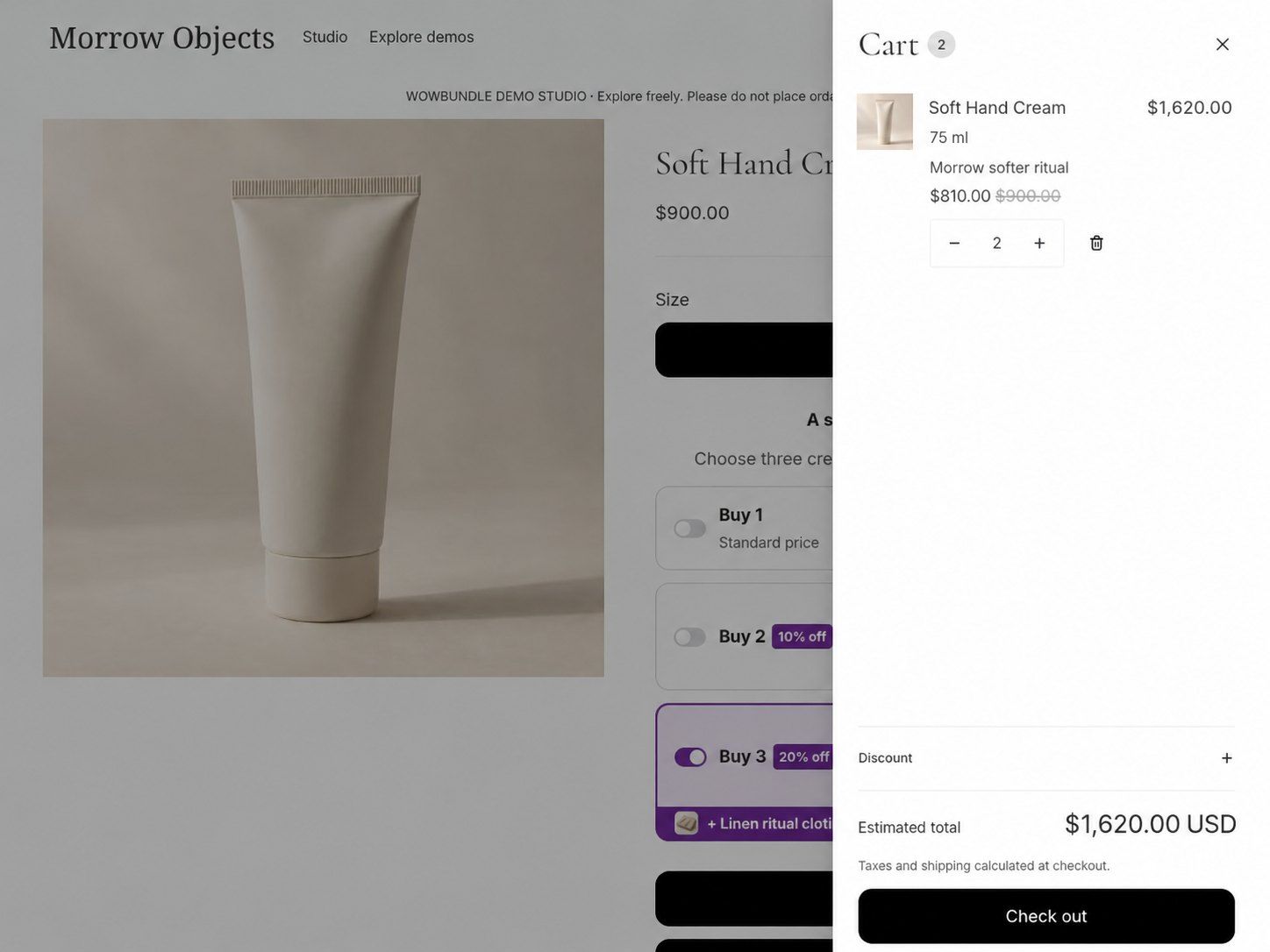
Reducing this demo’s cream quantity from three to two automatically removes the cloth. This captured state does not show a gift left in the cart at a charge.
3. Confirm that the reward is configured as Free
A percentage reduction and a free item are different offers. Under native Customer gets, check the reward quantity, selected product, and discounted value. Choose Free for a zero-priced reward.
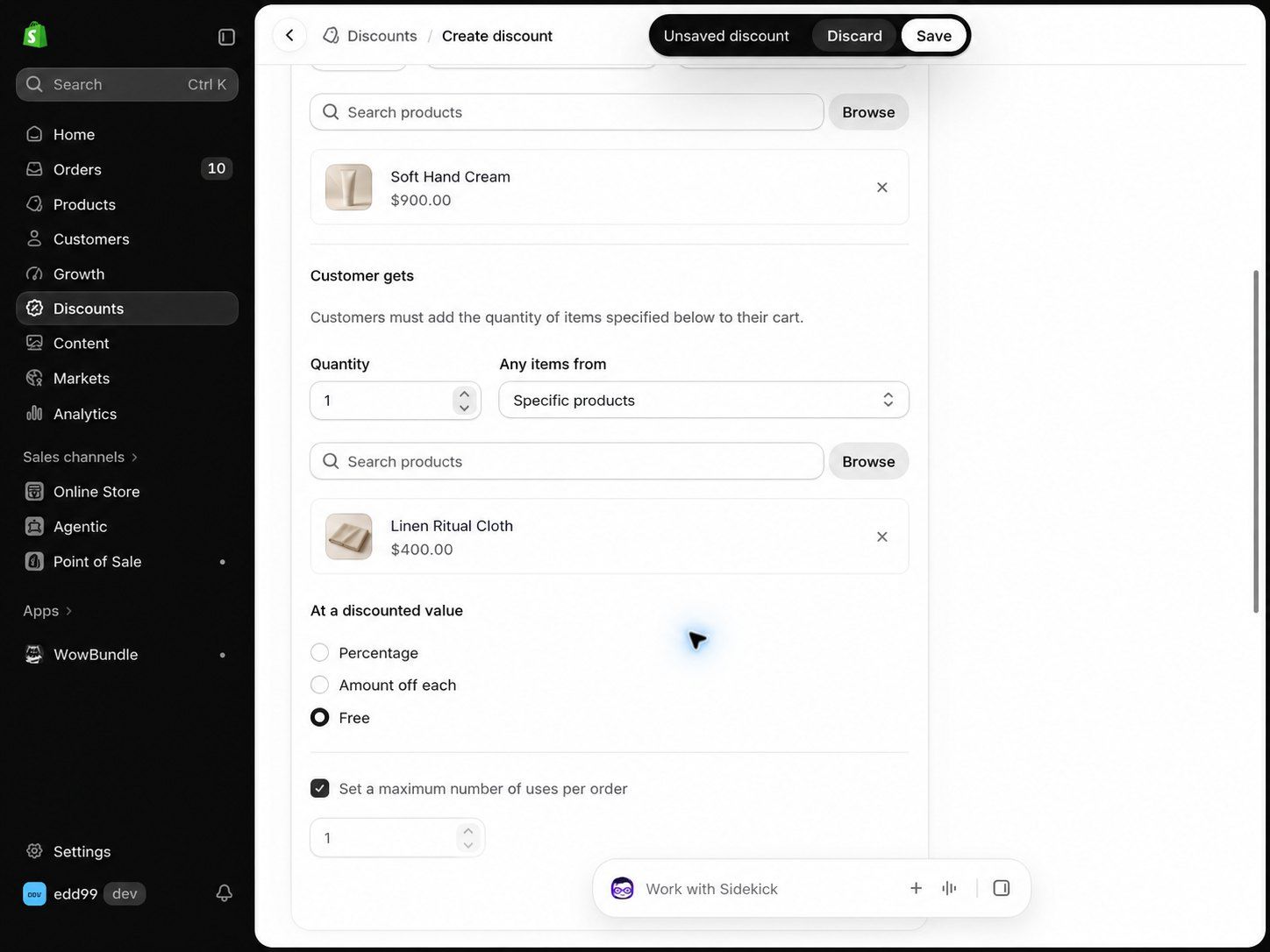
This native example selects one cloth and makes the eligible unit free.
Native Shopify discounts do not add the gift product to the cart. Customers must add both the qualifying purchase and the reward themselves. “Automatic” means the discount applies without a code once the cart qualifies. Explain that extra addition in the product-page message. Shopify’s Buy X Get Y rules
In WowBundle, open the affected offer and identify the rule attached to the item: Buy X Get Y, a tier’s Free gift, or Progressive gifts. Check the qualifying tier and selected gift. For a tier gift, Choose product selects the gift; Change replaces one already selected. A paid Upsell is an optional purchase and should show its price clearly.
For the quantity-tier gift setup, follow the free-gift guide. The Buy X Get Y walkthrough explains a free same-product or different-product reward.
4. Try the cart without another discount
An entered discount code can change which promotion applies. Review the gift rule and that code together, including the products each one covers.
Review combination settings on both applicable discounts. Shopify’s Buy X Get Y interactions with other product discounts depend on the settings, which products receive the discounts and, for some behavior, the Shopify plan. Shopify’s discount-combination rules explain the current conditions.
If combining promotions changes the amount left after costs, review the economics before keeping that combination. Enabling every combination is not a general fix for an unexpected charge.
5. Check dates and limits
Review the active dates, customer eligibility, and maximum uses per order. The eligible gift quantity matters too. A rule that makes one cloth free does not necessarily make an extra cloth free too.
Check gift availability as well. Choose a replacement or pause the promotion when stock runs out, and make any change clear in the offer.
If the charge still does not match the offer
Keep the affected promotion paused and contact the app’s support team or the person managing the discount. Share the offer name, product page, qualifying rule, and charge you can see, without customer or payment information.
Do not set the gift’s catalog price to zero as a blanket workaround; that changes its price outside the conditional offer too.
For a quantity-based gift, use WowBundle to show the selected gift beside its qualifying tier. Keep the gift’s name and condition together so shoppers know what the offer includes. The bundle launch checklist covers the wider offer preparation.