

You can offer a free gift with purchase on Shopify using an app or the native Buy X Get Y discount. The key difference is how the gift reaches the cart: a native automatic discount changes the price of an eligible item, but the shopper still has to add that item.
An app can show the gift beside the qualifying purchase. Choose a relevant reward, state the required quantity or spend clearly, and keep that condition beside the offer.
What is a gift with purchase, and when is it useful?
A gift with purchase is an extra product a customer receives after meeting a stated buying condition. A sample can help someone try a related product, while an accessory can complete the purchase: a cloth alongside hand cream gives the shopper something useful with the routine.
Choose it because the extra suits the purchase and its cost fits your offer. Customers still need to know what qualifies and what they will receive.
Plan the gift before choosing the tool
Write the offer as one clear rule: “Buy three hand creams and receive one linen cloth.” Then decide which cream variants qualify, which cloth variant is included, how many gifts an order can receive and when the offer ends.
The WowBundle example below uses a quantity rule. The native method later in this guide also supports a minimum spend.
A quantity rule and a spending rule are different. “Buy three” counts eligible units. “Spend $75” needs a defined set of qualifying products and a clear threshold calculation. Start with the rule your customers can understand and your costs can support.
Choose a gift that complements the purchase, and budget for its actual cost rather than its retail value. Here is an illustrative USD comparison for the same $75 basket:
| Offer | Merchandise revenue | Product and extra gift costs | Left before other costs |
|---|---|---|---|
| Include a gift | $75 | $30 basket cost + $3 gift + $1 extra packing cost | $41 |
| Give 10% off instead | $67.50 | $30 basket cost | $37.50 |
This example does not predict which offer will sell better. It shows why the gift's selling price is not the number to subtract from your revenue. Payment fees, ordinary fulfillment costs, returns and overhead still need to be covered.
Also check gift stock before announcing the promotion. Decide whether to pause it or choose a clearly communicated replacement if the gift runs out.
Shopify Free-Gift Apps to Consider
Start with the customer's journey: do they select the gift, add it manually, or see it beside the qualifying pack? Each approach has different cart requirements.
| App | Useful for | What to test |
|---|---|---|
| WowBundle | Showing a product gift beside a qualifying quantity tier | Gift line, quantity and price in checkout |
| BOGOS | Cart-value or product-triggered gifts with auto-add or selection flows | Reward eligibility and out-of-stock behavior |
| Bundler | Gifts paired with bundle and quantity campaigns | Rule interactions and the cart display |
Shopify's native Buy X Get Y is also suitable for a straightforward gift rule. It discounts the gift only after the shopper adds it to the cart. Choose your setup from that difference before configuring the promotion.
Method 1: add a gift to a WowBundle quantity tier
Use an app when you want the gift to appear beside a qualifying offer instead of asking customers to find it separately.
Adding a Quantity-Tier Gift in WowBundle
The steps below use an existing WowBundle offer for Soft Hand Cream. For initial offer creation and product targeting, follow the quantity-break setup guide.
1. Check storefront placement
Open Theme setup and confirm that the app embed is on. The optional app block lets you adjust placement on a compatible product template.
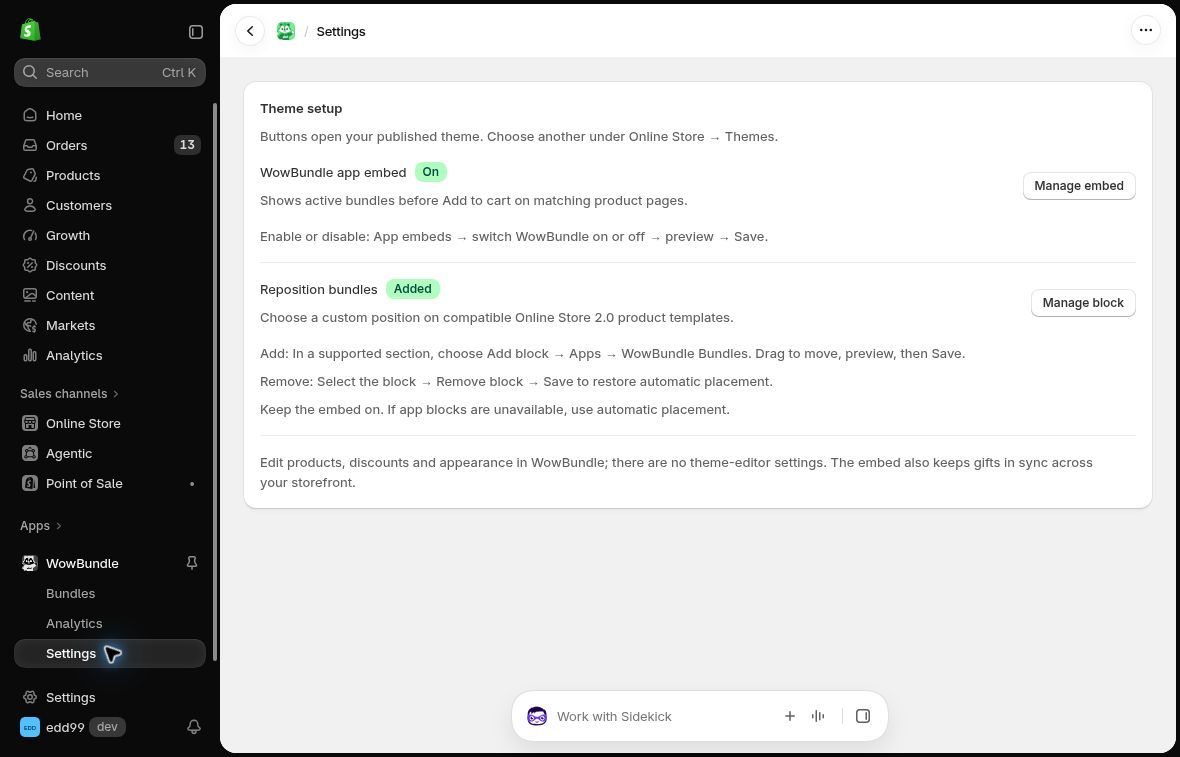
The embed connects the offer to the storefront.
2. Set the qualifying tier
In the offer editor, expand the tier and choose Volume. Set Quantity to 3, Discount type to % off, and the discount to 20 for this example. The gift belongs to this tier, so shoppers should be able to see exactly what they need to buy.
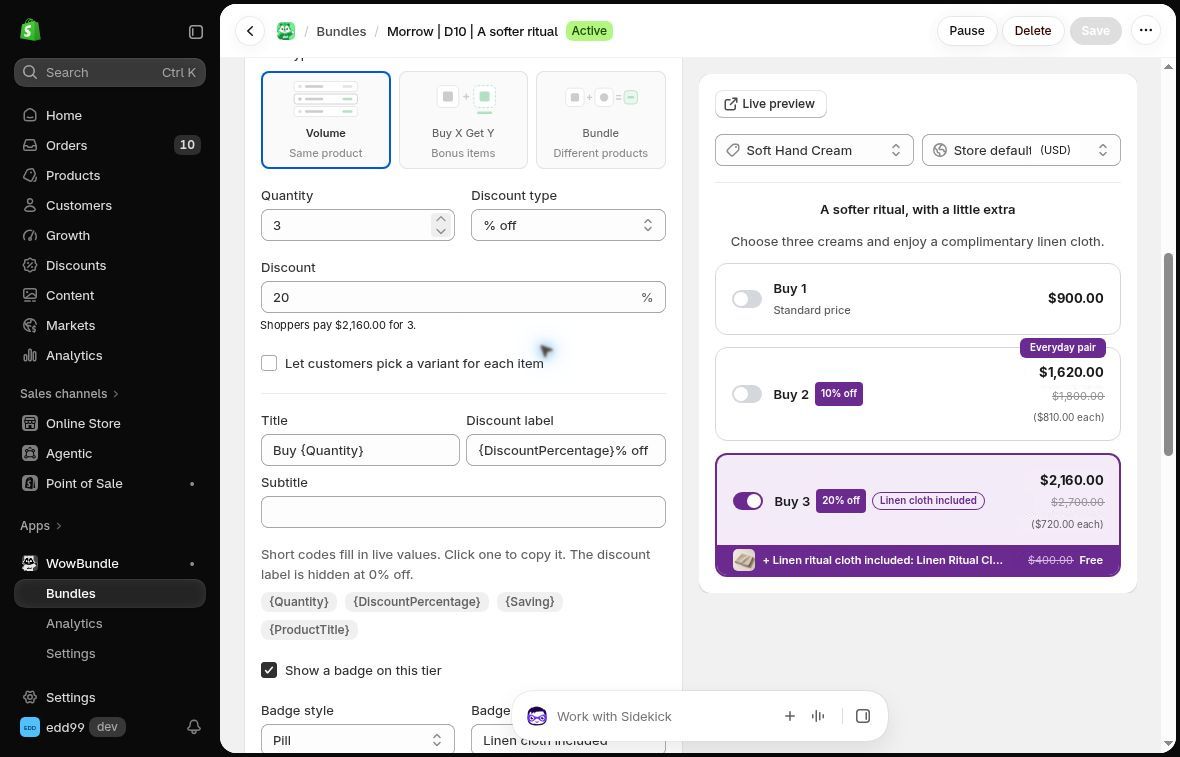
Set the qualifying quantity and the cream discount before adding the gift.
3. Add the gift
Within the expanded tier, open Add-ons → Free gift and enable it. Use Choose product to select the gift, or Change if one is already selected. Enter a clear Label, such as “Linen ritual cloth included.”
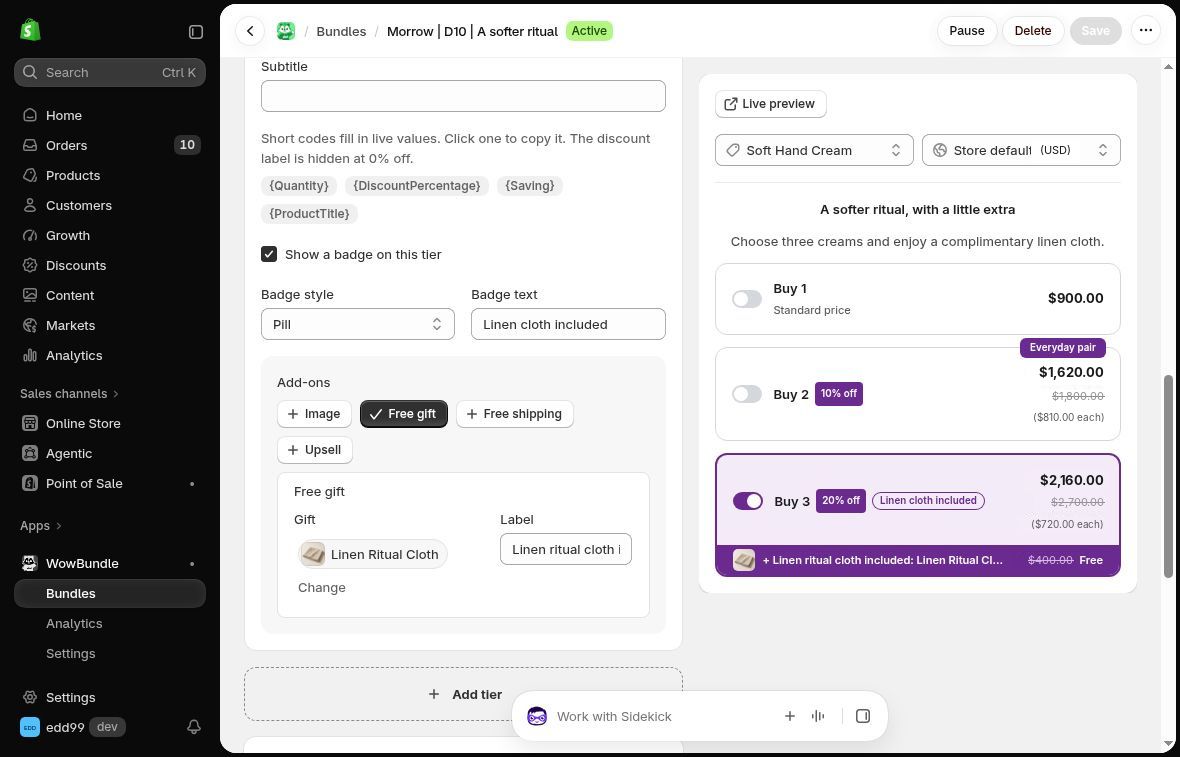
Attach the cloth to the qualifying tier and describe what is included.
4. Preview, then publish when ready
Review the quantity, discounted price, gift and label together in the preview. Use Publish for a new draft, Save for changes to an active or paused offer, and Resume to make a paused offer available again. Confirm the qualifying purchase and free gift price in the cart before promoting it. Then reduce the qualifying quantity and check that the gift is removed or no longer discounted as your rule requires, with any remaining charge clearly shown. Use the gift-in-cart checklist if the result is unexpected.
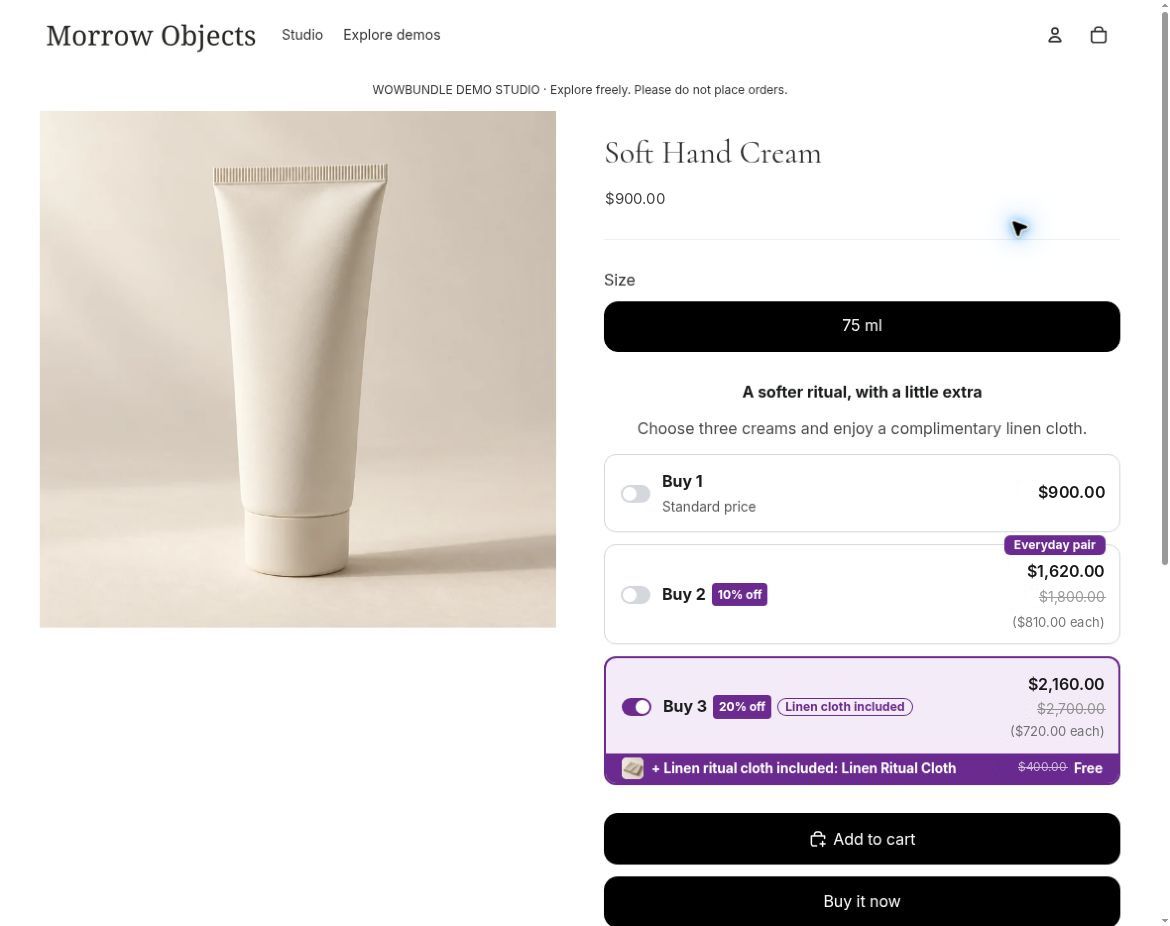
The shopper can see the cloth beside the three-cream offer before adding it to the cart.
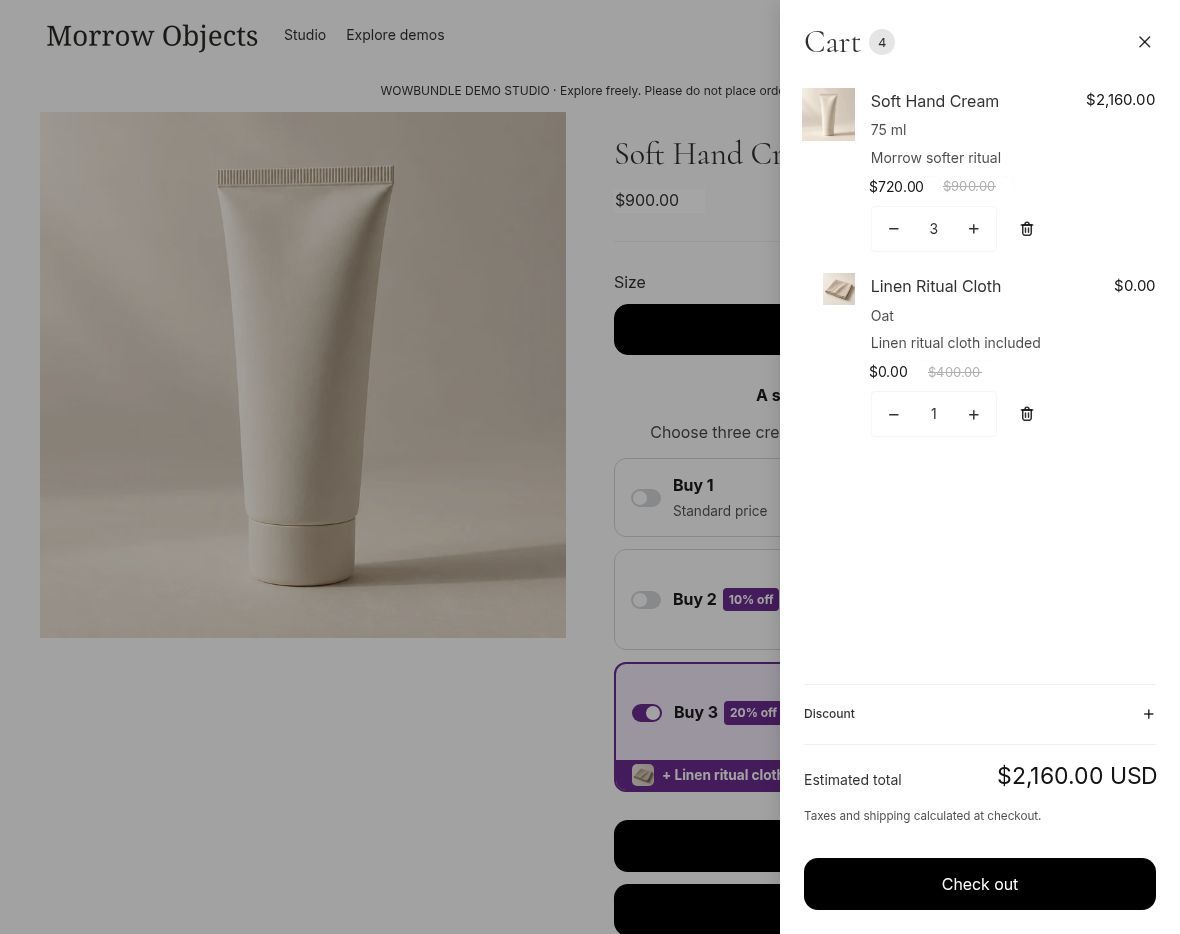
The qualifying cart shows the cloth at no charge and the creams at 20% off. Its estimated merchandise total is $2,160 USD before checkout charges.
Method 2: use Shopify Buy X Get Y without an app
The native route suits a simple offer where shoppers can add the gift themselves. It can make the cloth free after three eligible creams are added; it does not, by itself, reproduce the additional 20% cream discount in the app example.
In Shopify admin:
1. Choose the discount
Go to Discounts → Create discount → Buy X Get Y. Select Automatic discount and enter a clear title.
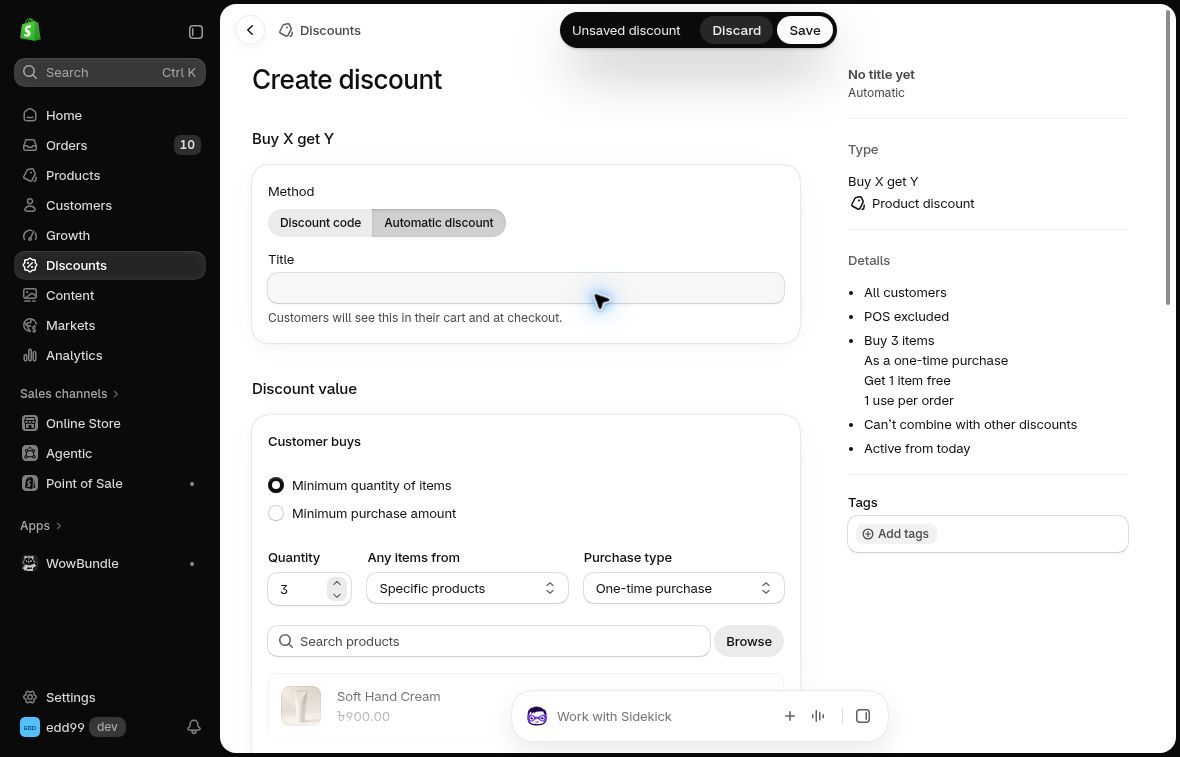
An unsaved illustration of the native discount form.
2. Set the qualifying purchase
Under Customer buys, select a minimum quantity of 3 and the eligible cream product.
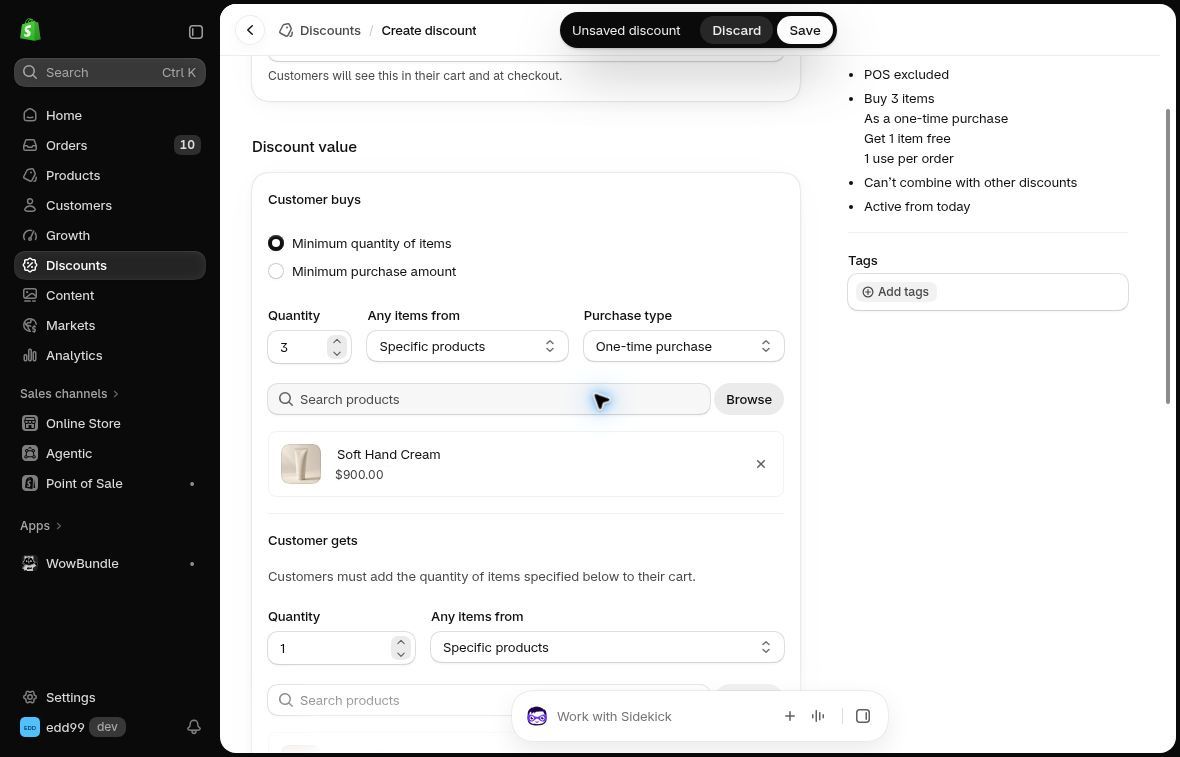
Only the selected qualifying products count toward this rule.
3. Select the free item
Under Customer gets, select 1 cloth and choose Free as its discounted value.
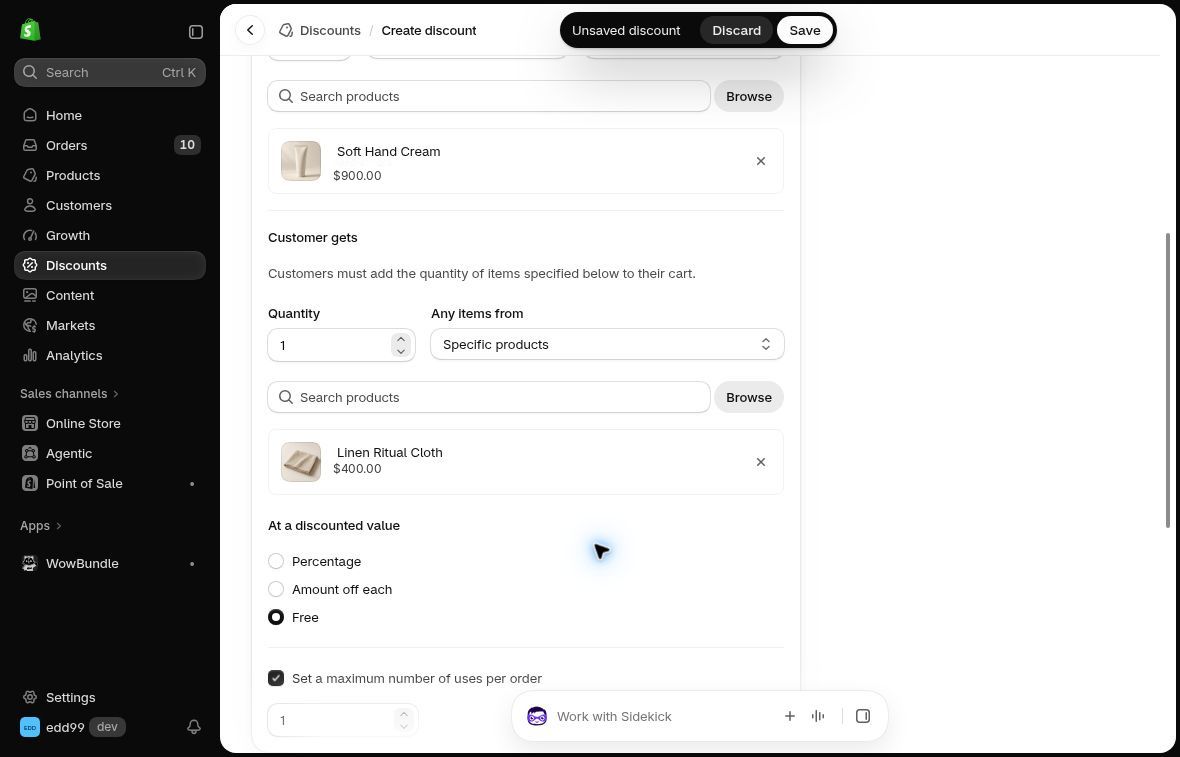
The gift has a normal product price; this rule makes the eligible unit free.
4. Review the limits and timing
Set a per-order limit if needed, then review eligibility, combinations and the schedule. Save when ready.
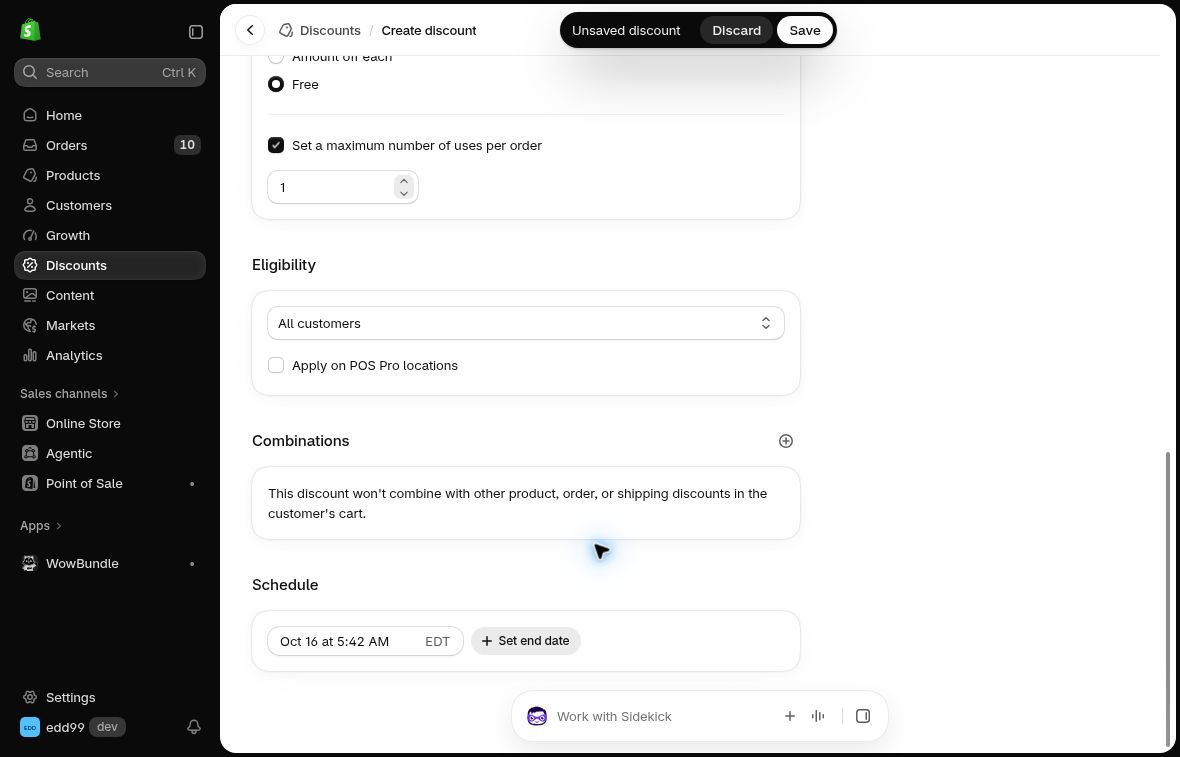
This example allows one use per order. Choose combinations and dates deliberately.
Customers must add both the creams and cloth. “Automatic” means the discount applies without a code, not that Shopify inserts the gift.
For a spending threshold, Shopify counts the eligible Customer buys products, excluding tax and shipping. Check which products qualify rather than assuming every cart item counts. Shopify's Buy X Get Y instructions.
Make the offer easy to understand
Match the message to the actual buying process. For the native route, say something like: “Buy three hand creams, then add one linen cloth to your cart to receive it free.” Link shoppers to the gift product so they can complete the step.
For a tier-based offer, place the gift beside the qualifying tier and name it clearly. Avoid promising a surprise extra that the cart later charges for. Use a genuine reference value if you mention what the gift is worth, and make any end date or stock limitation easy to find.
After launch, monitor gift cost and the amount left per order alongside average order value. A larger basket is useful only if the promotion's economics still work. Our Shopify AOV guide covers measurement; the progressive gift guide covers offers with more than one reward level.
Start with one qualifying rule and a relevant gift in WowBundle. Keep the required purchase, gift name and offer terms together so shoppers can understand the promotion.