

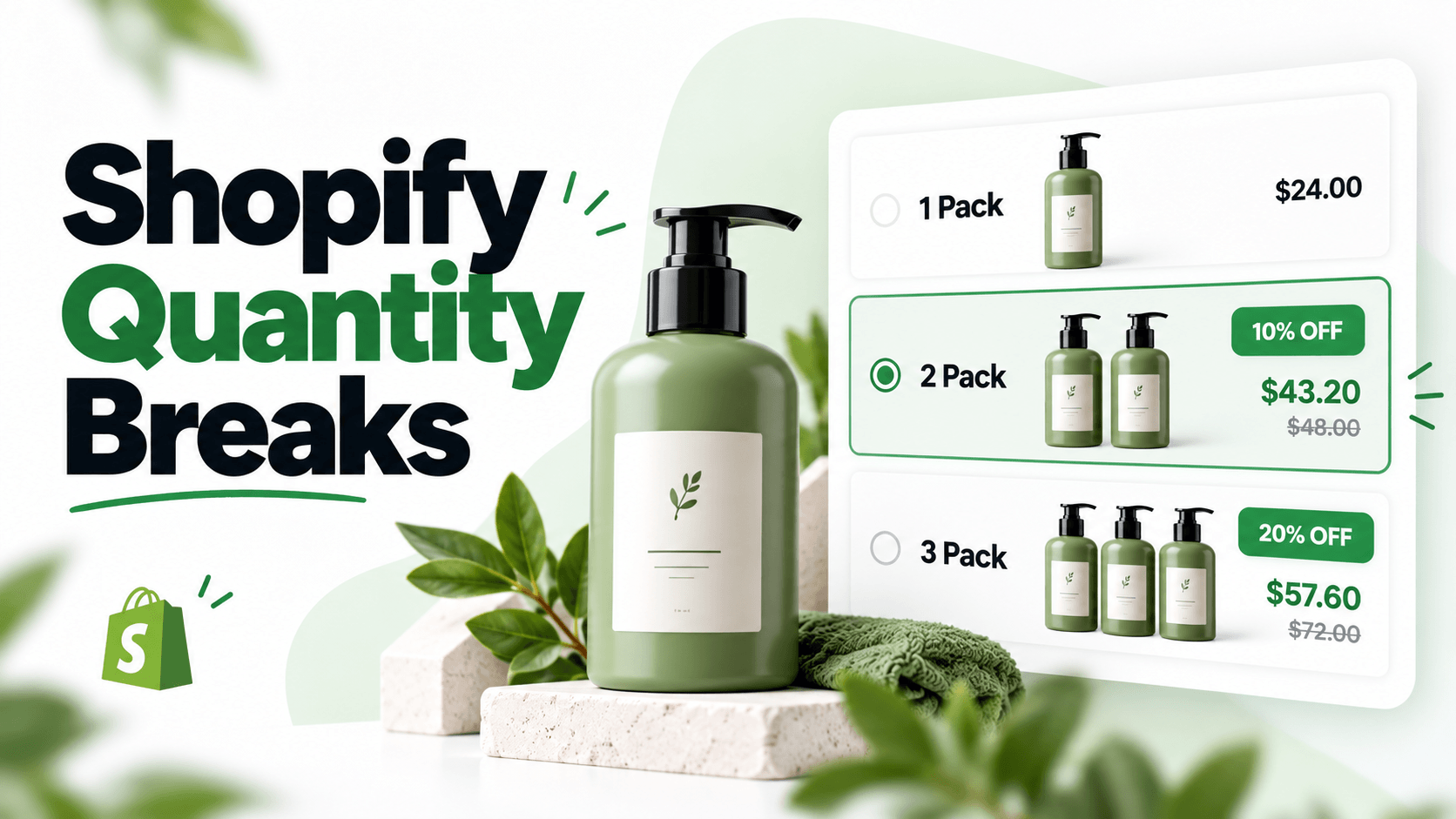
To set up Shopify quantity breaks, choose the eligible product, decide what each quantity should cost, and create either a native minimum-quantity discount or an app-based tier selector. Choose labels that show the quantity and total clearly.
A simple “buy two or more, save 10%” rule can use Shopify's native discounts. If you want shoppers to choose between visible packs on the product page, an app gives you that buying interface.
What are Shopify quantity breaks?
Quantity breaks change the price when a customer buys a specified number of eligible items. They often appear as a regular-price single item beside discounted two-pack and three-pack choices.
The important part is the rule behind the display. Does the price apply to all eligible units once a minimum is reached, only to a selected pack, or separately to units in different quantity bands? Those arrangements can produce different totals even when their headings all say “tiered pricing.”
A useful pack gives customers enough of a familiar product without asking them to buy more than they can use. For a merchant, that can mean more units in one order, but the discount and fulfillment costs still need to leave enough money to cover the rest of the business.
Selling to businesses? Shopify also has B2B catalog quantity rules and volume pricing. These apply in the B2B catalog context and calculate eligibility per variant. Don't assume a wholesale catalog price is the retail offer an ordinary storefront visitor sees.
Decide the offer before opening the editor
Start with one product that customers have a reason to buy in multiples. Refill bottles, napkins and notebooks are easier to explain as packs than a large, one-off purchase.
Write down three things:
- The quantities you want to offer, based on realistic buying needs
- The total and per-item price at each quantity
- The amount remaining after product, packing, fulfillment and other relevant costs
Keep a regular-price choice if customers may only need one. A discount is optional; a larger pack shouldn't make the single-item option confusing.
Also check stock for the variants you intend to include. A three-pack is frustrating if the customer's preferred size has only two units available. For help deciding the thresholds themselves, use the quantity-tier planning guide.
Method 1: Create a simple quantity discount without an app
Use a native automatic product discount for a rule such as “10% off two or more hand-wash bottles.” No code or additional app is needed.
- In Shopify admin, go to Discounts → Create discount → Amount off products.
- Select Automatic discount and enter a recognizable title.
- Choose Percentage and enter 10.
- Under Applies to, select Specific products and add the intended product.
- Set Minimum quantity of items to 2.
- Choose the eligible customers. Review Combinations before allowing other discounts.
- Set the active dates, check the store's time zone, then save.
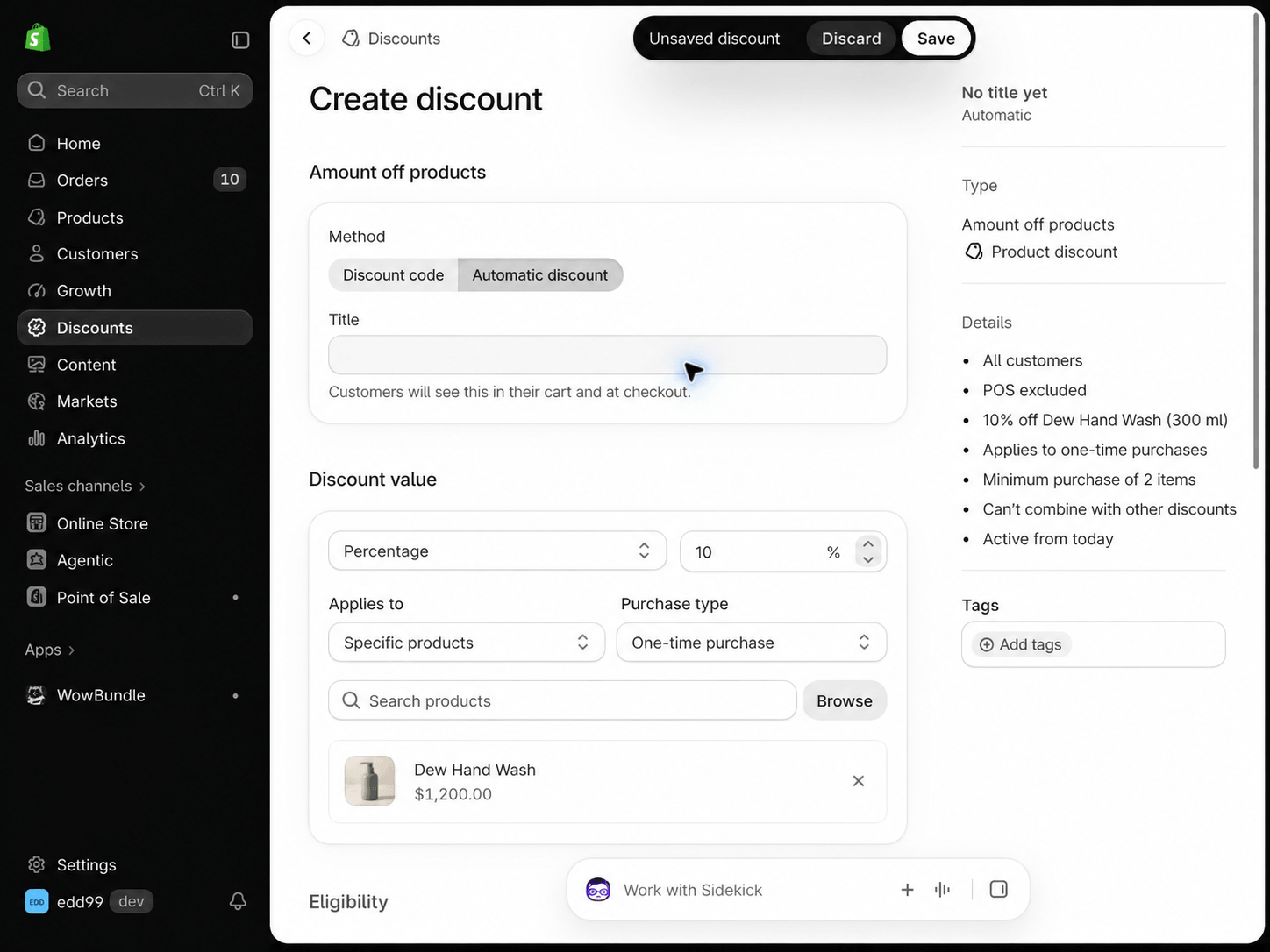
Set the percentage and eligible product, then enter a title before saving.
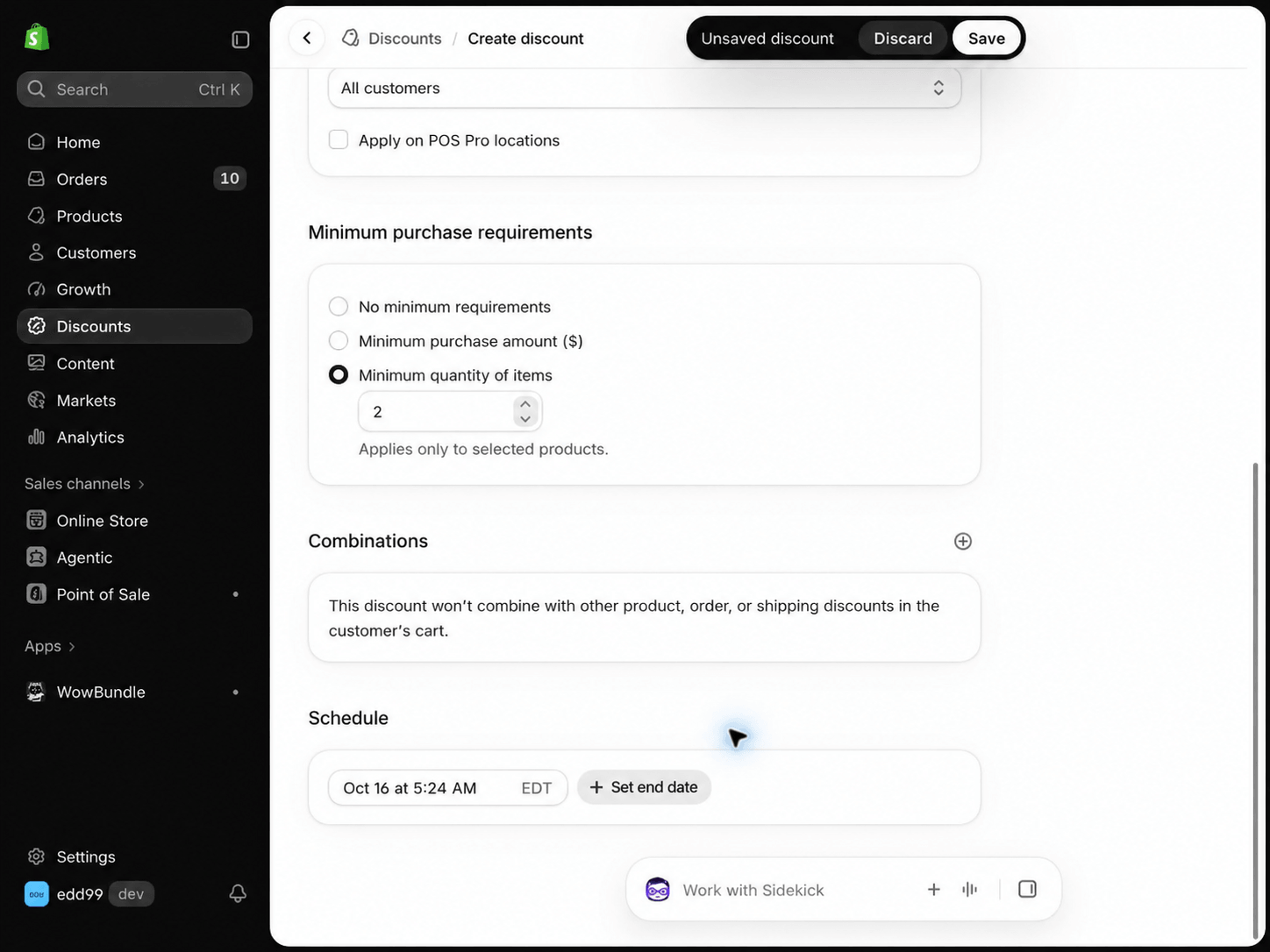
The quantity condition belongs to the selected products. This example has not enabled combinations.
Only eligible items count toward the minimum. Two is a minimum, so this rule also covers larger eligible quantities; it is not an exact two-pack price. These steps follow Shopify's amount-off discount instructions.
The rule doesn't create a clickable tier selector. Explain the condition in your product description. If you want several visible pack choices with their own pricing, use the app method below.
Shopify Quantity-Break Apps to Consider
For a basic minimum-quantity percentage rule, start with Shopify's built-in discount. Use an app when customers need visible two-pack or three-pack choices on the product page.
| App | Best fit | Detail to check in a trial |
|---|---|---|
| WowBundle | Product-page Volume tiers with fixed pack totals, percentages or amounts off each | Selected quantity, variant prices and the final cart total |
| Bundler | Quantity breaks alongside more bundle types | How its discount applies to higher quantities and other offers |
| Kaching Bundles | Same-product tier cards with variant and add-on choices | Per-item selection, theme display and billing measure |
The guide below uses WowBundle as one example. Compare the same product and quantities in each app before you commit to a plan.
Method 2: Add product-page quantity tiers with an app
Use an app when the shopper needs to compare and select packs before adding them to the cart. Choose it for the pricing and shopping experience you need, rather than the longest feature list.
Creating Quantity Breaks in WowBundle
1. Open the offer and select its product
Open Apps → WowBundle in Shopify admin. To start an offer, choose Create bundle, select a starting design, then Use this design. That creates a draft. You can also open an existing offer to adjust its tiers.
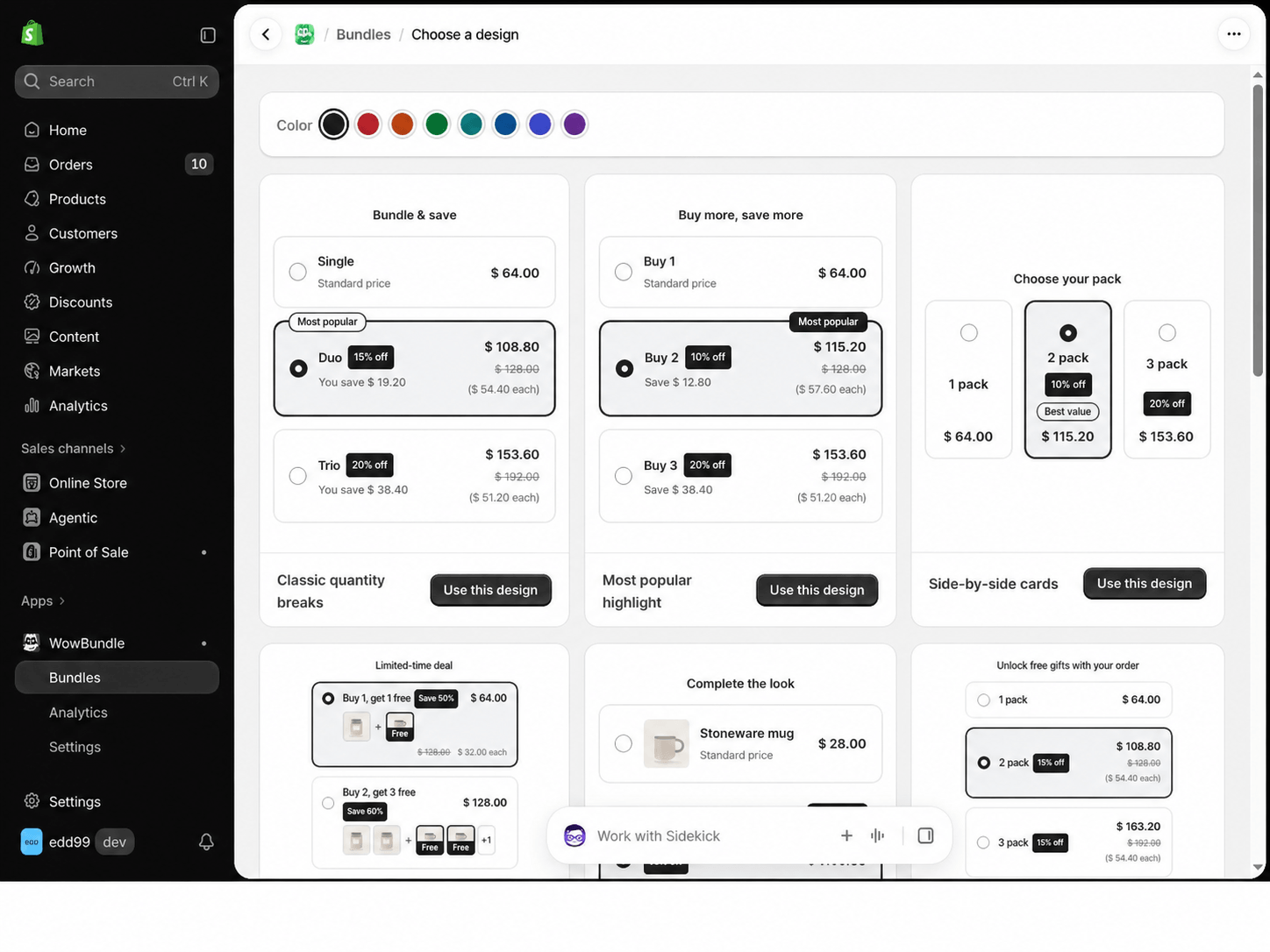
Choose a starting layout, then replace its sample offer with your own products and prices.
In the Offer tab, find Applies to. For your first setup, choose Specific products and select the product you planned. This keeps the offer focused while you check its behavior.
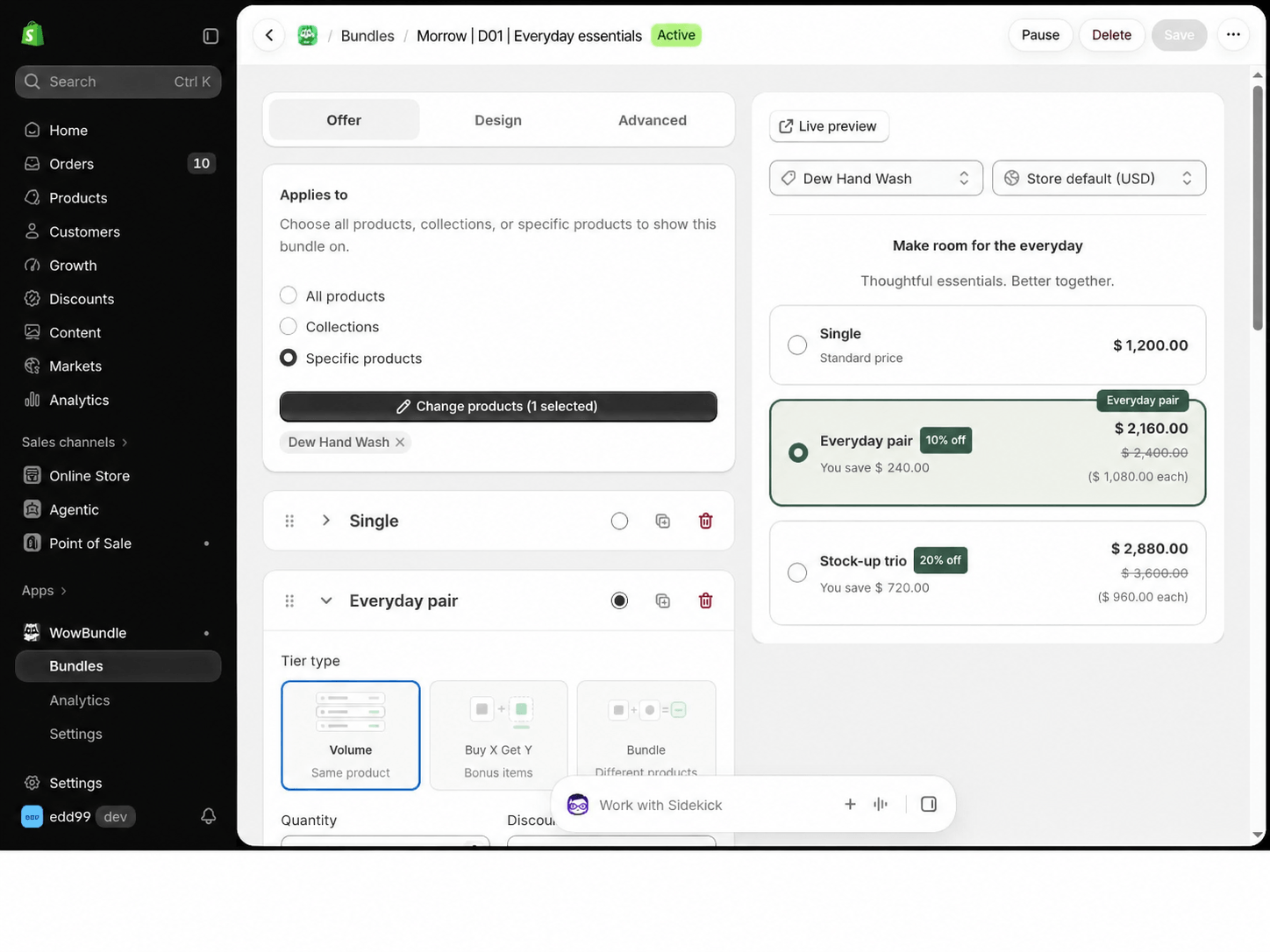
The example targets Dew Hand Wash. Confirm the selected product before editing its prices.
All products and Collections are broader targeting options. Don't choose them just to save a few clicks: a discount that works for one product may be unsuitable for another product's price or margin.
2. Add Volume tiers and choose the right price mode
Expand a tier and select Volume (Same product). Enter the Quantity, then choose its Discount type. Use Add tier for another choice.
You can keep the regular price or choose one of three ways to reduce it:
| Mode | What you enter | Example | Merchandise total |
|---|---|---|---|
| No discount | Quantity, with no reduction | One notebook at $800 | $800 |
| % off | Percentage reduction | Two washes at $1,200 each, less 10% | $2,160 |
| Amount off each | Reduction for every item | Four napkins at $500 each, less $100 each | $1,600 |
| Fixed price | Total for the selected quantity | Three notebooks at one pack price | $2,100 |
Percentage off applies a rate to the selected items' prices. In the two-bottle example, $2,400 less 10% gives $2,160.
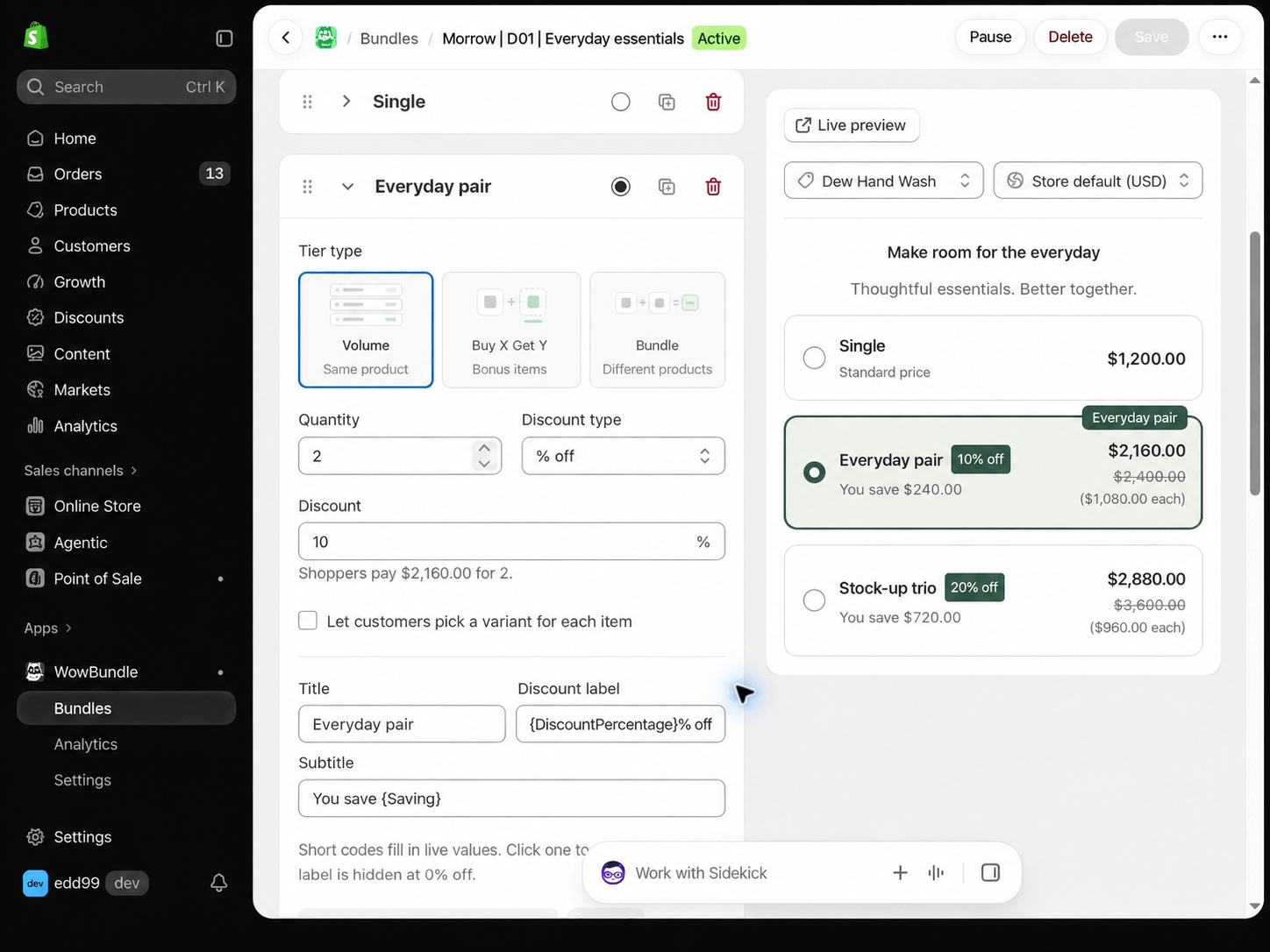
Use the price helper to check the result before moving to the next tier.
Amount off each subtracts the entered amount from every eligible unit. Four $500 napkins with $100 off each cost 4 × $400, or $1,600. It is not $100 off the whole order.
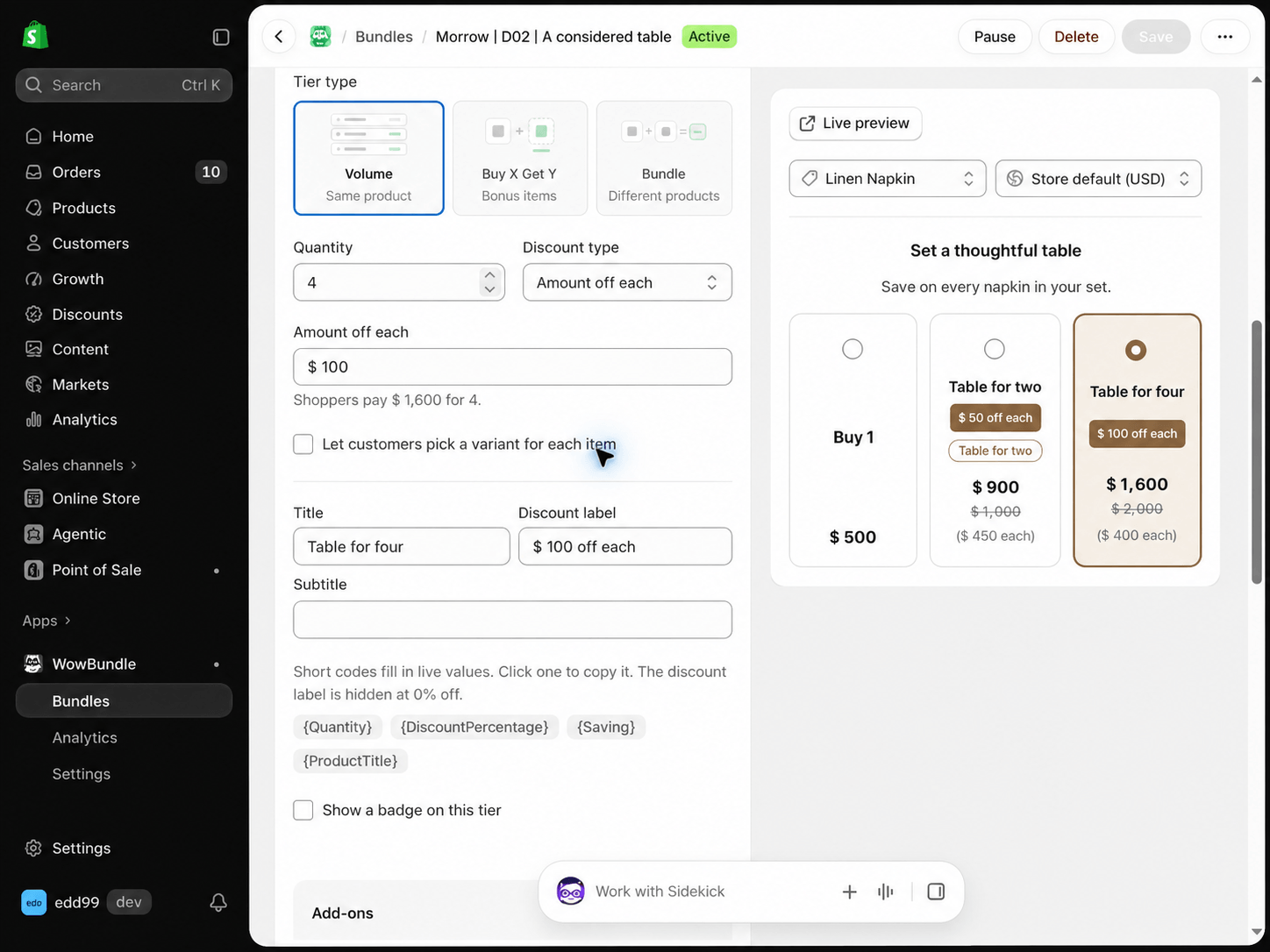
“Amount off each” means the reduction repeats for each item in that tier.
Fixed price is the pack total. For quantity three, the field says Price for all 3. Entering $2,100 makes the selected three-notebook pack cost $2,100, not $2,100 per notebook.
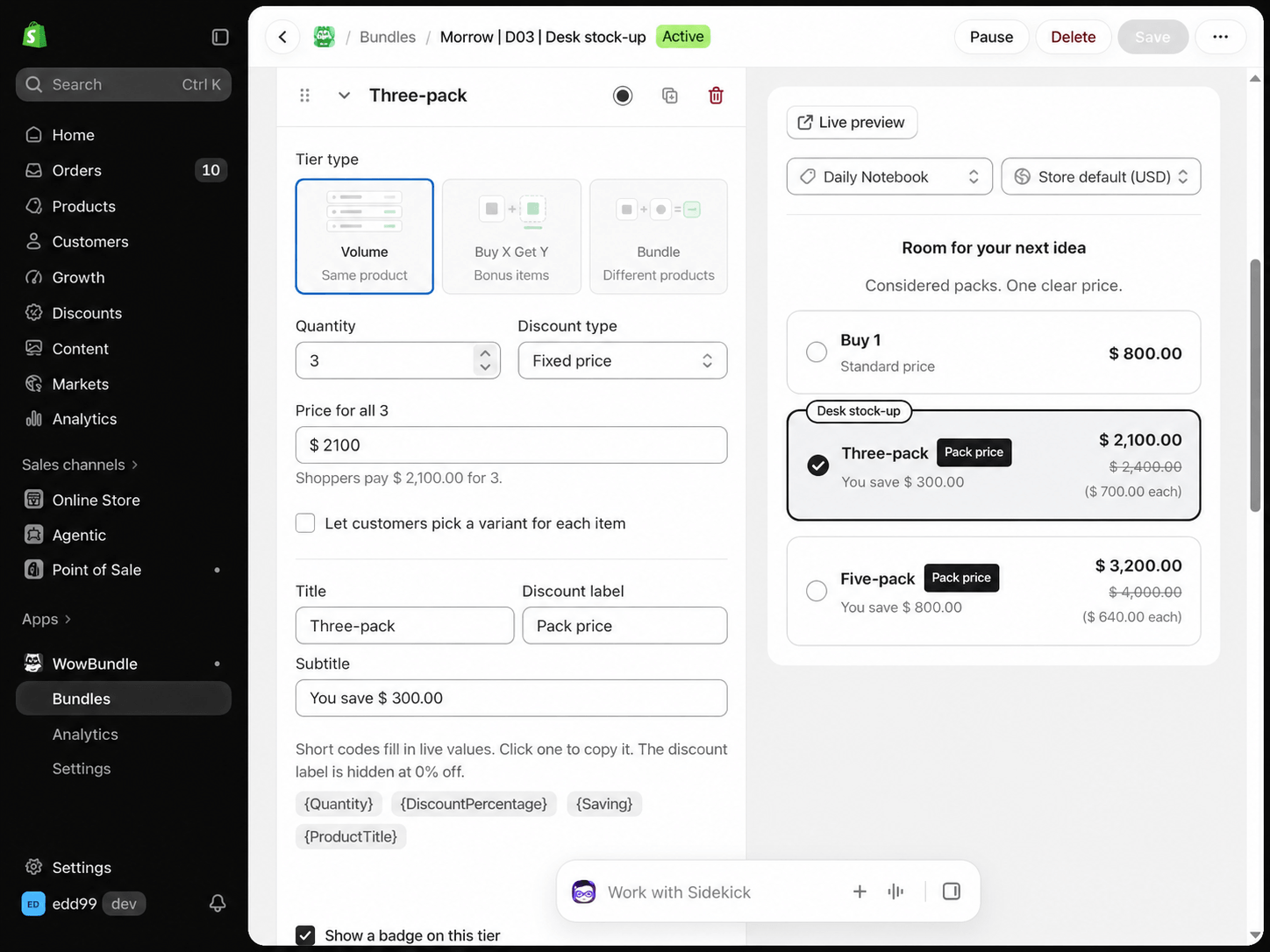
Read the field's quantity label: this is one total for the three items.
A fixed-price field defines the displayed pack total at that tier. Do not assume how the app prices a fourth or fifth item from a three-item tier. Test quantities three, four and five in the cart and checkout, with and without another tier, before advertising a price outside the selected pack.
No discount keeps the regular price. Use it for a single-item baseline or a pack that offers convenience without a saving. Don't add a savings badge to that choice.
The quantity-discount pricing guide helps you choose between the three discount mechanisms without changing the meaning of your offer.
3. Set the customer default and variant choices
Use Selected by default for the tier you want shoppers to see selected initially. Opening a different tier in the editor can change its preview without changing that saved default.
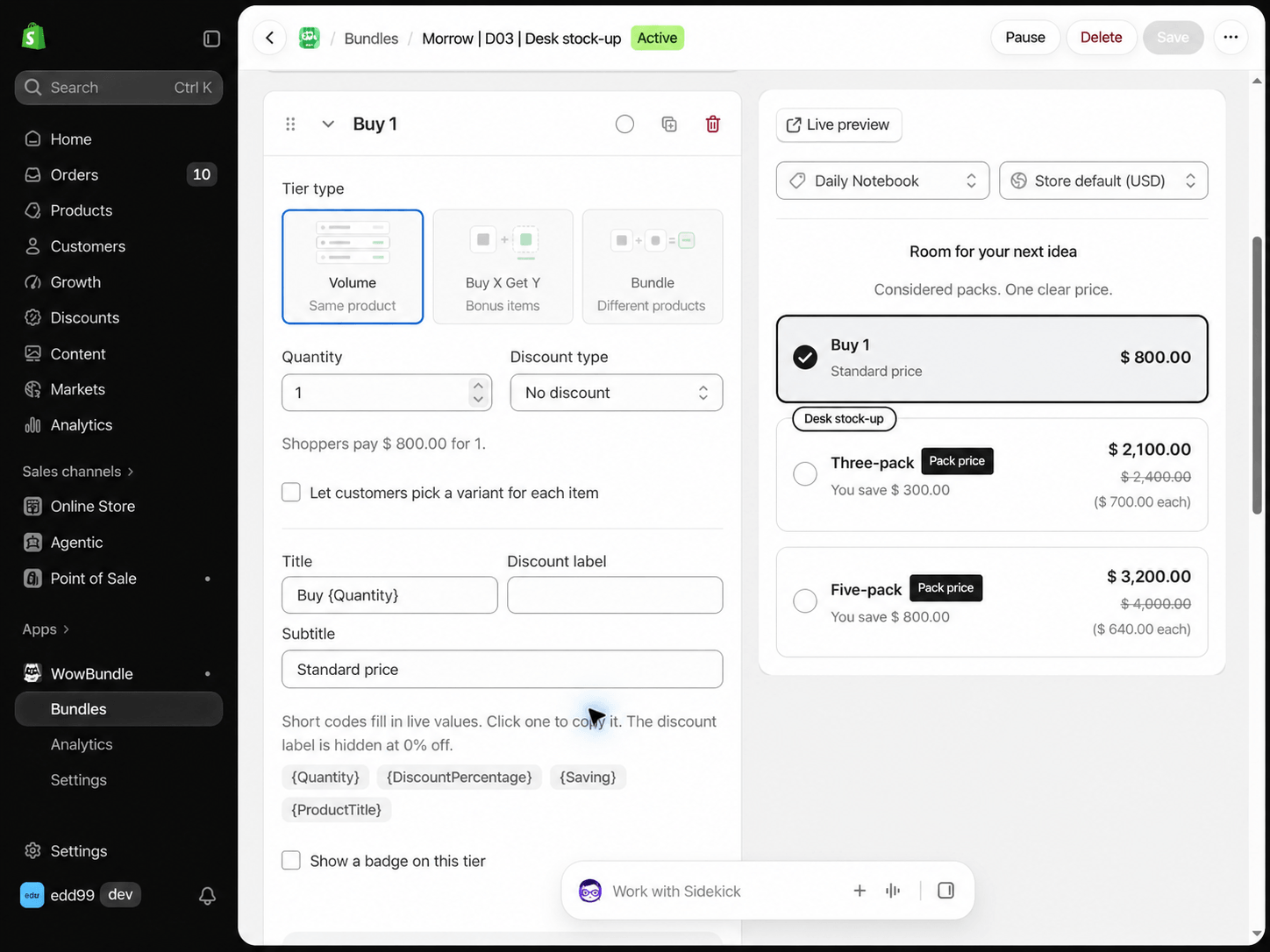
The regular-price tier is open in this preview, but its default radio is empty. The three-pack remains the saved default.
Give each choice a useful label, such as “Single bottle” or “Two-bottle refill.” If you add a badge, make it accurate. “Most popular” needs purchasing evidence; “Save 10%” needs prices that support the calculation.
Enable Let customers pick a variant for each item if the pack should allow separate size or color choices. That setting concerns variants of the selected product. It does not turn the offer into a box where shoppers can substitute unrelated catalog products.
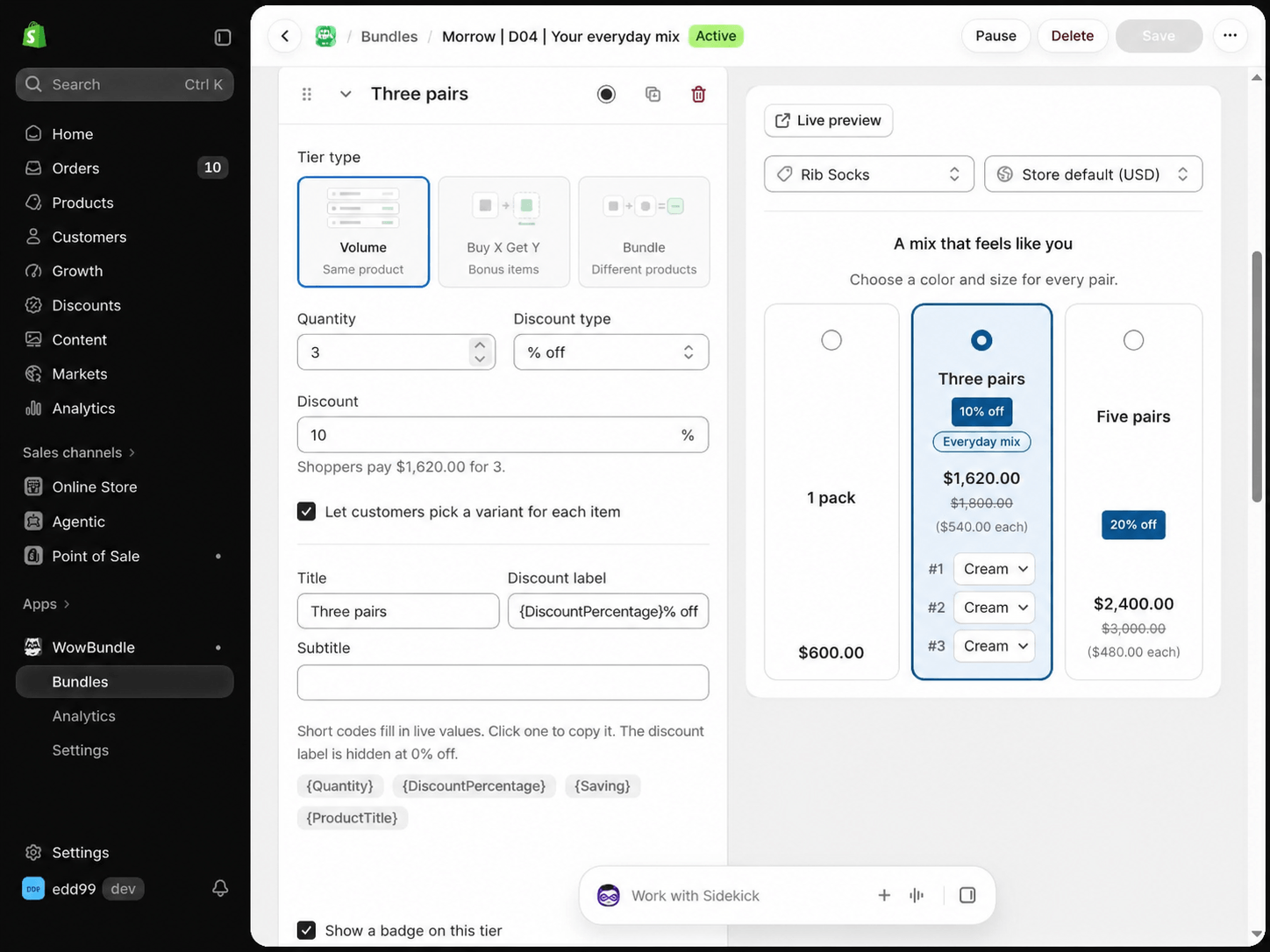
Per-item variant selection lets the shopper choose an option for each unit in the pack.
Different variants can have different regular prices, so don't multiply one displayed unit price by the pack size without checking the actual selection. See the mixed-variant bundle guide for that setup and its price checks.
4. Confirm placement and apply the offer
Check the app embed before troubleshooting the offer design. In WowBundle → Settings, use Manage embed to review its theme integration. The optional placement block has a separate Manage block control.
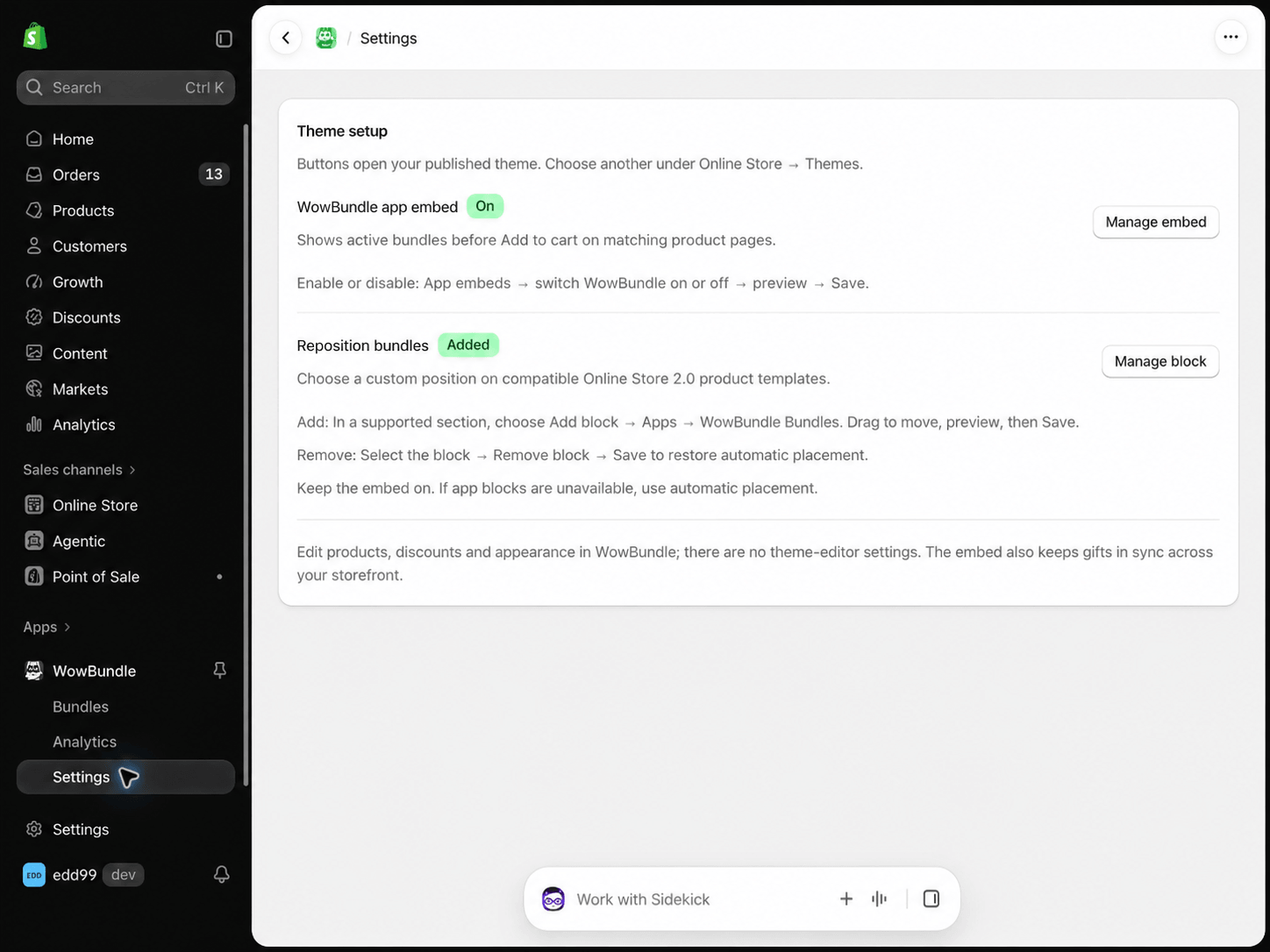
The embed enables the storefront integration. The optional block lets you control placement.
Edit products, discounts and appearance inside WowBundle; the theme placement block isn't where those offer settings live.
Review the product and default tier in the preview. A new draft uses Publish; changes to an active or paused offer use Save. Use Resume to make a paused offer available again, or Pause to stop an active offer. Confirm that the selected quantity and price agree in the cart before promoting it.
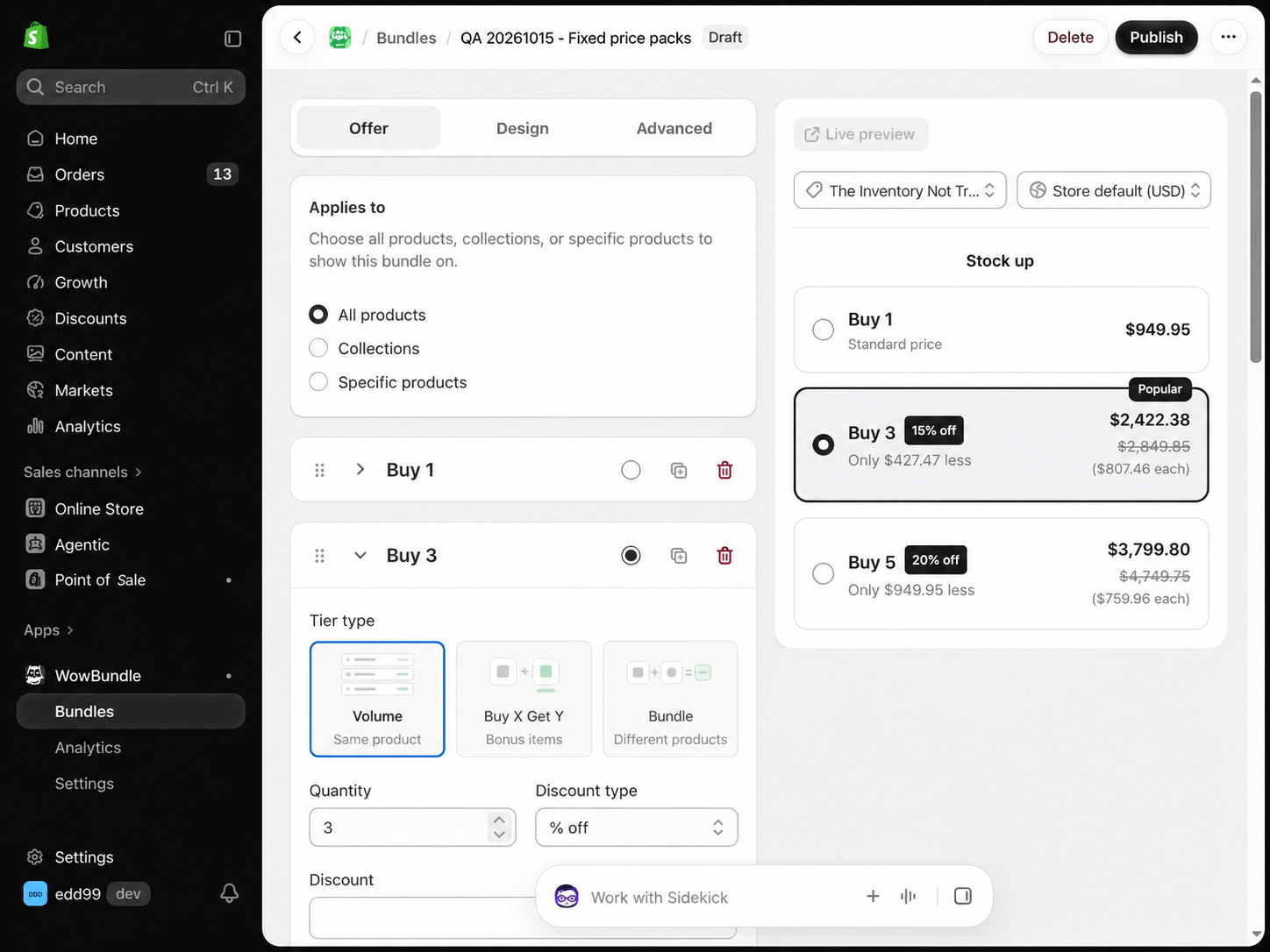
A draft uses Publish. An active offer has Save for changes and Pause to stop it.
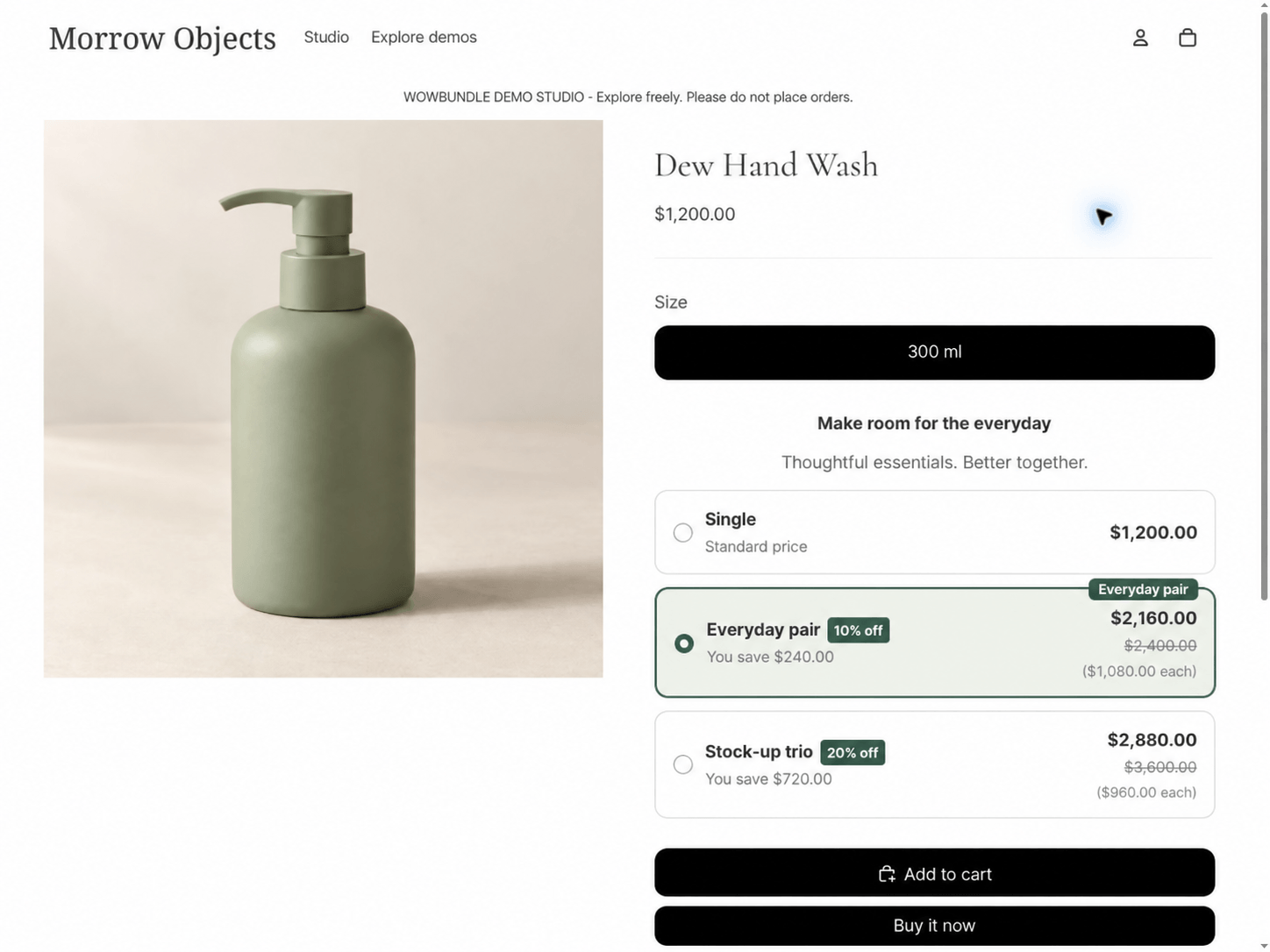
The customer-facing choice should show the same quantities and prices you intended in the editor.
Run a quick checkout test
Check a qualifying quantity and a quantity below the threshold. Reopen the product page and compare the selected variants, merchandise total and discount at checkout. If the numbers differ, use the bundle discount troubleshooting guide rather than adding more tiers.
Create one quantity offer in WowBundle and choose the pricing mode that matches your promise. After launch, review units per order, average order value, conversion and the money remaining after costs together before adding another tier.
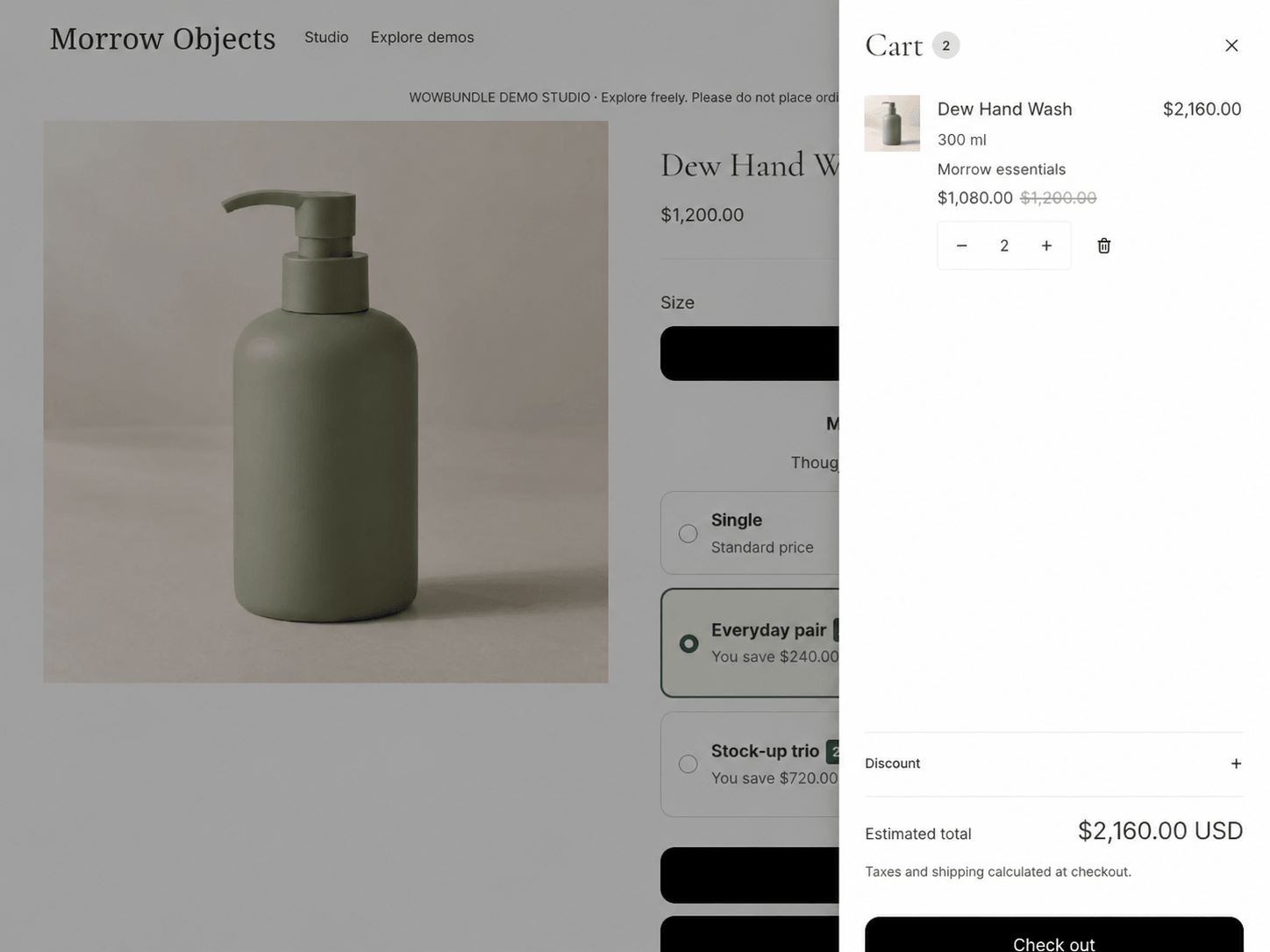
The cart shows the selected pair and its $2,160 USD merchandise subtotal; shipping and tax are separate.