

Yes, you can run volume discounts on Shopify for free. You have two routes. Shopify's built-in discounts handle simple offers, and a free Shopify volume discount app adds a tier table on the product page and lets you stack several quantity breaks in one offer.
The catch is that "free" means different things from app to app. Some apps are free with no stated limits. Others are free until the app has earned you a set amount of extra revenue, and then the bill starts. This guide covers both routes, compares three free options, and walks through a full setup using a candle store as the example.
One disclosure before we go further: we make WowBundle, one of the apps compared below. We'll be upfront about what it does and what it doesn't have yet.
What is a volume discount on Shopify?
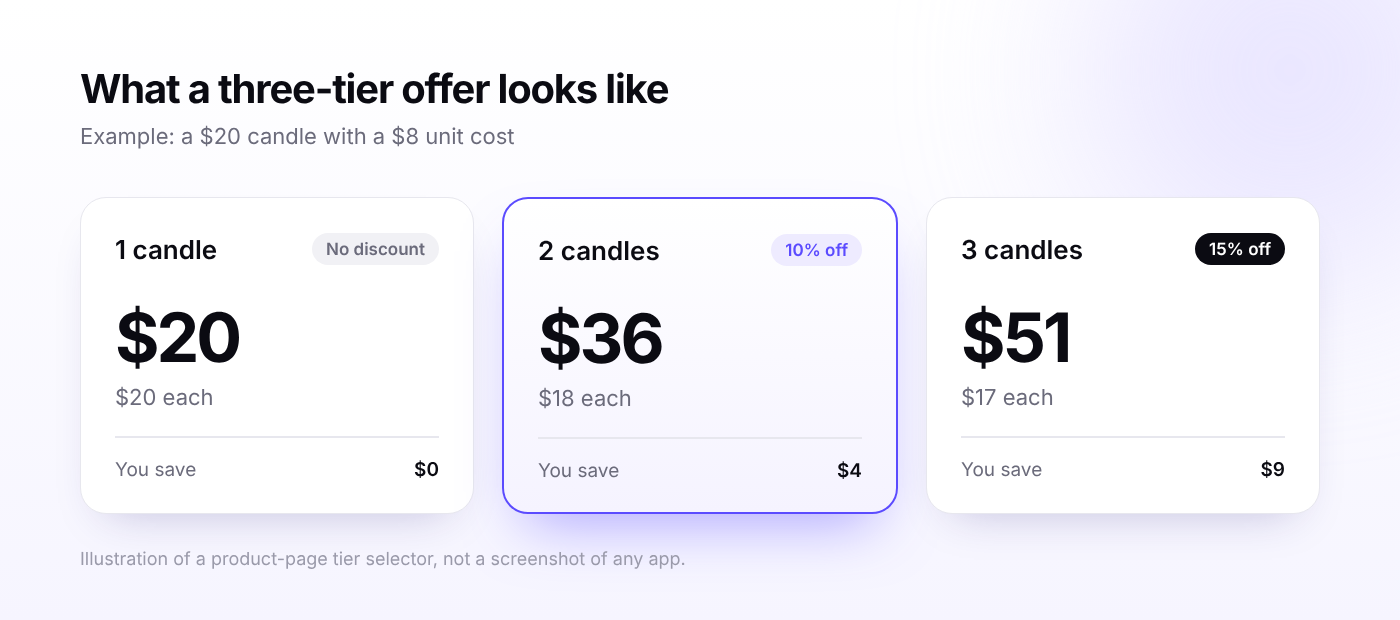
A volume discount lowers the price per item as the shopper buys more. A candle costs $20 on its own, $18 each when you buy two, and $17 each when you buy three. You'll also hear it called quantity breaks or tiered pricing. They all describe the same "buy more, save more" idea.
It works best for products people use up and reorder: candles, coffee, skincare, pet treats, socks, supplements. It also helps when you want to move slow stock without cutting the price for everyone.
Why Shopify's built-in discounts only get you part of the way
Shopify's native discounts do the basics well. The trouble starts when you want a proper tier ladder.
- Each tier is its own discount. You can require a minimum quantity on an "Amount off products" discount, but a three-tier offer means creating three separate discounts.
- Shoppers see the saving late. Native discounts show up in the cart and at checkout, not as a tier table on the product page where people decide how many to add.
- One product discount per item. Shopify's help docs say that combining several product discounts on the same line item requires the Shopify Plus plan and the admin API.
- There's a cap. App documentation and developer guides put the limit at 25 active automatic discounts per store, and discounts created by apps count toward it. Check your own admin for the current number.
What changed in April 2026
Many older articles still say native volume pricing is only for Shopify Plus. That's out of date. On April 2, 2026, Shopify announced that Basic, Grow, and Advanced stores get native B2B features at no extra cost, including company profiles, up to three custom catalogs, and volume discounts with quantity rules.
Shopify's help docs say you can add up to 10 price breaks per product, set in the Catalogs section of the admin or by CSV import. Because it's built around catalogs, it suits wholesale pricing better than a public "buy 3, save 15%" offer on a product page. For the public offer, you still choose between the two methods below.
Method 1: Set up volume discounts without an app
This method is free, takes about ten minutes, and needs no technical skill. Here's how to set up a "2 candles for 10% off" offer.
- In your Shopify admin, go to Discounts and click Create discount.
- Choose Amount off products.
- Under Method, pick Automatic discount and give it a clear title, like "Candles: 2 for 10% off". Customers see this title in the cart.
- Set Value to Percentage and enter 10.
- Under Applies to, choose your candle collection or specific products.
- Under Minimum requirements, select Minimum quantity of items and enter 2.
- Check Combinations to decide which other discounts it can stack with, set your Active dates, and click Save.
For a second tier, repeat the steps with a minimum of 3 and 15% off. Then add three candles to a test cart and check which discount applies. Shopify applies one product discount per item, so you want to confirm the shopper gets the deal you intended.
This method suits one or two tiers on a small number of products. It gets clumsy fast. A store with ten product groups and three tiers each would need thirty discounts, and shoppers still wouldn't see the tiers on the product page.
Method 2: Use a free Shopify volume discount app
An app moves the offer to where the decision happens. Shoppers see "Buy 1, Buy 2, Buy 3" options on the product page, pick one, and the price is applied for them. You also manage every tier in one editor instead of a pile of separate discounts.
What "free" actually means
Before you compare apps, read the plan section of each listing. Free tends to fall into one of three patterns:
- Free with no stated cap. The listing shows no paid tiers or usage limits.
- Free until the app earns you revenue. You pay once the app has generated a set amount of extra sales. This feels free right up until the offer works.
- Free with an order or campaign limit. You can run a few offers or a few hundred orders a month, then you upgrade.
Ask yourself what happens when you hit the limit, and whether you'd be happy to pay at that point. If the offer is doing its job, you will reach it.
Three free options compared
| App | Free plan | Good fit for | Worth knowing |
|---|---|---|---|
| WowBundle | Lifetime Completely Free | Quantity breaks, plus bundles, BOGO, and gifts in the same app | You'll get live support and quick responses, along with lifetime access to our free apps. They're perfect for creating product bundles and offering volume discounts! |
| Bundler | Free plan. Recent comparisons report no revenue or order cap. | Stores that want an established app with a large review base | Mix-and-match bundles and custom landing pages need a paid plan |
| Pumper Bundles | Free up to $300 in extra revenue generated by the app | Stores that want gifts and BOGO inside quantity tiers | After the $300 mark you move to a paid plan, with entry pricing reported from $9.99 a month |
Plan details change often, so confirm them on each App Store listing before you install. The Bundler and Pumper details come from recent third-party comparisons rather than from us checking each plan page.
Which one should you pick?
If you're testing the idea on a few products, any of the three will do, and so will Method 1. If social proof matters to you, Bundler and Pumper have thousands of reviews behind them. WowBundle is the newest of the three, and it has the advantage of listing no plan limits. The trade-off is that it hasn't had time to collect reviews, and its listing doesn't mention a Built for Shopify badge.
If you expect the offer to take off, pay attention to the revenue cap. A $300 cap on extra revenue is easy to pass in a good month during Black Friday.
How to set up volume discounts with WowBundle
Here's the full setup for the candle offer: one candle at $20, two for 10% off, three for 15% off. These steps follow WowBundle's own documentation.
- Turn on the app embed. In your theme editor, open App embeds, find WowBundle, switch it on, and click Save. If you switch themes later, turn it on again in the new theme.
- Create the bundle. Go to Apps, then WowBundle, and click Create bundle. Pick a starting design and click Use this design. This creates a draft that stays hidden from shoppers until you publish it.
- Choose what it applies to. In the Offer tab, set Applies to to specific products, collections, or all products. Start with one product so you can test cleanly.
- Add the first tier. Open a tier and set Tier type to Volume, which is the type for several items of the same product. Set the quantity to 1 with no discount.
- Add the discount tiers. Click Add tier. For the second tier, set the quantity to 2 and pick % off with a value of 10. Add a third tier with a quantity of 3 and 15% off. You can also choose an amount off each item, or a fixed price for the whole tier.
- Set the default and the labels. Use Selected by default on the tier you most want shoppers to choose. Many stores pick the middle one. Give each tier a clear title and subtitle, like "Two candles" and "Save 10%".
- Let shoppers choose variants. If your candles come in scents, turn on the option that lets customers pick a variant for each item. This stops shoppers from being stuck with the same scent three times.
- Style it. Open the Design tab to adjust layout and colors, and check the mobile preview for cut-off text.
- Save, then publish. Click Save, reopen the bundle to confirm your settings, then click Publish. You can use Pause and Resume later without deleting anything.
By default, offers appear before the Add to cart button once the app embed is on. If you want more control, open the product template in the theme editor and use Add block, then Apps, then WowBundle Bundles. A common spot is between the variant picker and the buy buttons. If your theme doesn't support app blocks, stick with automatic placement.
WowBundle applies the final price through a Shopify discount function at checkout. WowBundle's own FAQ recommends testing the full cart and checkout when other discounts are active, and that advice is worth following with any app.
How to price your tiers without giving away your margin
Most guides stop at setup. The part that decides whether the offer helps your business is the math. Here are the candle numbers, assuming a product cost of $8 per candle.
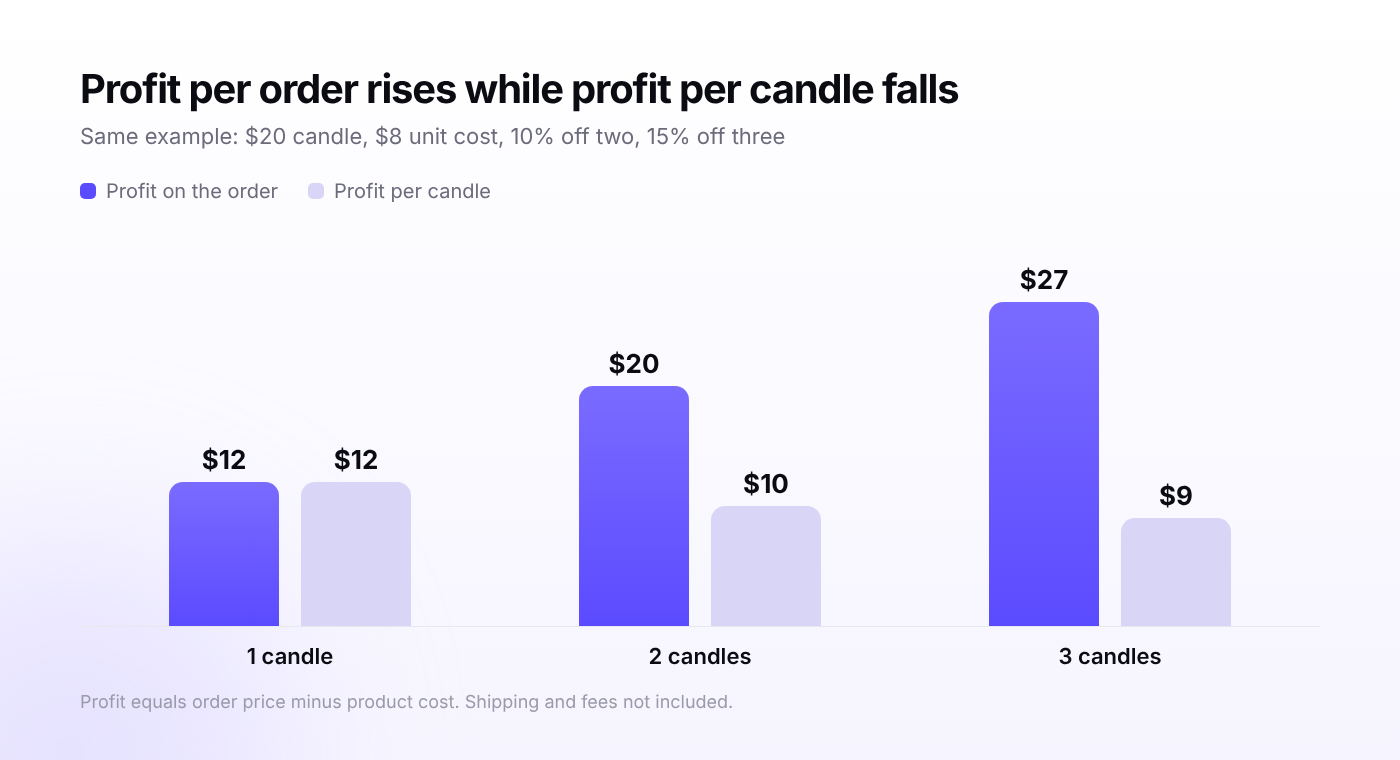
| Quantity | Order price | Price per candle | Your cost | Profit on the order | Profit per candle |
|---|---|---|---|---|---|
| 1 | $20 | $20 | $8 | $12 | $12 |
| 2 (10% off) | $36 | $18 | $16 | $20 | $10 |
| 3 (15% off) | $51 | $17 | $24 | $27 | $9 |
Profit per candle drops, but profit per order climbs from $12 to $27. That's the trade you're making. You accept a thinner margin per unit in exchange for more units per order, and you only pay for shipping and checkout once.
A few things to check against your own numbers:
- Shipping weight. Three candles cost more to ship than one. If shipping is on you, include it in the cost column.
- Number of tiers. Two to four tiers is a sensible range. Many guides suggest 10 to 20 percent per step, though that figure isn't backed by published data, so use it as a starting point and test.
- Products already on sale. Check how the tier discount behaves on a discounted product, so you don't stack two cuts by accident.
Test the offer before you publish
A volume discount that shows the wrong price at checkout costs you money and trust. Run through this list on a real product page:
- Select each tier and confirm the quantity and total.
- Add it to the cart, then lower the quantity and check that the price updates.
- Try a variant with a different price, if you have one.
- Look at the product page on your phone for cut-off text.
- Turn on any other active discounts and see how they combine.
- Go through checkout once, including shipping.
FAQ
Is there a completely free Shopify volume discount app?
Can I set up volume discounts on Shopify without an app?
Will volume discounts stack with discount codes?
Does Shopify have native volume pricing now?
Where to start
Pick one best-selling product, build one three-tier offer, and test it end to end. Watch your average order value and your profit per order for a couple of weeks, then roll it out to more products.