


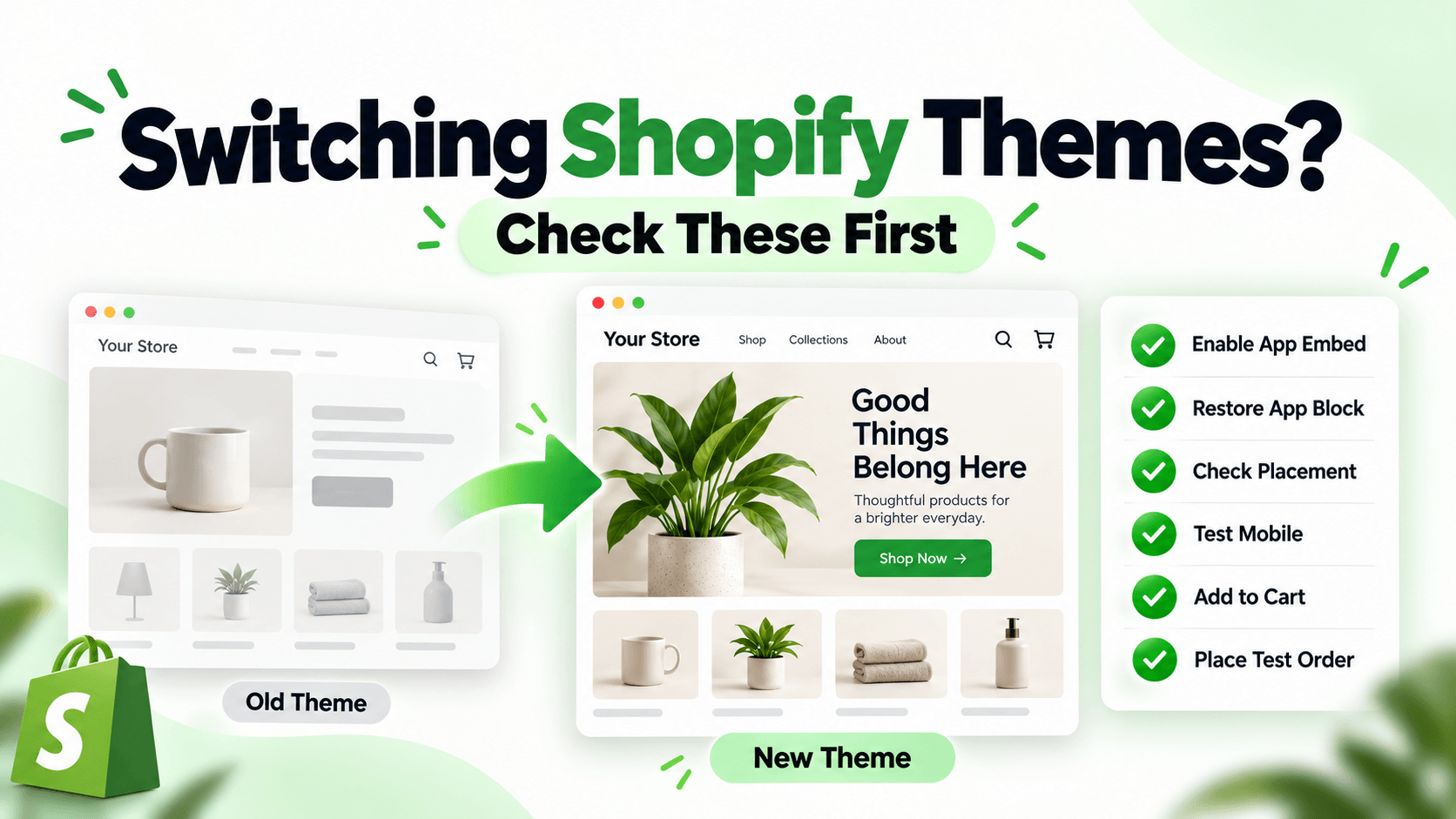
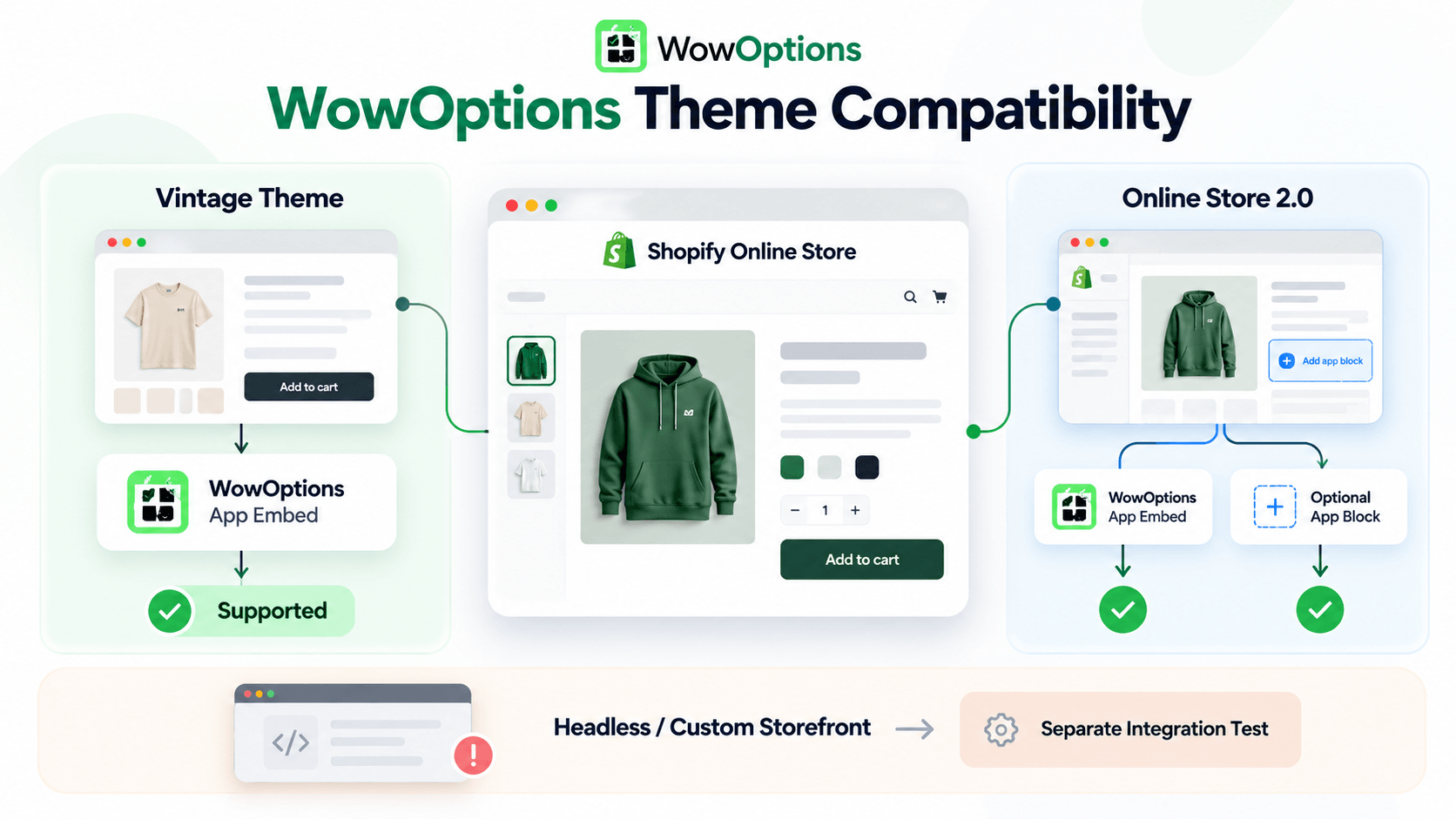
For standard Shopify Online Store themes, WowOptions is designed to work across both Online Store 2.0 and vintage theme architectures through a Shopify app embed. Shopify’s developer documentation says app embed blocks are supported in vintage and Online Store 2.0 themes, and its current UX guidance describes app embed blocks as supported in all Shopify themes. WowOptions also includes an optional app block for merchants who want to position the options somewhere other than the default placement.
There is one important boundary behind the phrase “every Shopify theme”: it refers to Shopify themes running through the Online Store theme system. A headless Hydrogen storefront, a fully custom storefront outside Shopify’s theme renderer, or a heavily modified product form should be treated as a separate integration and tested before launch.
That distinction is more useful than a blanket compatibility promise.
Quick answer
WowOptions uses two Shopify-native theme-extension patterns:
- WowOptions app embed — the main storefront integration. In WowOptions, the app embed targets the page body and can auto-place the options on product pages.
- WowOptions app block — an optional product-page block for merchants who want to place the options in a specific compatible section.
Shopify says app embeds work across vintage and Online Store 2.0 themes. App blocks require a compatible JSON template/section that supports blocks of type @app.
So a vintage theme can still use the app embed even if it cannot use the same app-block placement controls as a modern Online Store 2.0 section.
Why this compatibility approach matters
Older Shopify apps often depended on editing Liquid theme files directly. That created a familiar set of problems:
- theme updates could overwrite or conflict with custom code;
- uninstalling an app could leave code behind;
- merchants had to repeat edits after changing themes;
- support teams had to maintain several installation methods.
Shopify’s current guidance for public apps is to use theme app extensions when integrating with online store themes. Theme app extensions package app blocks, app embeds, assets, and snippets so the app can be exposed through Shopify’s theme system instead of requiring merchants to paste code into theme.liquid.
WowOptions follows that theme-extension model: its theme app extension includes a body-targeted app embed and a section-targeted product app block.
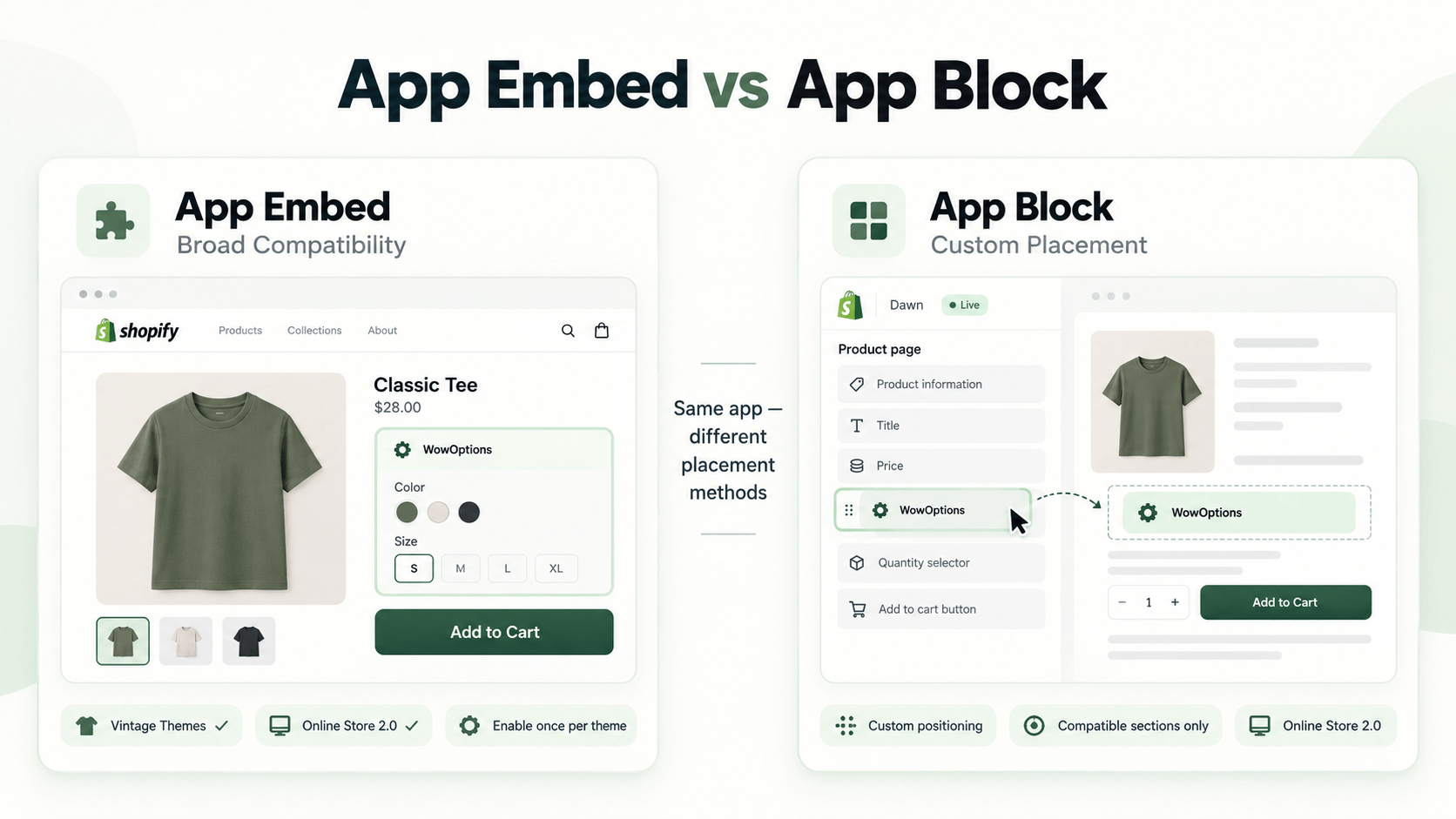
App embed vs app block: what is the difference?
The app embed is the broad compatibility layer
An app embed is injected through Shopify’s theme app-extension system rather than being tied to one particular section.
Shopify documents app embeds as supported in both vintage and Online Store 2.0 themes. It also notes that app embeds are normally disabled after installation until the merchant activates them in the theme editor.
In WowOptions, the app embed is the important storefront switch. The supplied admin code treats a disabled embed as a warning because the options are not intended to be visible to shoppers until the embed is enabled.
The current implementation also describes the embed as showing options above the Add to cart button by default on product pages.
The app block is for custom placement
The WowOptions product block is optional.
Its role is placement: if the theme’s product section supports Shopify app blocks, the merchant can add the WowOptions block in the theme editor and move it to a desired position.
Shopify’s rules are stricter here. For an app block to work inside a section, the theme needs a JSON template and a section schema that supports @app blocks.
That is why “app blocks work everywhere” would be inaccurate even though app embeds have broad theme support.
Theme compatibility matrix
| Storefront setup | WowOptions compatibility approach | What to verify |
|---|---|---|
| Modern Shopify Theme Store / Online Store 2.0 theme | App embed; optional app block in compatible sections | Enable embed, place optional block, test product/cart/mobile |
| Vintage Shopify theme | App embed | App block placement may not be available; test default placement |
| Custom Shopify theme built on normal Online Store architecture | App embed generally has Shopify-level support; app block depends on section architecture | Test custom product form, Add to cart flow, CSS and JS interactions |
| Page builder inside Shopify Online Store | Depends on how the builder renders product forms/sections | Test the exact template and any app-block support |
| Headless/Hydrogen storefront | Not covered by the “all Shopify themes” claim | Requires a separate storefront integration plan |
| Checkout pages | Theme app extensions do not render there | Verify that selected option data reaches the cart/order as intended; do not expect the theme UI itself inside checkout |
The practical rule is simple: theme-level compatibility and workflow-level compatibility are not the same thing.
A theme can support the WowOptions app embed while a heavily customized quick-add drawer, sticky Add to cart bar, or custom JavaScript product form still needs testing.
Step-by-step guide: enable WowOptions on your Shopify theme
Step 1: Install WowOptions and create a test option set
Install WowOptions, then create a small option set for one non-critical test product.
Use something obvious, such as:
- a checkbox labeled “Add gift wrap”;
- a text field labeled “Gift message”; or
- a color/image swatch.
Do not start with your whole catalog. One test product makes theme troubleshooting much easier.
Step 2: Open the Shopify theme editor
From Shopify admin, go to Online Store → Themes → Customize for the theme you want to test.
If you are testing an unpublished theme, make sure you are editing that theme rather than assuming the app is enabled because it works on the currently published theme.
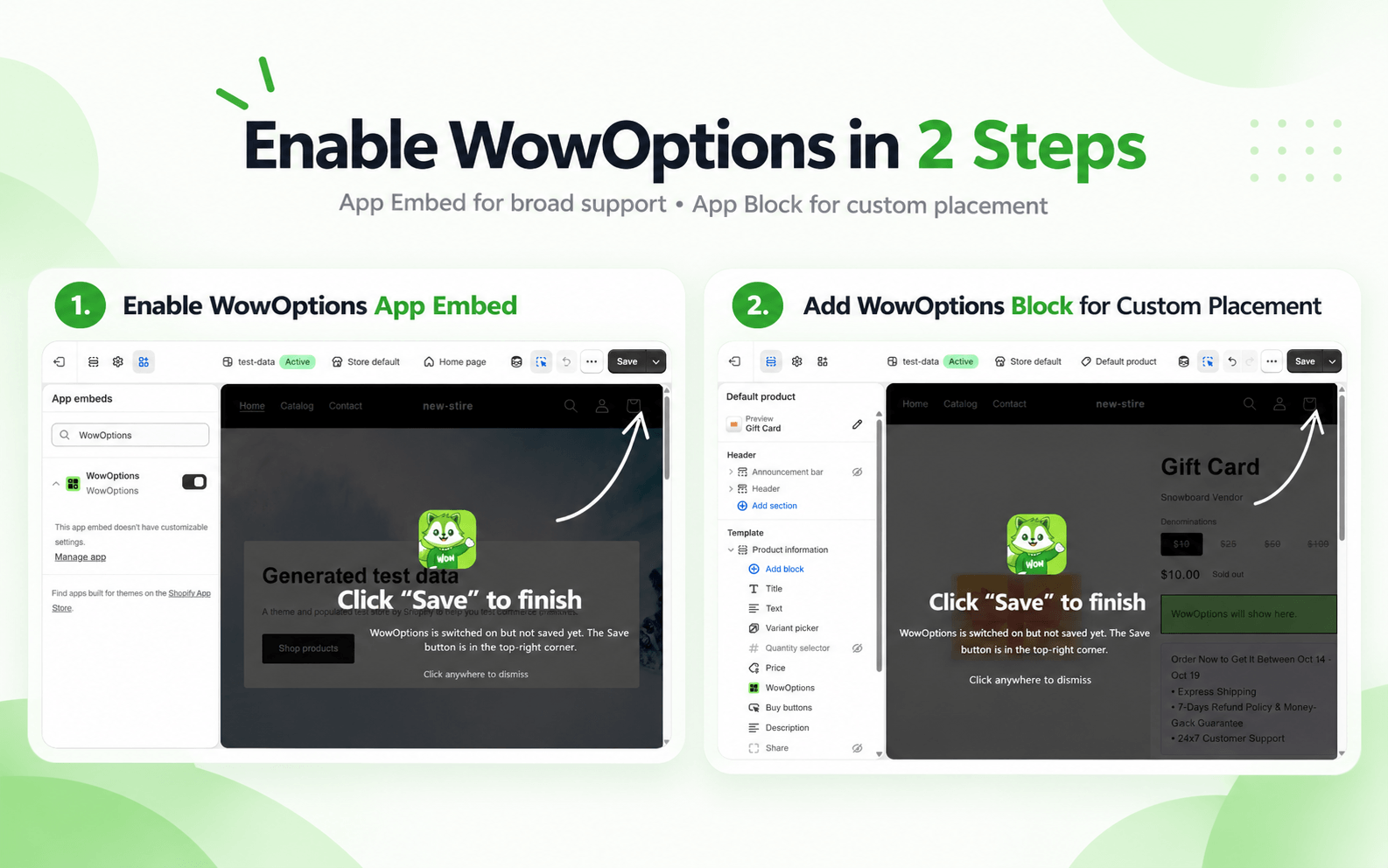
Step 3: Enable the WowOptions app embed
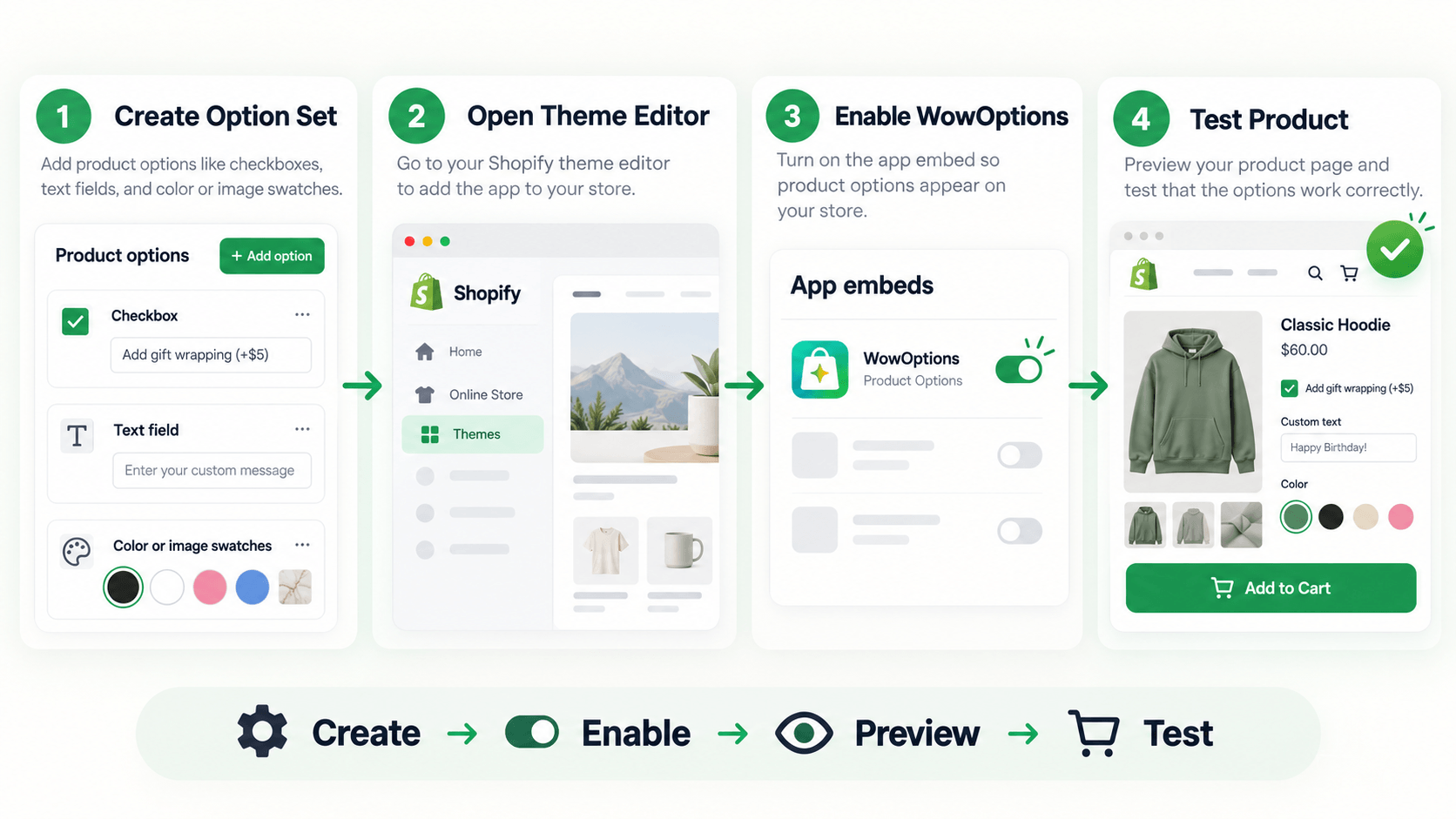
Open Theme settings → App embeds and activate WowOptions.
Shopify notes that app embeds are enabled per theme. If you later publish a different theme, do not assume the previous theme’s activation carries over.
In the supplied WowOptions dashboard implementation, the app checks the published theme and reports whether the app embed is enabled.
Step 4: Preview the assigned product
Open the product that has the test option set.
Confirm that:
- the option appears;
- it appears in a sensible location;
- required fields validate correctly;
- the product can still be added to cart;
- the selected option appears where your cart theme displays line-item details;
- mobile layout remains usable.
If the default placement is acceptable, you may not need to add the optional WowOptions app block.
Step 5: Add the WowOptions app block only when you need custom placement
On a compatible Online Store 2.0 product section, choose Add block → Apps → WowOptions and position it where you want the option UI to appear.
WowOptions treats this block as optional: it is useful when the merchant wants the options somewhere other than the default app-embed placement.
If the Apps section does not appear in that product section, the section might not support Shopify app blocks. Shopify recommends checking the theme documentation or contacting the theme developer in that case.
Step 6: Test the real buying flow
A compatibility check is not complete when the field merely appears.
Test:
- desktop product page;
- mobile product page;
- changing Shopify variants;
- conditional options, if used;
- paid add-ons, if used;
- file upload, if used;
- Add to cart;
- cart or cart drawer;
- order in Shopify admin;
- the fulfillment view your team actually uses.
If you use a page builder, subscription app, custom cart drawer, quick-add button, or sticky product bar, include it in the test.
Step 7: Repeat the test after switching themes
Shopify’s Help Center warns that when a merchant changes the published theme, app integrations may need to be reactivated in the new theme.
That means a theme migration checklist should include:
- turn on the WowOptions app embed in the new theme;
- re-add the optional app block if used;
- verify placement and styling;
- place a test order before publishing widely.
Does WowOptions need theme-code editing?
The current WowOptions storefront integration is delivered as a Shopify theme app extension, so the normal setup path does not depend on asking the merchant to paste the app’s main storefront code into theme files.
That is an important distinction from legacy manual-install approaches.
It does not mean no store will ever need CSS adjustment or custom support. A highly customized theme can still produce layout conflicts. The benefit of the theme-extension architecture is that the core installation is managed through Shopify’s app embed/app block system rather than a permanent manual patch to theme code.
What can still go wrong on a compatible theme?
Custom Add to cart implementations
Some themes and page builders replace the ordinary Shopify product form with their own JavaScript behavior. Even if the app UI renders, the merchant should verify that all selected option data is preserved when the product enters the cart.
Quick-add cards
Collection-page quick-add experiences can be more complex than a normal product page because they may render products dynamically or open a drawer/modal.
The supplied WowOptions code contains logic intended to support product-option behavior beyond the basic product template, but source inspection is not the same as live verification on every third-party quick-add implementation. Test your exact theme.
CSS conflicts
A theme can technically support the app while still applying global CSS rules that change spacing, font size, input appearance, or button behavior.
Check at least one desktop and one mobile breakpoint.
Page builders
A page builder may create its own product information section and may or may not expose the same Shopify app-block slots as the theme’s native product section.
If the app embed provides the desired default placement, that may be enough. If you require precise in-builder placement, verify the builder integration before committing.
What “every Shopify theme” should not mean
A trustworthy compatibility statement needs boundaries.
It should not mean:
- every headless storefront is automatically integrated;
- every custom JavaScript product form has been tested;
- every third-party cart drawer will render option data identically;
- an app block can be inserted into every theme section;
- no CSS adjustment will ever be needed.
It should mean that WowOptions uses Shopify’s app-embed architecture for broad theme support, including vintage and Online Store 2.0 themes, while offering app-block placement where the theme supports Shopify app blocks.
That is a much stronger technical foundation than claiming compatibility simply because an app has been installed on a few popular themes.
Theme migration checklist for WowOptions merchants
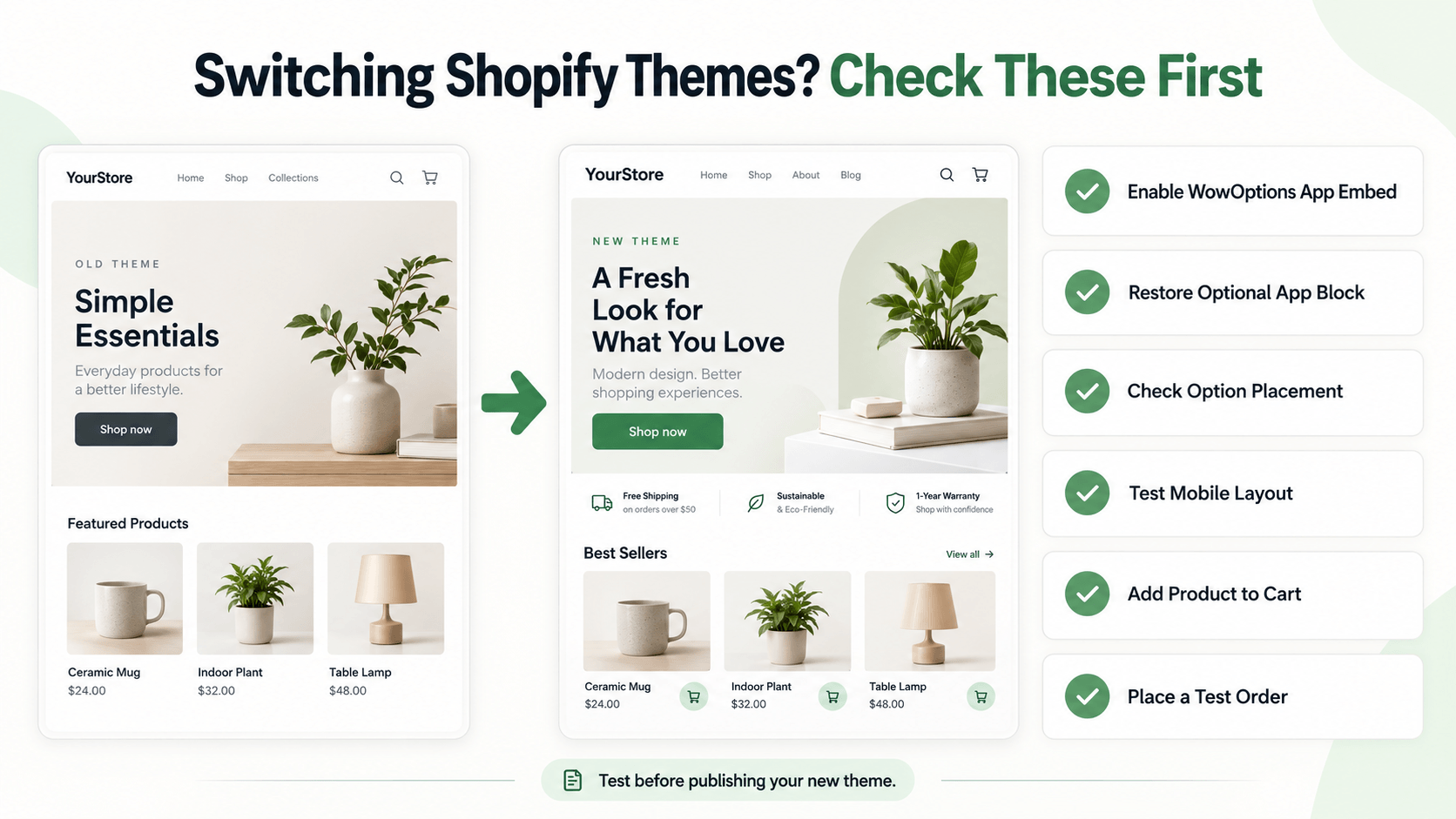
Before publishing a new Shopify theme:
- duplicate or preview the new theme first;
- enable the WowOptions app embed in that theme;
- add the optional WowOptions app block if your layout uses it;
- check at least one simple and one complex option set;
- test paid options and uploads where relevant;
- test the mobile product page;
- add the configured product to cart;
- confirm option data in the Shopify order;
- check page-builder or custom-cart behavior;
- publish only after the complete order path works.
This is also a good time to remove old theme code left by previous customization apps, if any, rather than attributing a legacy conflict to the new theme.
Conclusion
WowOptions is designed to work across standard Shopify Online Store themes by using a Shopify app embed as the broad compatibility layer. Shopify documents app embeds as supported in both vintage and Online Store 2.0 themes. On compatible modern sections, WowOptions also provides an optional app block so merchants can control placement in the theme editor.
The accurate version of “WowOptions works with every Shopify theme” is therefore:
WowOptions is designed for all standard Shopify theme architectures that support Shopify app embeds, including vintage and Online Store 2.0 themes. Custom/headless storefronts and heavily modified product flows should be verified separately.
That is the compatibility standard a merchant can actually test and rely on.