

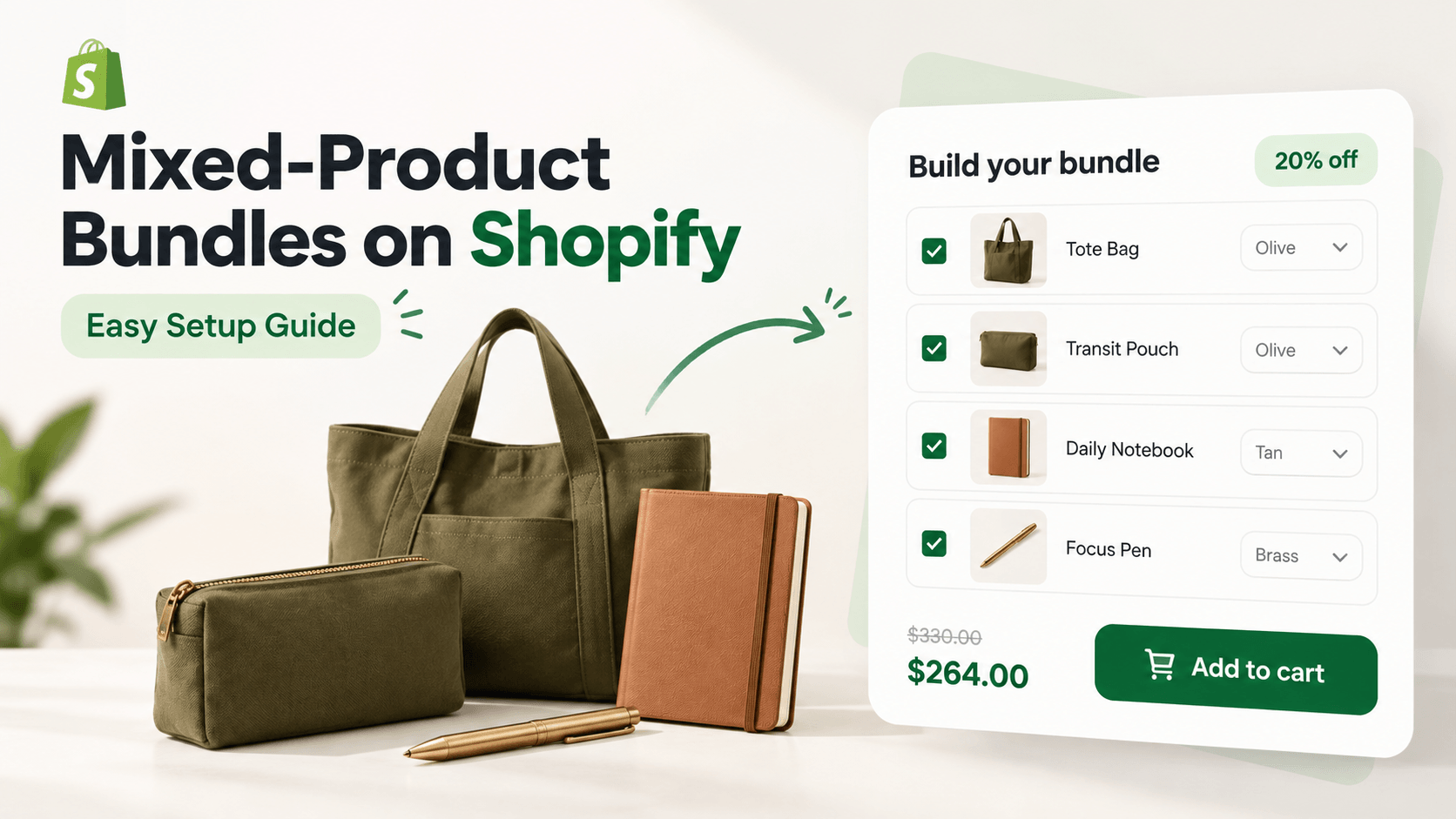
A Shopify mixed-product bundle can combine a specified set of different products in one offer. For example, a pouch, notebook and pen make a useful desk set: the customer can see what belongs together and add the selection without finding each item separately.
You choose the component products. Shoppers may still choose an available variant, such as a pen finish, but that doesn't turn the offer into a pick-anything bundle builder. Shopify makes the same distinction between fixed bundles and interchangeable mix-and-match bundles. Shopify's bundle definitions
Here's how to create that kind of set with WowBundle, plus a simple no-app option for kits you pack and stock separately.
What Is a Mixed-Product Bundle?
A mixed-product bundle groups different items in one purchase, such as a cleanser, serum and moisturizer. The set can be predetermined or let the shopper choose among alternatives. A prepacked kit is easy to photograph and pick; a flexible offer needs clearer selection, stock and return rules.
Decide what belongs in the set, then work out the price
Start with one clear use case. The pouch carries the notebook and pen; each item has a reason to be there. A related set is easier to explain than a collection of unrelated products offered at a discount.
In our demonstration store, shoppers can choose the pouch alone, a pouch-and-notebook pair, or the complete desk set. The three-product offer applies 20% off each component:
| Component | Regular price | Price after 20% off | Saving |
|---|---|---|---|
| Transit Pouch | $1,500 | $1,200 | $300 |
| Daily Notebook | $800 | $640 | $160 |
| Focus Pen | $1,000 | $800 | $200 |
| Complete set | $3,300 | $2,640 | $660 |
These are USD demonstration-store prices. Tax and shipping aren't included in the displayed merchandise total. The smaller pouch-and-notebook tier uses 10% off each, so its total is ($1,500 + $800) × 90% = $2,070.
The 20% rate is an example, not a recommendation for every store. Check the cost of all three items, packing and other variable expenses before choosing your discount. A fixed component list also doesn't require a fixed total price: this offer calculates a percentage saving from its component prices. See our fixed-price versus percentage-discount guide if you're deciding between those approaches.
Shopify Mixed-Product Bundle Apps to Consider
Choose between a preset set and a build-your-own experience. They are not the same workflow.
| App | Typical fit | Operational question |
|---|---|---|
| WowBundle | Preset mixed-product offer on an existing product page | What appears as separate line items at checkout? |
| Shopify Bundles | Fixed bundle product with component inventory | Does the option count fit the desired variants? |
| Simple Bundles & Kits | Kits needing component SKUs and fulfillment connections | How are partial returns and locations handled? |
| Easy Bundles | Shopper-built boxes and mix-and-match selections | Does your exact bundle format support stock sync? |
A separate prepacked kit can also be sold as a normal Shopify product when the kit has its own SKU and inventory. Compare returns and replenishment before deciding.
Method 1: create a mixed-product offer with an app
Use this route when you want to offer existing products together on a product page, with the component pricing and available choices visible to the shopper.
Creating a Mixed-Product Offer in WowBundle
1. Choose the Bundle tier
Start with an offer assigned to the pouch product. For theme setup and creating your first offer, use the quantity-offer setup walkthrough, then choose the tier type needed here.
In the offer editor, select Bundle, labeled Different products. The Products in this bundle area is where you define the set.
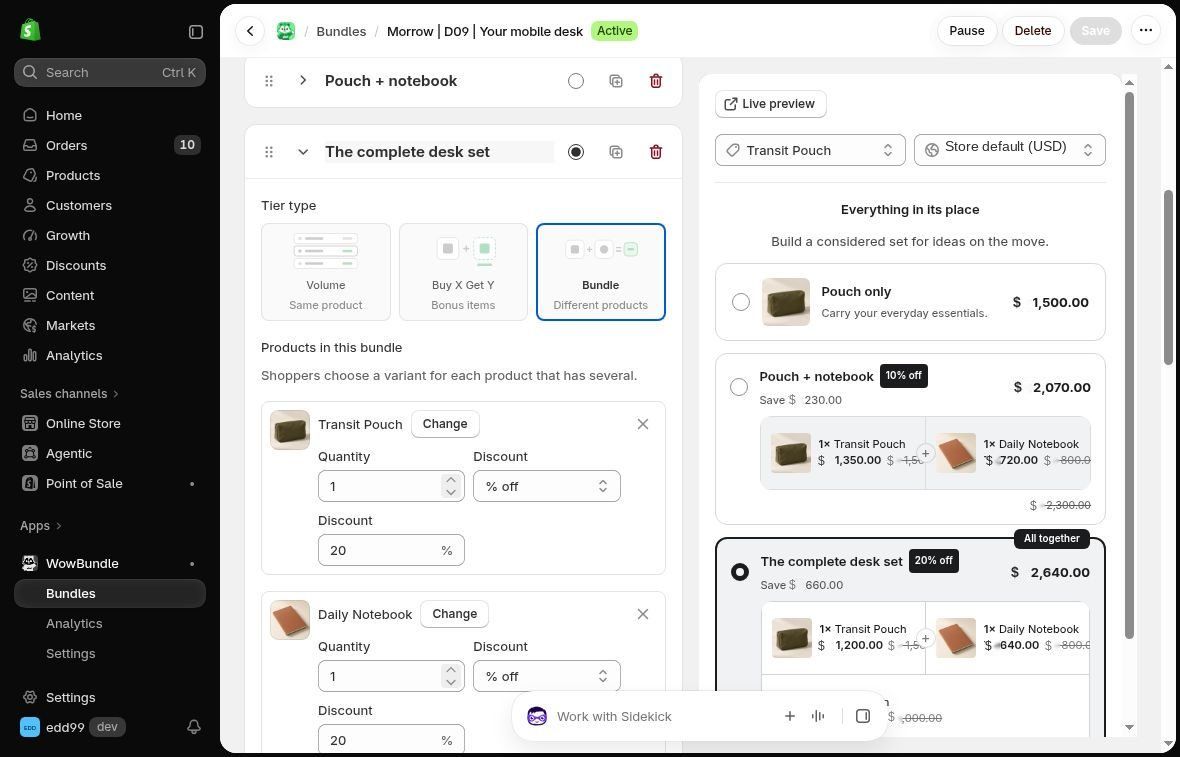
Choose Bundle for a specified set of different products.
2. Set the components, quantities and savings
Use Add product to choose the Transit Pouch, Daily Notebook and Focus Pen. For an empty row, use Pick product; use Change beside a selected product to replace it. For this complete set, configure each component as follows:
- Quantity: 1
- Discount: % off
- Discount value: 20
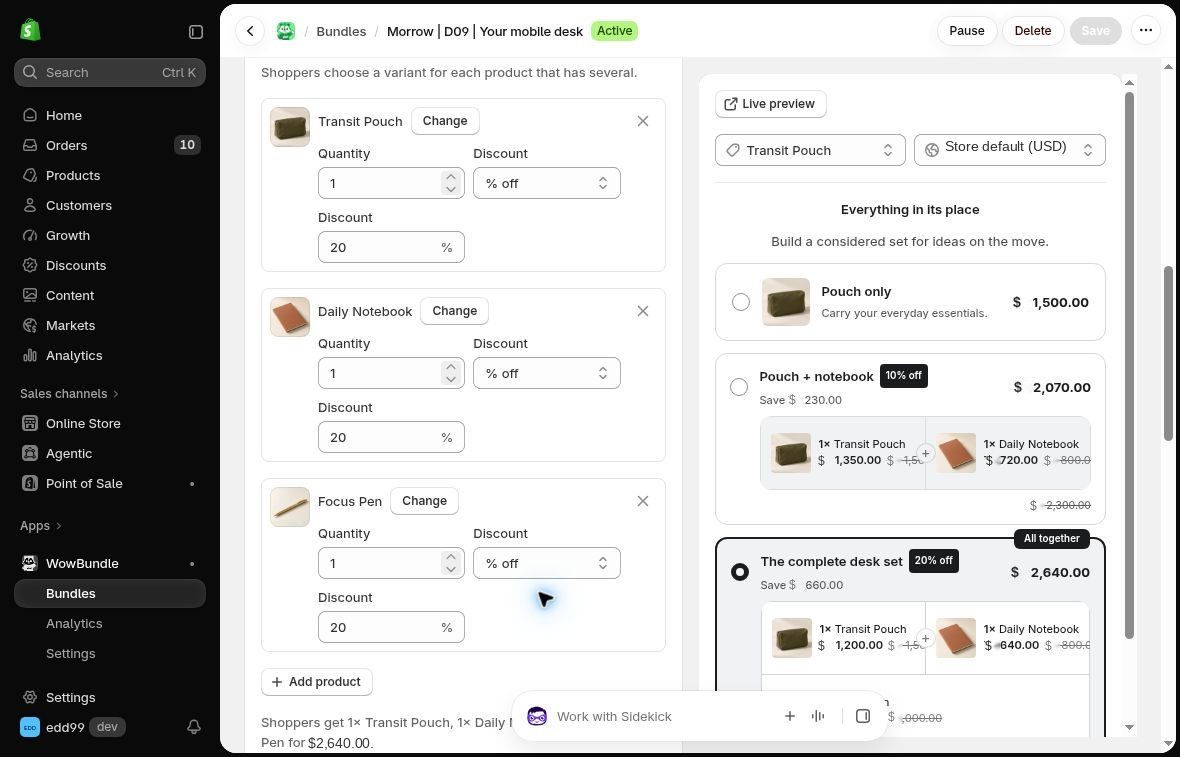
Set quantity and discount for each component.
Check all three rows. Setting 20% on the pouch alone would not describe the same offer as 20% off every item in the set.
If you also offer a smaller tier, give it a distinct contents list and price. In this example, “Pouch + notebook” tells shoppers exactly how it differs from “The complete desk set.”
3. Check the offer and its available choices
Review the editor preview. Use Publish for a new draft, Save for changes to an active or paused offer, and Resume to make a paused offer available again. Confirm the selected products and total in the cart before promoting the set.
The complete-set tier should show all three products, the $2,640 total and $660 saving. Where a component offers a variant selector, choose the intended variant before adding it. The example below shows the pen finish selector.
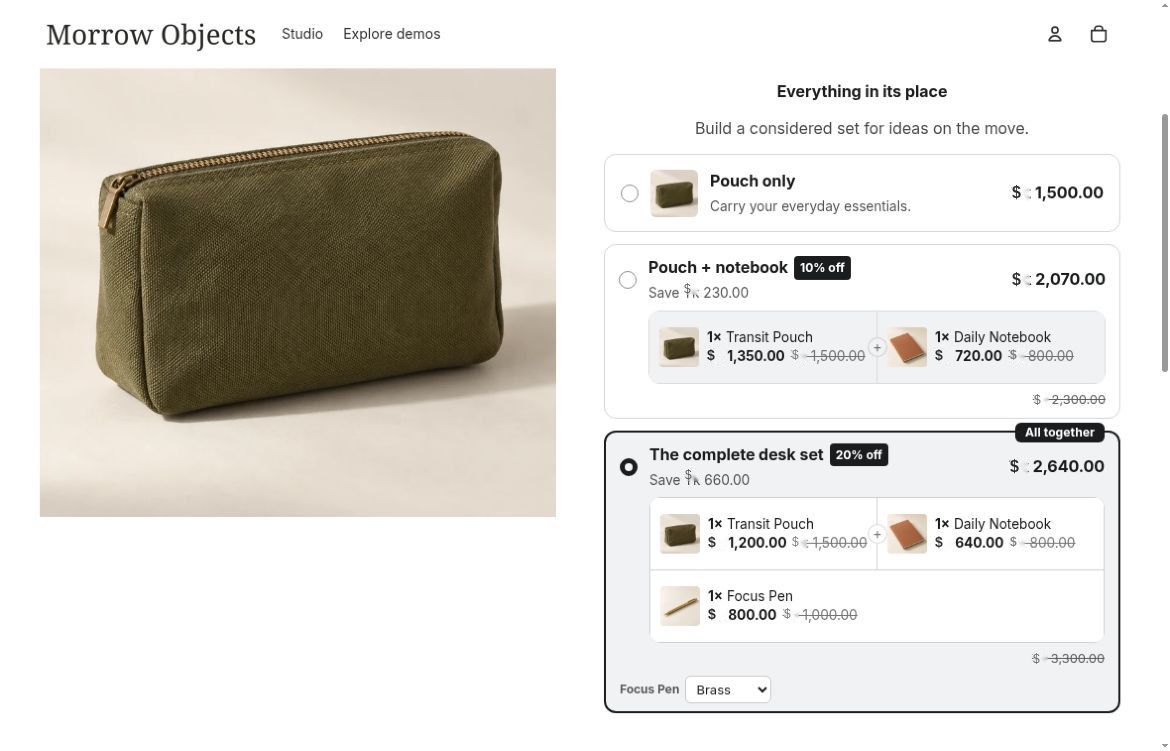
The shopper sees the contents and savings before adding the set.
A variant choice changes a version of a listed product. It doesn't mean the shopper can replace the notebook with any item in your catalog. For more detailed checks, use the bundle variants guide.
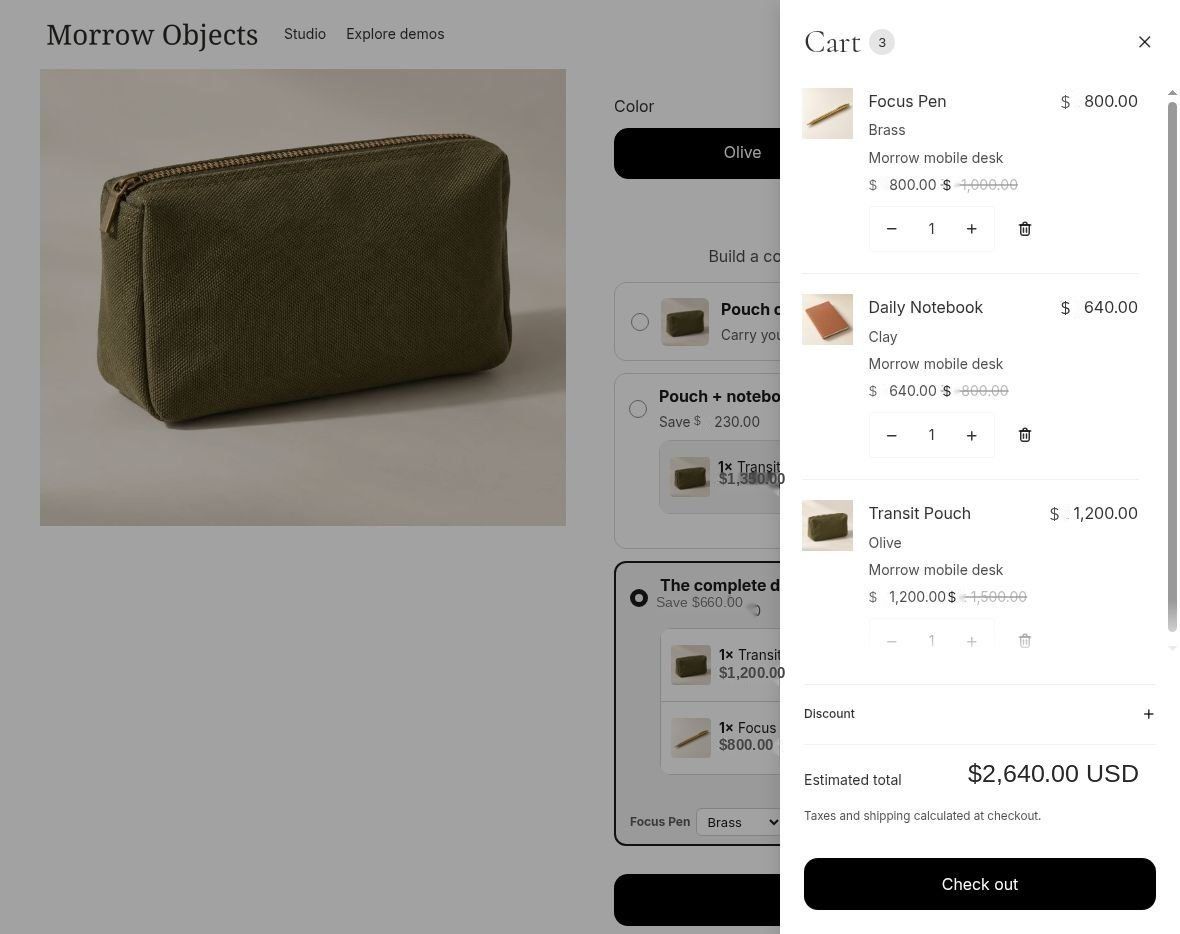
Each component has its own quantity and 20% discount. The $2,640 USD merchandise total excludes checkout charges; this view does not establish returns or stock behavior.
What happens when one item is returned?
Suppose a customer returns the pen but keeps the pouch and notebook. A warehouse may see three component lines or one kit SKU, depending on the selling method. Decide how support will calculate the partial refund and restore the returned stock before launch. Check the actual order lines in a test purchase rather than assuming both methods behave alike.
Method 2: sell a manually prepacked set without a bundle app
You can sell a fixed set as an ordinary Shopify product if you pack and reserve its stock separately. This works well for a small number of ready-made kits whose contents don't change during shopping.
For example, you could pack one Olive pouch, one Clay notebook and one Brass pen into a finished “Mobile Desk Set.” The product record represents that complete kit. It does not automatically connect to, or deduct from, the individual component records.
1. Create the kit product. Go to Products → Add product. Give it a descriptive title, list the exact contents and variants, and add a photo showing the whole set. In the Status selector, choose Draft before saving, and leave the kit in Draft while you finish the setup. Shopify's product-creation instructions
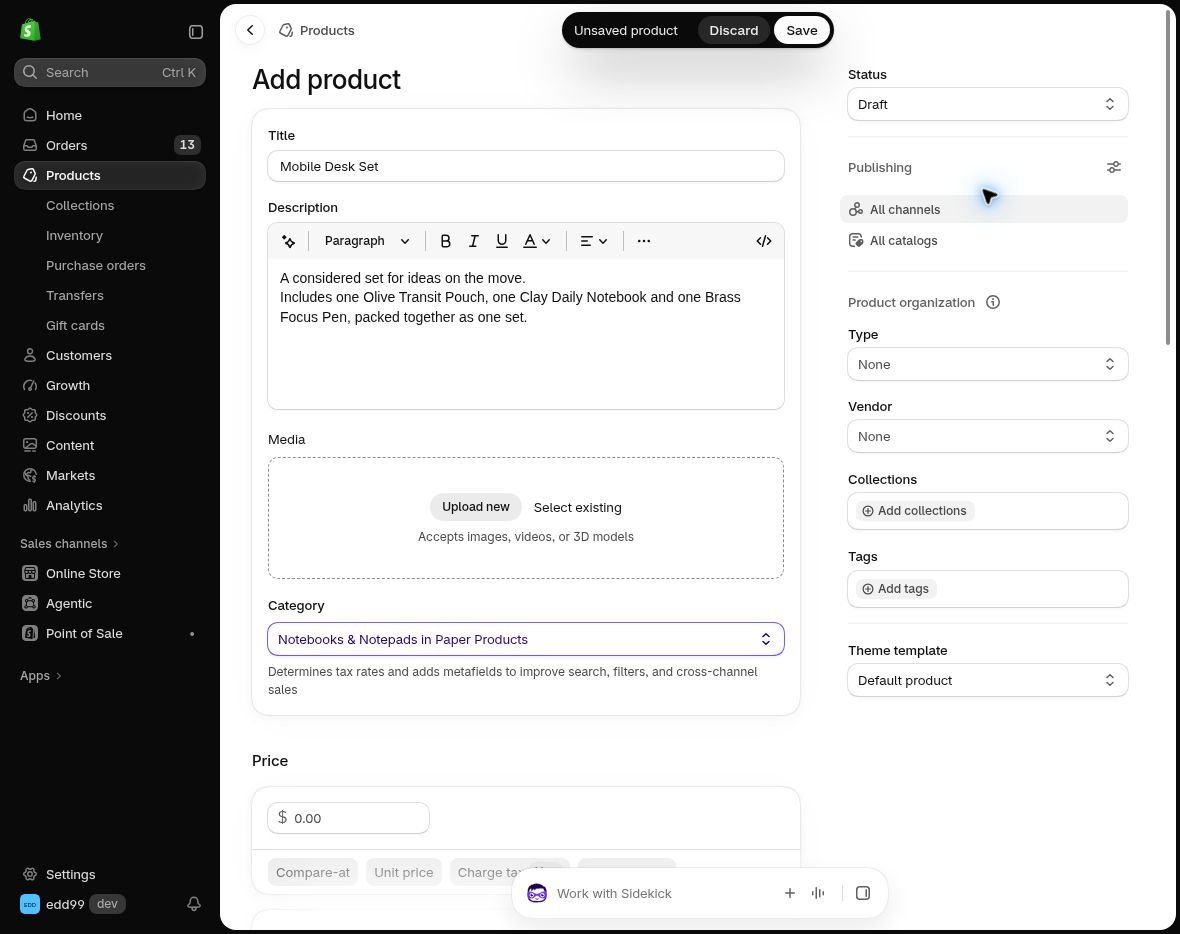
An unsaved example describing the exact prepacked contents.
2. Set the kit price. Enter the price for one complete set. If you use $2,640 to match the example, make clear that the shopper receives all three specified items for that amount. Configure the physical product's shipping details and weight for the kit you're actually sending.
3. Track complete kits. Enable inventory tracking on this product and enter the number of finished kits available at the relevant location. Leave Continue selling when out of stock off unless you deliberately accept orders you can fulfill later. Shopify's inventory setup guide
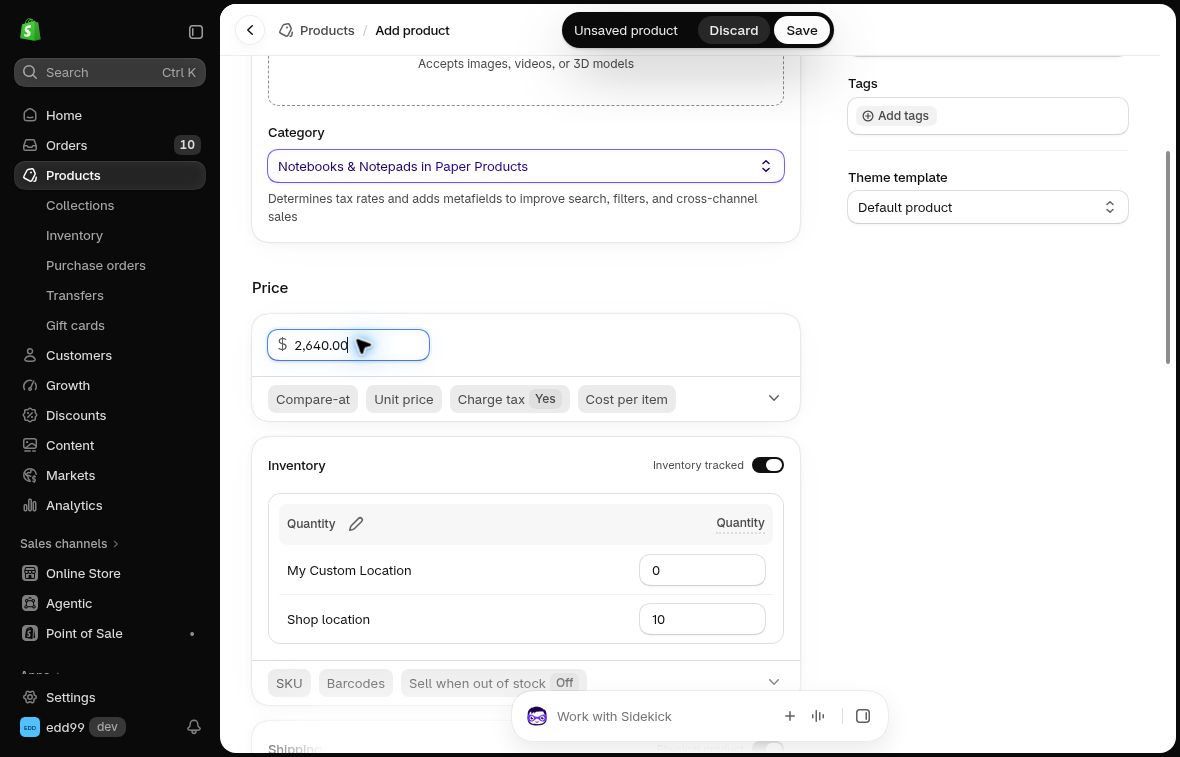
This unsaved illustration tracks complete kits as their own product stock.
Here's the stock mistake to avoid. Suppose you start with ten pouches, ten notebooks and ten pens. If you reserve four of each to pack four kits, your sellable stock becomes:
- Four complete kits
- Six loose pouches
- Six loose notebooks
- Six loose pens
Do not list four kits while still offering all ten of every component separately. You could sell the same pouch twice: once in a kit and once on its own. Record the allocation in your inventory process before making both product types available.
4. Preview and publish when ready. Review the description, price, stock, shipping setup and intended sales channels. Save your changes, preview the product, then make it Active when ready to sell. Make the contents and packing instructions clear to the team fulfilling the kit.
Choose this method only if you can maintain that separate kit stock. If shoppers need independently selectable live components or you need automated component handling, evaluate an app whose documented behavior fits that requirement.
Build your fixed set in WowBundle and choose each product’s quantity and discount. Use the bundle inventory guide to plan stock and fulfillment before expanding the offer across your catalog.