

Product personalization is no longer just a “nice-to-have” feature for Shopify stores.
From custom hoodies and gift boxes to photo products and made-to-order items, shoppers now expect products that feel more personal and tailored to them.
The challenge for store owners is figuring out the right way to offer that customization without making the store difficult to manage.
Some stores only need Shopify’s built-in variants for simple options like size or color. Others need advanced personalization features through third-party apps.
In this guide, I’ll break down why product personalization matters, which types of stores benefit from it most, and how to set it up using both Shopify’s native features and personalization apps.
Why is Product Personalization Essential for Shopify Stores?
Product personalization helps Shopify stores create a better shopping experience and stand out from competitors. It also helps stores improve conversions, increase product value, and build stronger customer relationships.
Here are some of the biggest reasons why personalization has become important for modern Shopify stores:
-
Personalization helps stores stand out in competitive markets
Many Shopify stores sell similar products. Offering customization options helps your products feel more unique and gives shoppers a reason to choose your store over competitors. -
It increases perceived value and supports premium pricing
Customers usually pay more for products made specifically for them. Simple additions like custom text, names, photos, or gift messages can increase the product’s perceived value. -
It can improve conversion rates and average order value (AOV)
Personalized products often create stronger buying intent. Customers spend more time interacting with the product, which can increase engagement and encourage larger purchases. -
It builds emotional connection and encourages repeat purchases
Personalized products feel more meaningful to customers. This emotional connection can increase customer satisfaction, repeat purchases, and word-of-mouth referrals. -
It reduces inventory risk with made-to-order models
Many personalized products are produced after the order is placed. This helps merchants reduce unsold inventory while still offering a wide range of product variations.
This growing demand for customization is already shaping eCommerce trends. According to Shopify, around 36% of consumers are interested in purchasing personalized products, especially in categories like apparel, gifts, and accessories.
What Kind of Stores Need Personalized Options?
Not every Shopify store needs advanced product customization. But for some business models, personalization can directly improve customer experience, product value, and conversions.
Here are some of the most popular store types that benefit from personalized product options:
Custom Apparel Stores
Custom apparel stores often allow customers to personalize products with names, numbers, logos, colors, or custom text. This is common for hoodies, t-shirts, jerseys, uniforms, and event-based clothing.
Gift & Occasion-Based Stores
Personalized messages, names, dates, and packaging options are popular in this category. This type of customization works well for birthdays, anniversaries, weddings, holidays, and corporate gifting.
Print-on-Demand Stores
Customers can upload photos, add text, or customize designs before placing an order. This model is widely used for mugs, phone cases, posters, canvases, and other custom-printed products.
Made-to-Order Stores
Made-to-order businesses usually offer products that are customized after the order is placed. Customers may choose materials, sizes, colors, add-ons, or product configurations.
How to Set Up Personalized Products on Your Shopify Store
There are two main ways to add product personalization to a Shopify store.
You can use Shopify’s built-in product variants for simple customization or use third-party personalization apps for more advanced features.
Let’s explore both approaches now.
Approach 1: Using Shopify’s built-in variants
This approach works well for simple product personalization. Shopify helps you create basic variation options based on the product category, and you can also add custom options manually.
Here’s how to set it up step by step:
Step 1: Choose the product category
First, select the product you want to personalize and assign the correct category. Shopify will then suggest relevant variation ideas based on that product type.
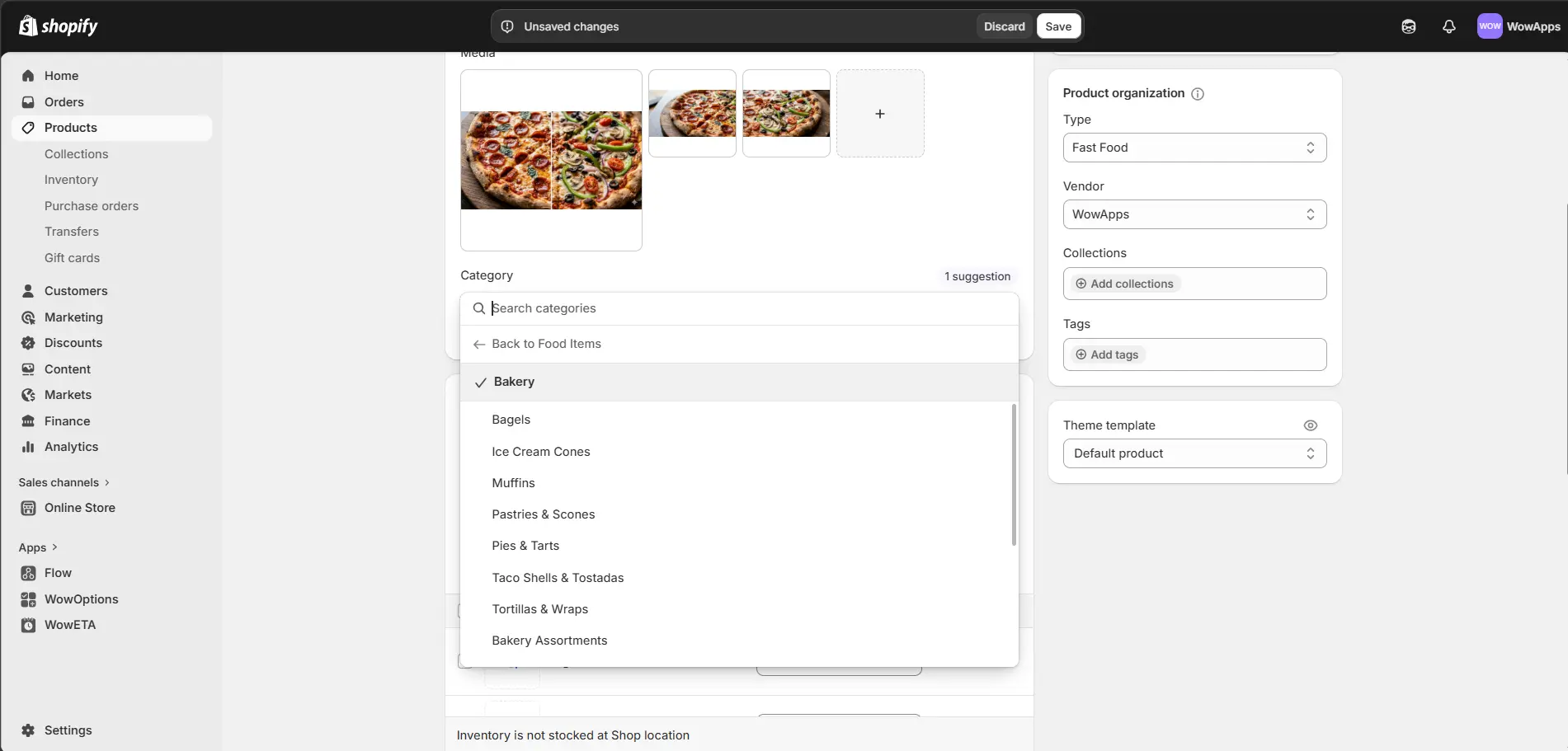
The more specific the category, the more accurate and relevant the suggestions you would receive.
Step 2: Add variant options
Next, scroll down to the variants tab and add your custom options. Then set the option name and define the option values clearly. For example, you can add options like size, crust, or sauce.
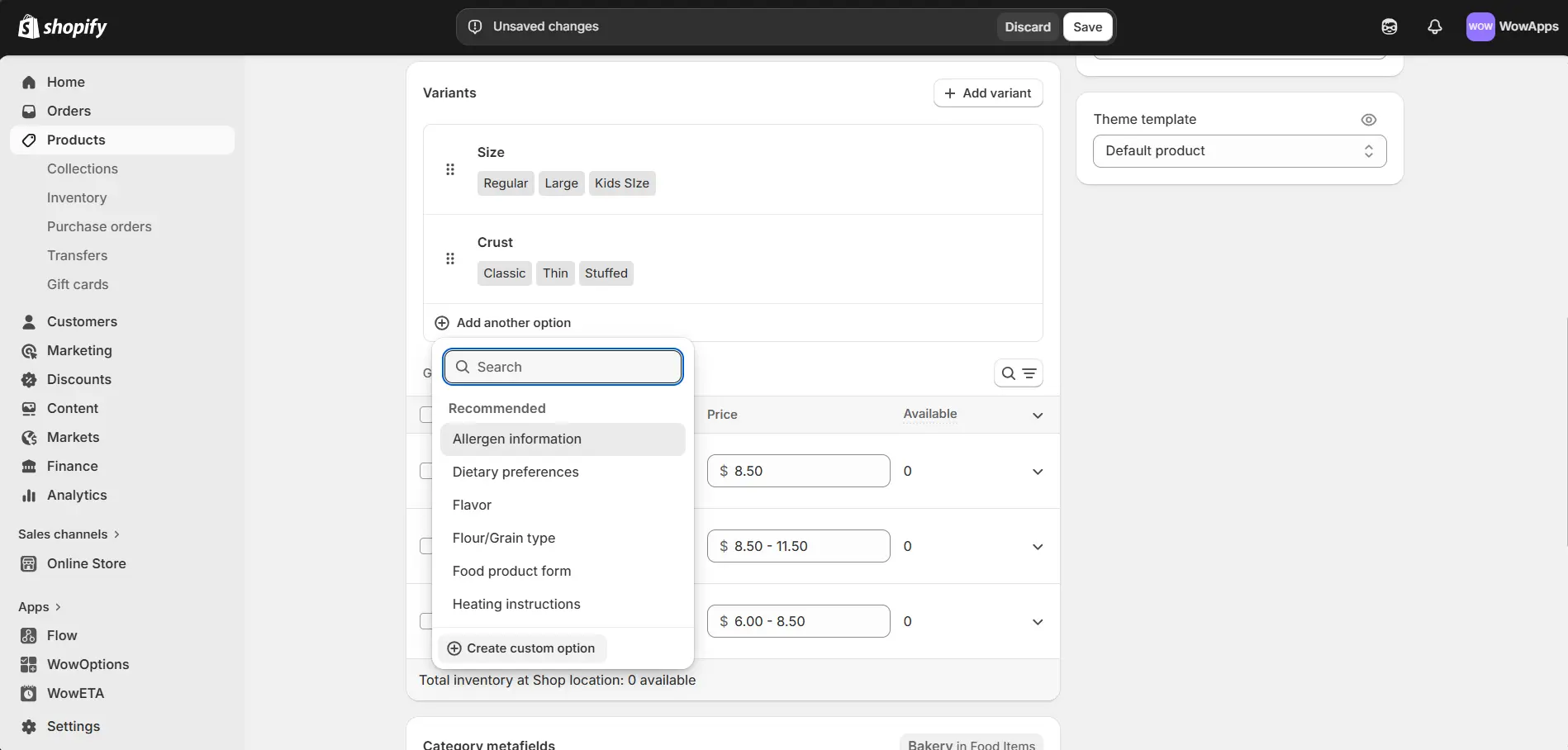
For each option value, set the price accordingly. You can also track the inventory for each option from here.
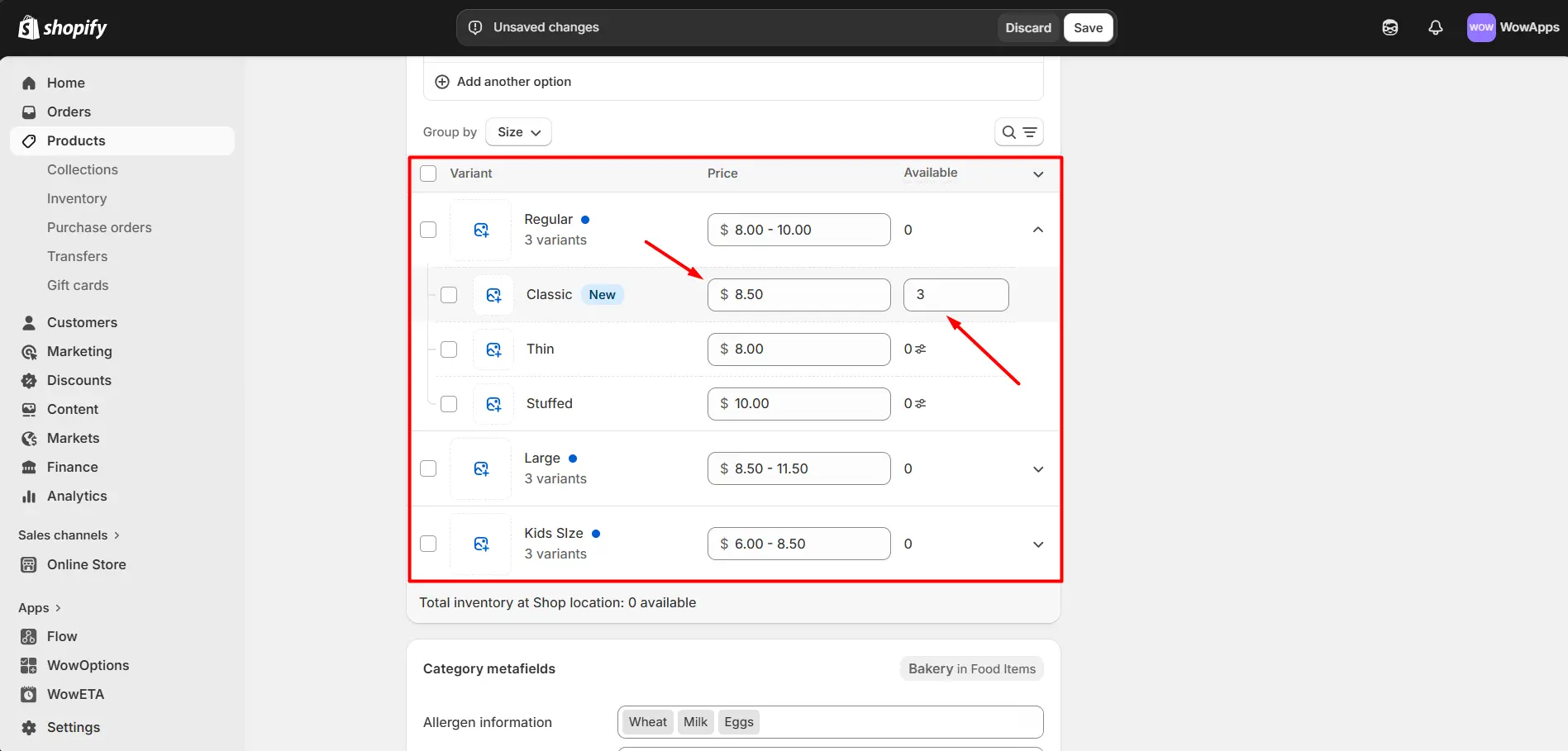
Step 3: Review and test the variants
After adding the options and values, review the product page to make sure everything displays correctly.
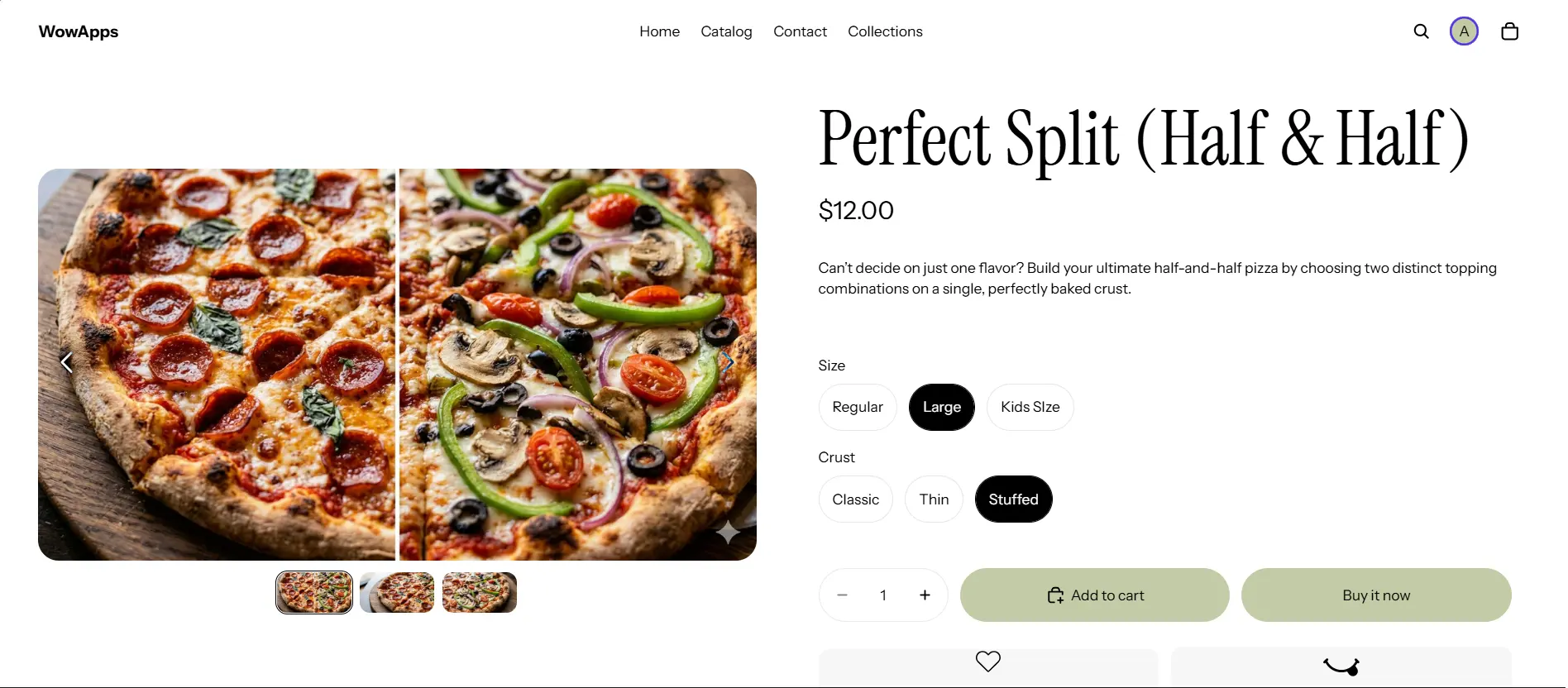
Shopify’s built-in system allows up to three product options per product.
However, Shopify’s built-in variants become limiting when products require dynamic fields, uploads, conditional logic, or more complex personalization workflows.
Approach 2: Using personalization apps
This approach works best when you need advanced customization features like dynamic inputs, image uploads, conditional logic etc. It gives you more control over how customers interact with your products.
Here’s how to set it up step by step:
Step 1: Install a product personalizer app
First, install a personalization app from the Shopify App Store. Choose one that matches your product type and customization needs.
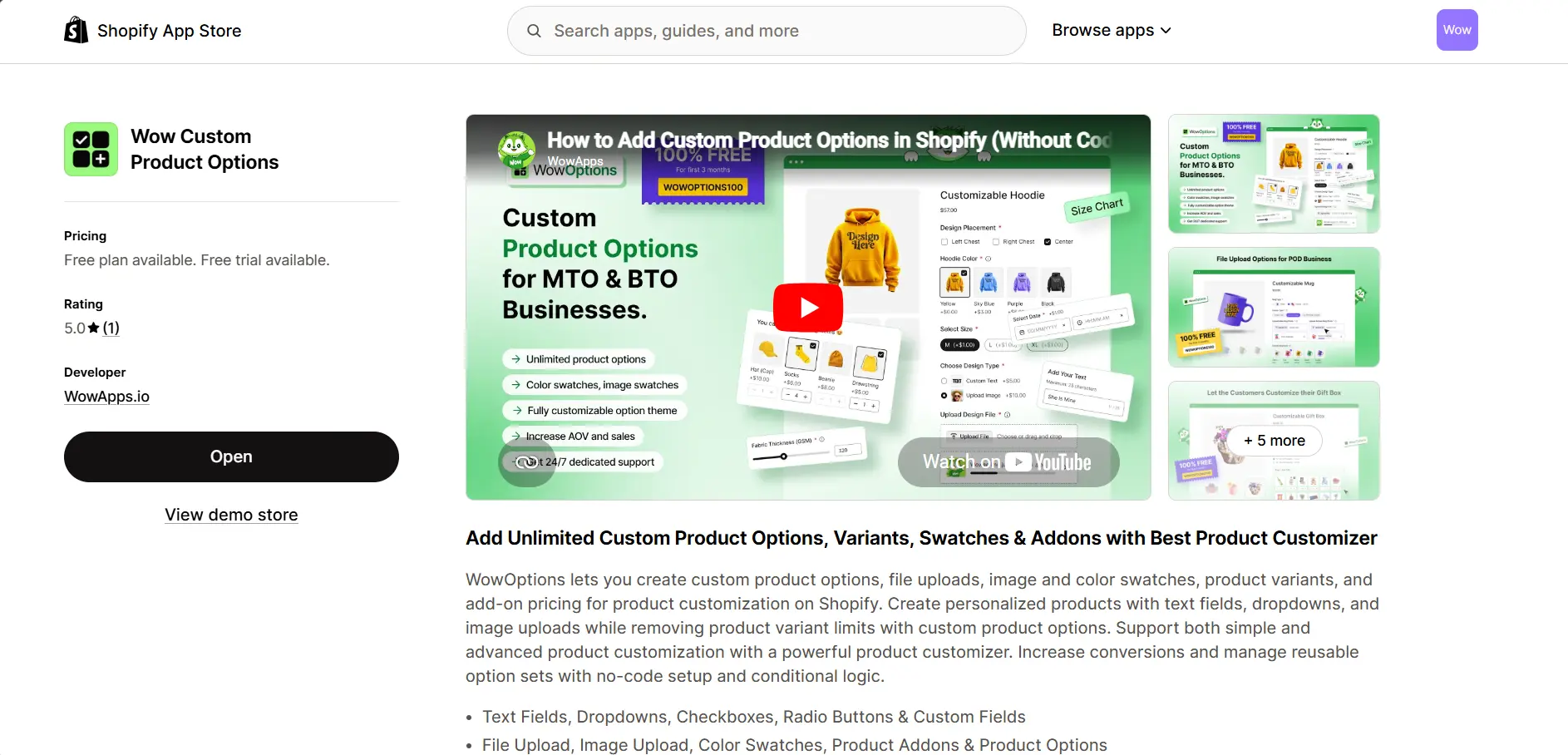
For this demonstration, I will use WowOptions, developed by WowApps. You can also use other similar best product customizer apps like Customily, teeinblue, Zepto Product Personalizer etc.
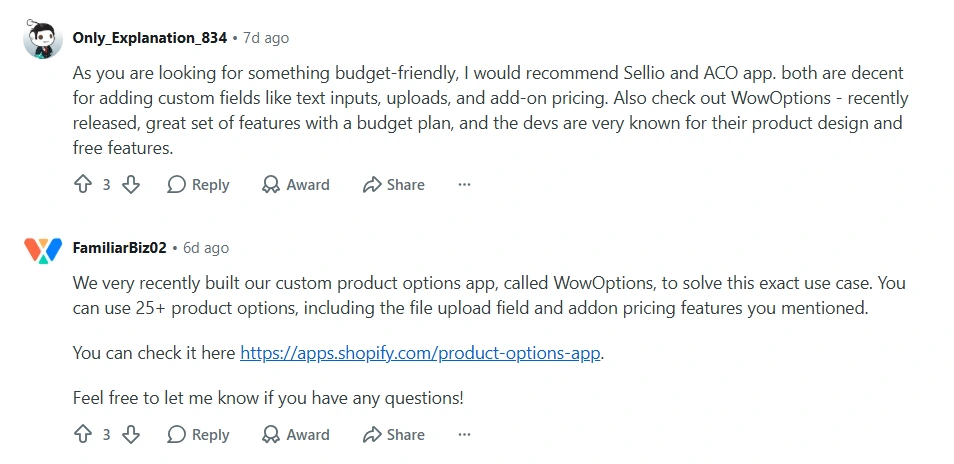
Many Redditors prefer WowOptions as well as other product personalization apps.
Step 2: Configure customization options (text, buttons, dropdowns etc)
Next, add custom options to a relevant product. If your store falls under the business types mentioned earlier, you can apply personalized configurations easily.
After installing WowOptions, set up the custom fields based on your product requirements.
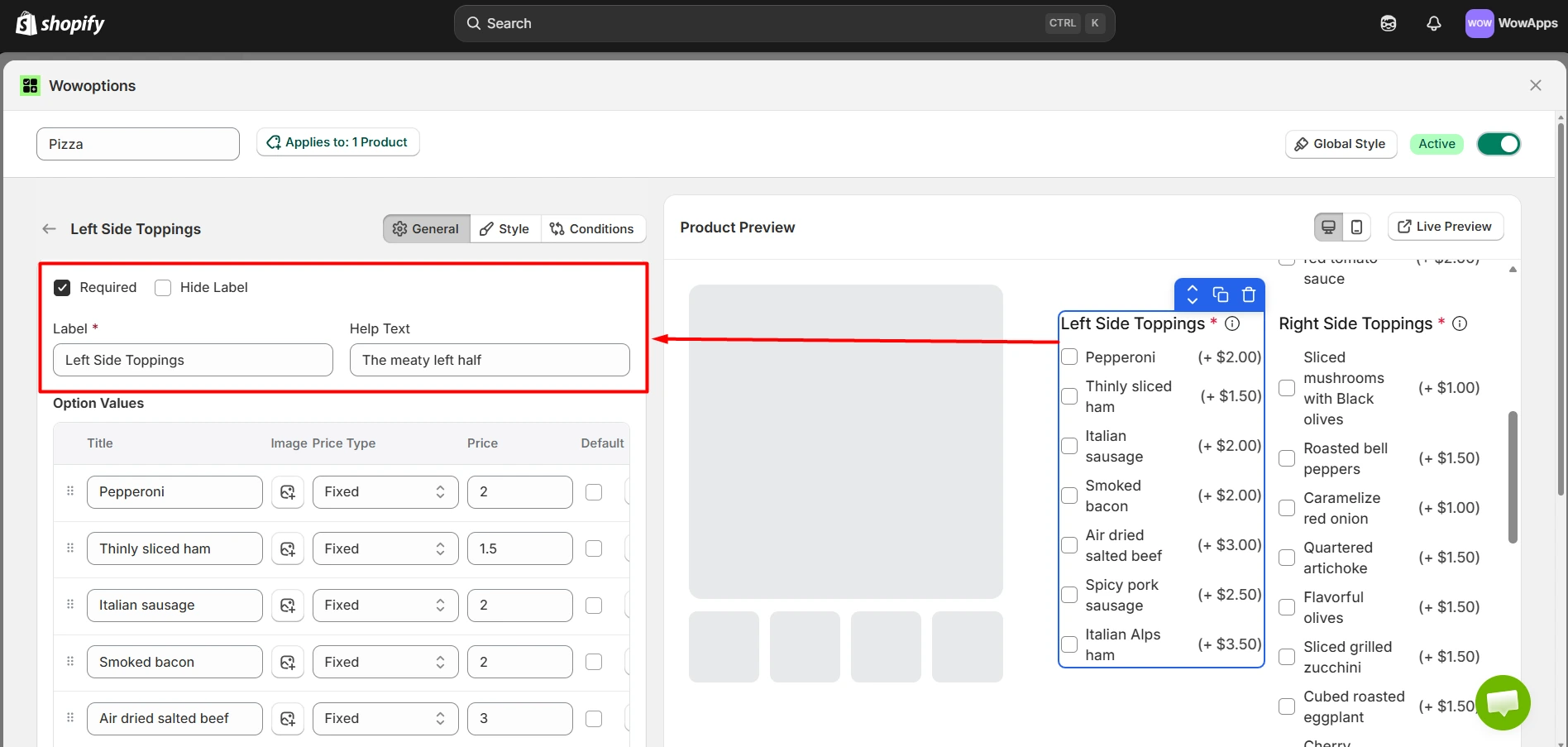
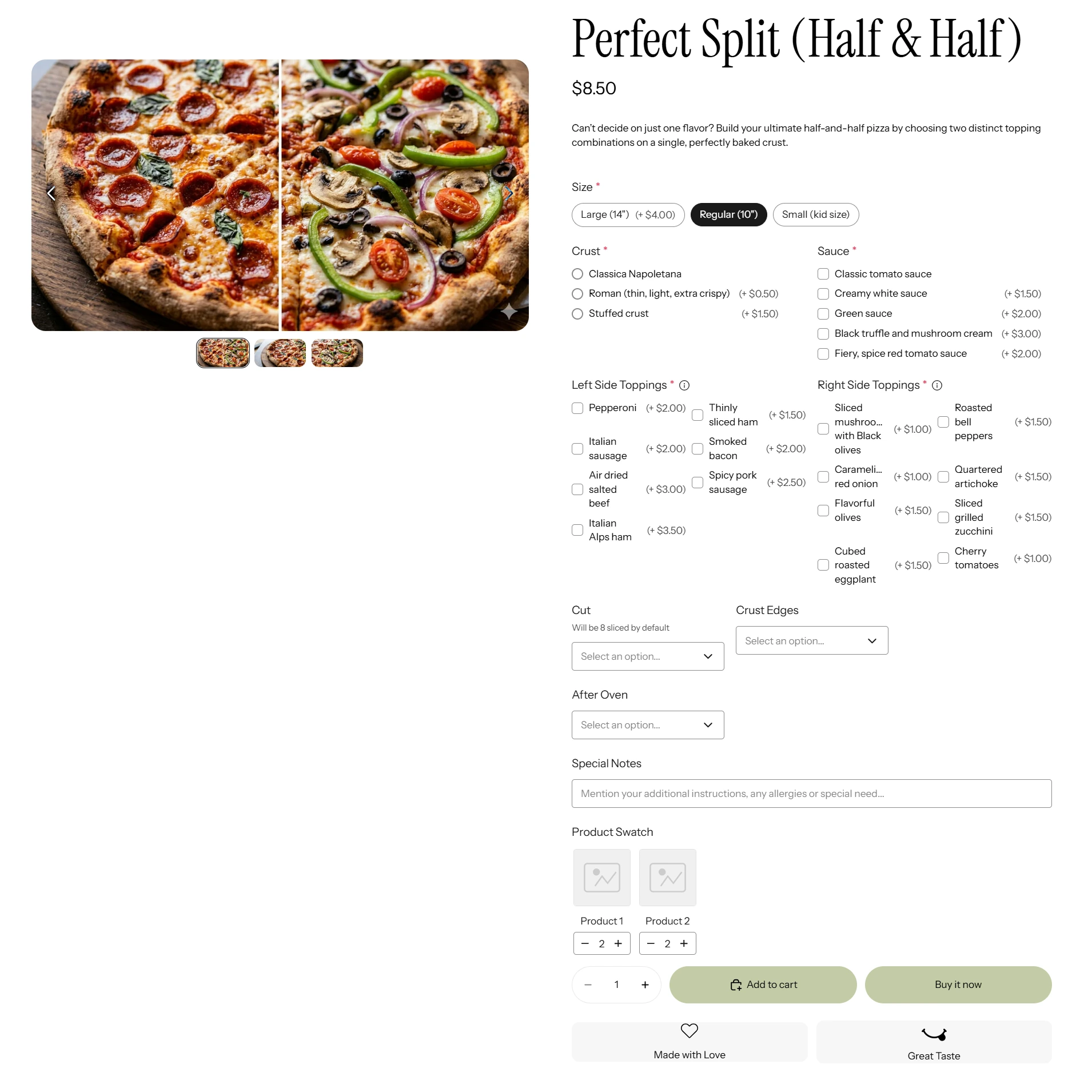
Here, I am using a personalized pizza as an example. I added a button field for pizza size, a radio field for crust, a checkbox for sauce, toppings, and for other complementary options, I used text fields, dropdowns etc..
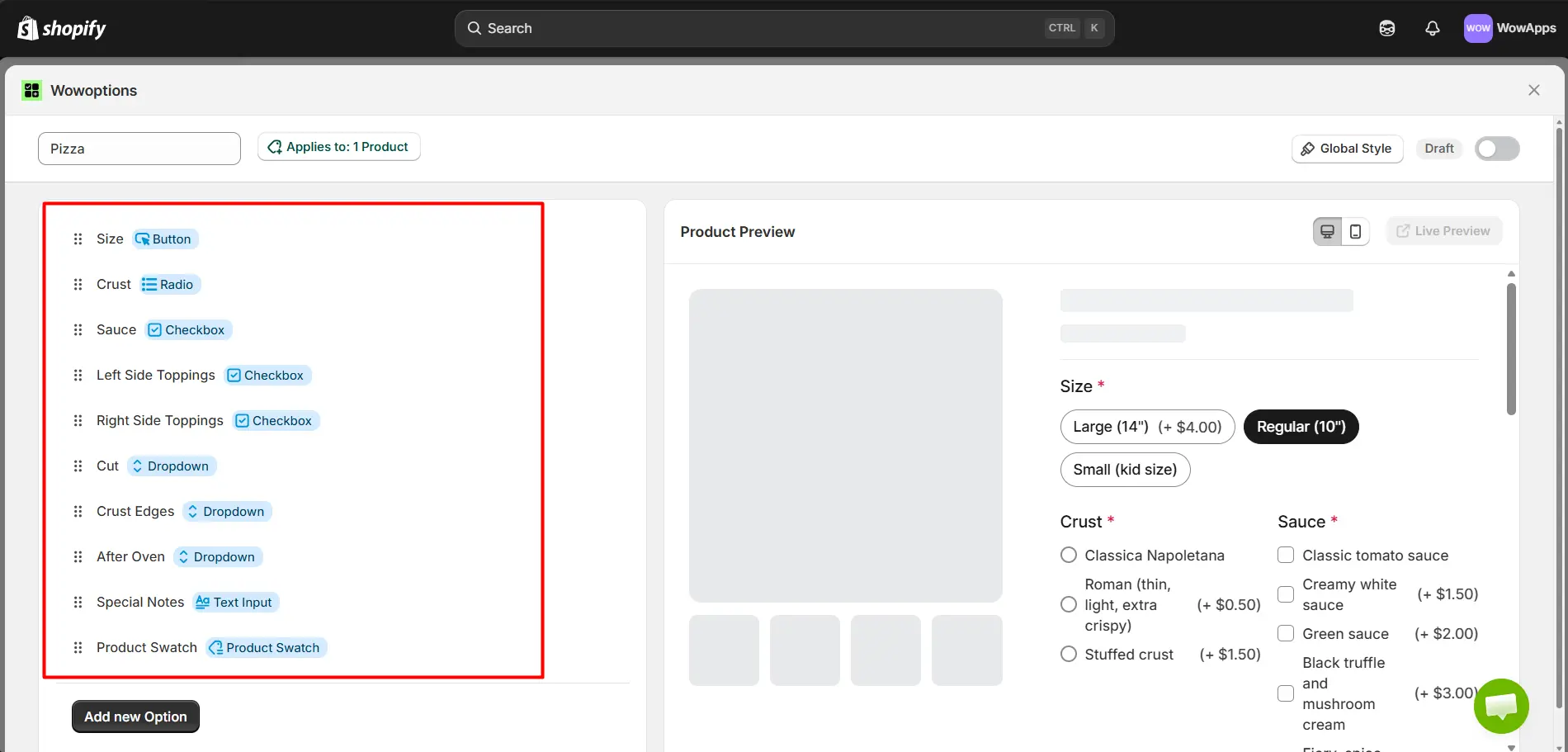
Some fields are marked as required, while others are optional. You can define field names, option values, and helper text wherever needed.
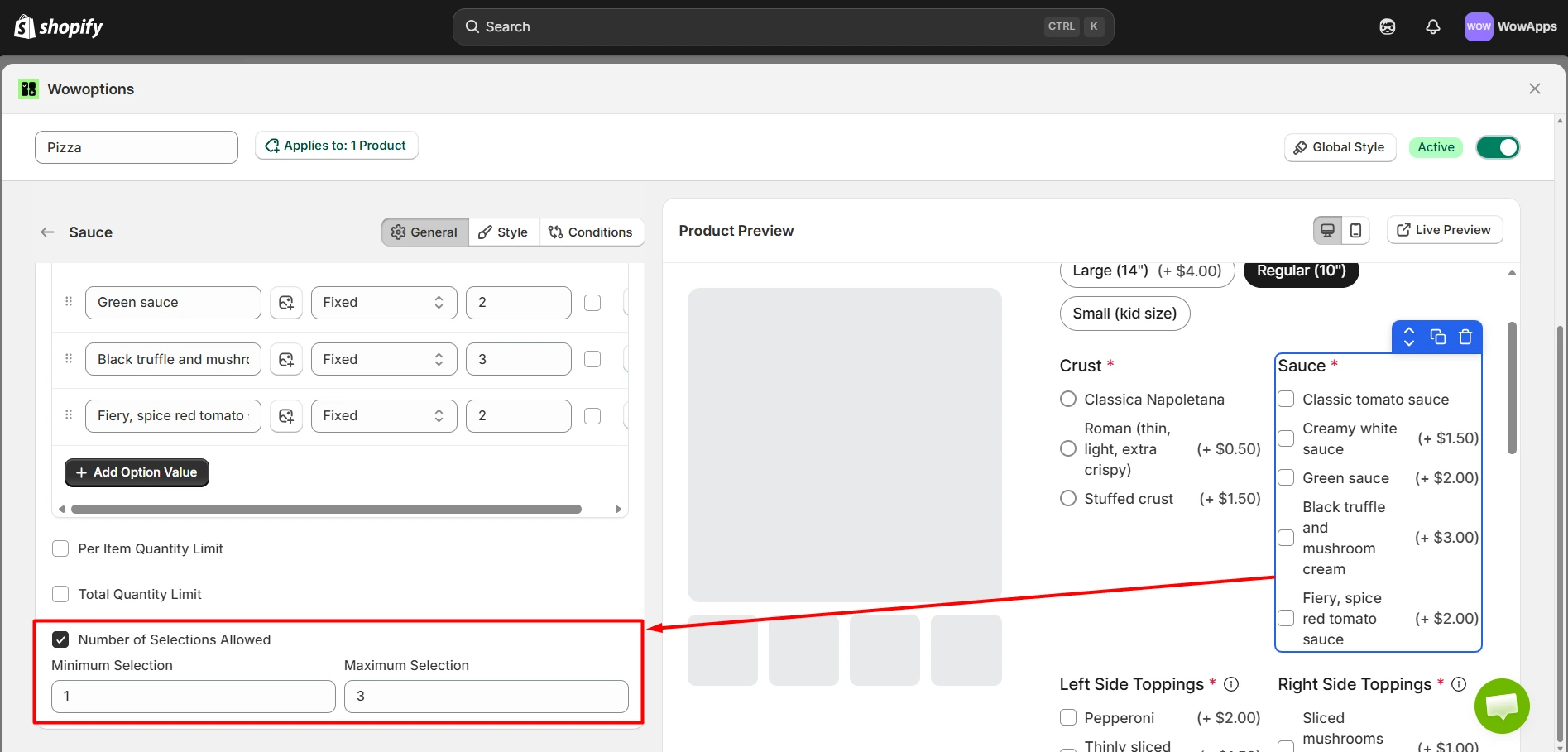
I also configured validation rules, such as minimum and maximum option selections. This guides customers and keeps product selections organized.
Step 3: Add pricing and conditional logic for the options
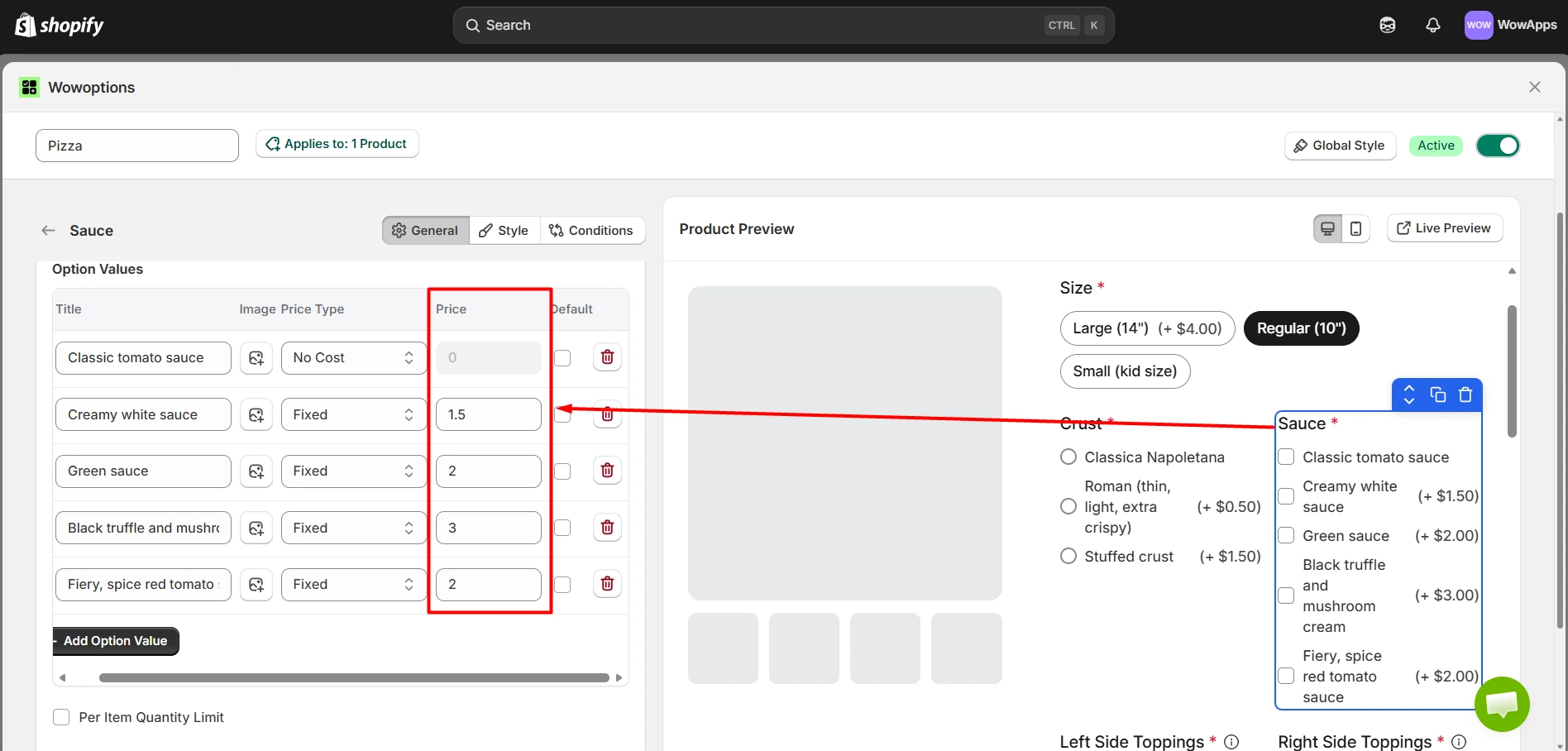
After setting up the fields, assign additional pricing where certain options increase the product cost.
For demonstration, I added different pricing for premium and personalized ingredients.
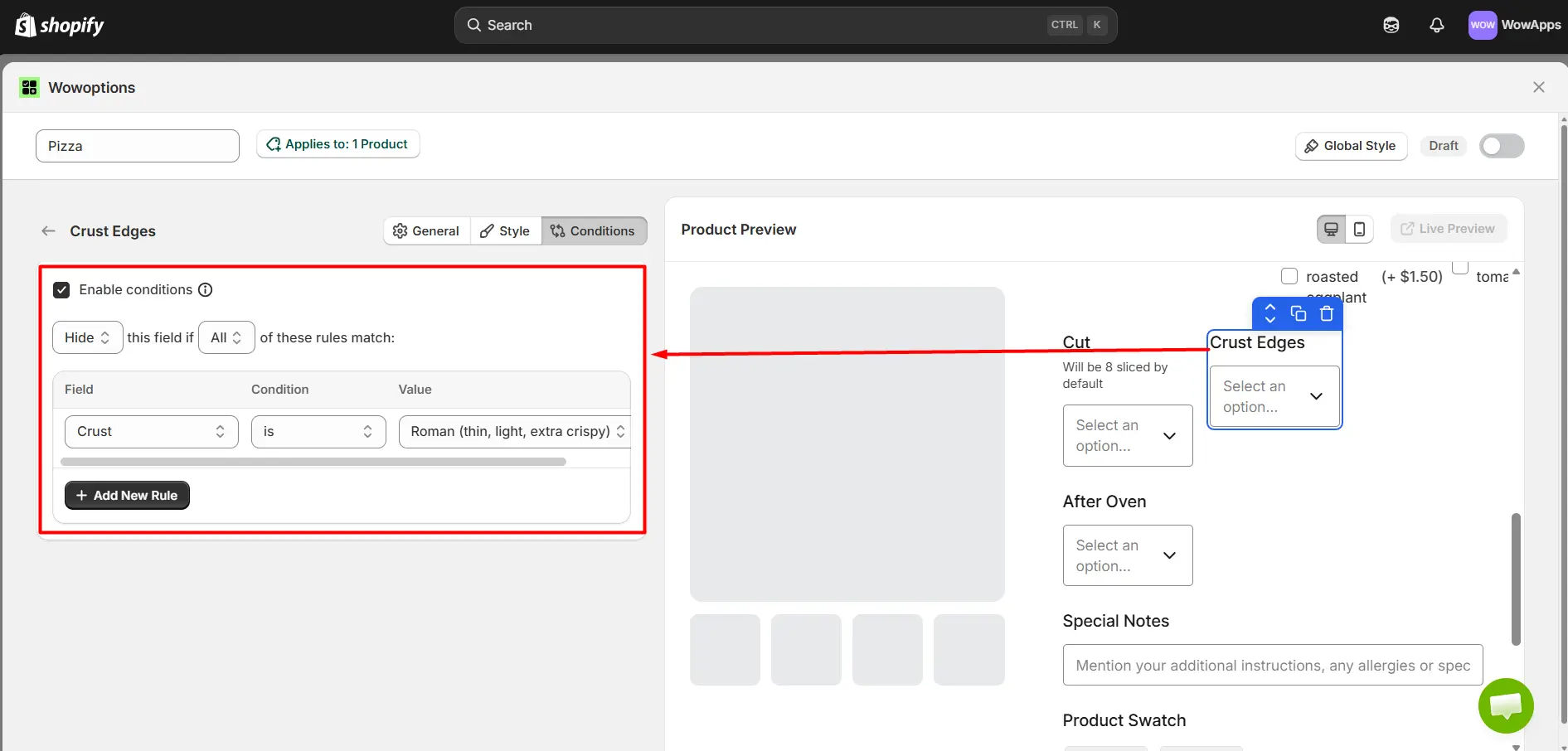
I also used conditional logic so customers only see relevant options based on their choices.
Step 4: Publish and test the new options
Finally, publish the configured options and test the full flow.
Check the product page and cart carefully to ensure all customization inputs are captured correctly and passed through the order system.
Shopify Native vs Personalization Apps: Which Setup Is Right for You?
Both Shopify’s native features and personalization apps can help you offer customized products. However, the right setup depends on how advanced your customization process needs to be.
If you only need simple product options, Shopify’s built-in variants may be enough. But if you want interactive customization features, personalization apps usually offer more flexibility and scalability.
Here’s a quick comparison to help you decide which setup fits your store better
|
Factor |
Shopify Native |
App-Based |
|
Setup complexity |
Low |
Medium |
|
Customization depth |
Limited |
Advanced |
|
User experience |
Basic |
High (interactive previews) |
|
Scalability |
Low |
High |
|
Best for |
Simple products |
Custom-heavy stores |
Shopify’s native options work well for stores with basic customization needs. Personalization apps are usually the better choice for stores that want advanced product options, dynamic fields, live previews, or more interactive customer experiences.
Common Mistakes to Avoid
Adding product personalization can improve customer experience and conversions. But a poor setup can create confusion, order mistakes, and operational issues.
Here are some common mistakes Shopify store owners should avoid:
-
Overcomplicating the product form: Too many fields and options can overwhelm customers. Keep the customization process simple and easy to follow.
-
Not validating customer input: Customers can accidentally submit incorrect or incomplete information. Use character limits, required fields, and validation rules whenever possible.
-
Ignoring mobile UX: Many customers customize products from mobile devices. Make sure personalization fields, buttons, and previews work properly on smaller screens.
-
Not testing the fulfillment flow: Always test how customization data moves from the product page to the order dashboard and fulfillment process. Missing information can lead to production errors.
-
Missing live preview features: Customers may not fully understand how the final product will look. Product previews help reduce confusion and minimize incorrect orders.
FAQs
What is product personalization in Shopify?
Can I personalize products without an app?
What’s the difference between variants and customization fields?
How do personalized orders reach fulfillment?
Do personalization apps affect site speed?
Which products sell best with customization?
Conclusion
Product personalization is no longer an optional feature for Shopify stores. It has become a practical way to improve customer experience, increase product value, and stand out in competitive markets.
The key is choosing the right approach based on your product type. Simple stores can start with Shopify’s built-in variants. More advanced stores benefit from personalization apps that offer flexibility, previews, and dynamic customization.
When implemented correctly, personalization can improve conversions, increase average order value, and reduce inventory risk. The best setup is the one that keeps customization simple for customers while remaining manageable for your store operations.