


You set up a bundle offer. The product page says "Buy 3, save 15%". Then the customer reaches checkout and the discount is gone, or a different one shows up.
When a Shopify bundle discount is not working, the cause is almost always one of seven things: a discount combination setting, a checkout shortcut that skips the cart, a conflict with another app, a rule that does not match the cart, or a storefront setting that was never switched on. The good news is that each one takes a few minutes to check.
This guide goes through them in the order that finds the problem fastest. You do not need to edit any code.
First, find out where the discount disappears
Before you change anything, run one clean test. It tells you which of the seven checks to start with.
- Open the product page in a private browser window, so no old cart or code interferes.
- Select the offer exactly as a shopper would: the same product, variant and quantity.
- Note the price shown on the product page.
- Add it to the cart and note the price in the cart.
- Go to checkout and note the merchandise subtotal. Look at shipping and tax separately, because they are not part of the discount.
Now you know the exact step where the number changes.
- Wrong on the product page: the offer rule or storefront setup is the problem. Start with checks 5 and 6.
- Right on the product page, wrong in the cart: the app, the cart type or the product selection is the problem. Start with checks 3, 4 and 6.
- Right in the cart, wrong at checkout: another discount or a checkout shortcut is the problem. Start with checks 1 and 2.
1. Check how your discounts combine
This is the most common cause. Shopify puts every discount into one of three classes: product discounts, order discounts and shipping discounts. A discount only works alongside another one when both are set to combine.
Shopify's combining discounts guide lists what can be combined. All merchants can combine order discounts with free shipping discounts, product discounts with free shipping discounts, and product discounts with other product discounts on separate items. Customers can use a maximum of 5 product or order discount codes and 1 shipping discount code on the same order.
What to check:
- In Discounts, open each active discount that could apply to the same cart.
- Scroll to Combinations.
- Make sure the classes you want to work together are ticked on both discounts. A tick on one side is not enough.
Be careful with the "tick everything" fix. It can stack more discounts than you planned and quietly cut your margin. If you are unsure, test the cart with each discount alone before you enable more combinations.
One more limit matters if you run many promotions. You can have a maximum of 25 automatic discounts active at once, according to Shopify's discount combinations help page. If a quantity discount seems to be ignored, check that you have not hit that cap.
2. Test the Buy Now and express checkout buttons
Many themes show a "Buy it now" or express payment button under Add to cart. These buttons can send shoppers straight to checkout and skip the cart page.
Some bundle apps apply the offer through the cart. If the shopper skips the cart, the discount may not have been applied yet. This is listed as a known cause in Revy's help article, which describes shoppers who click checkout before the app script loads or use a button that is not the cart's checkout button.
How to check it on your store:
- Add the offer to the cart with the normal Add to cart button, then check out. Note the total.
- Repeat with the Buy Now button. Compare the totals.
- If the totals differ, hide the Buy Now button on bundle products in your theme settings, or test the offer again after changing the cart type.
Every theme and app behaves a little differently here, so test it on your own store and do not assume it is fine.
3. Check the first-party Shopify Bundles app and discount codes
If you built the bundle with Shopify's own Bundles app, discount codes can behave differently on it. In one Shopify Community thread, a merchant reports that a code works on normal products but fails when a bundle created with that app is in the cart.
Shopify's app creates fixed bundles and multipacks. It works well for that, but it is not built for tiered quantity discounts or flexible rewards. If you need those, a discount-focused app is usually the better fit. Our guide to Shopify Bundles vs bundle discount apps compares what each handles.
4. Look for another app touching the same product
When two apps change the same product or the same cart, one can overwrite the other. A bundle app's discount might not load if a second app, a cart drawer or a custom checkout button modifies the same line.
The listing for Bundle Bear shows a real example. Its developer explains that Shopify checkout can stop their discount from applying to products that another app also modifies, and that removing a dual checkout button fixed it.
To find a conflict:
- Turn off one other cart or discount app at a time, using a duplicate theme, not your live store.
- Re-run the clean test after each change.
- When the discount returns, you have found the conflicting app. Then decide which feature matters more, or ask that app's support whether the two can work together.
5. Make sure the app is switched on in your theme
An offer can be set up perfectly in the app admin and still never show or apply, because the storefront connection is off.
For WowBundle, open Theme setup in the app and confirm the App embed is on for your published theme. The embed is the storefront connection. You can also add the optional WowBundle Bundles block to choose exactly where the offer sits on a compatible product template. Our bundle launch checklist lists this as a required check.
If you changed themes recently, check again. A new published theme does not always carry the app embed over.
6. Check that the rule matches the cart
Sometimes the discount works, just not for the cart you tested. The offer has a rule, and the cart has to meet it.
Check these in the offer:
- Products: under Applies to, make sure the product or variant in the cart is included.
- Quantity: a "Buy 3" tier needs three of the eligible item, not two plus something else.
- Status and dates: confirm the offer is published, not paused, and that the schedule has started and has not ended.
- Limits: check customer eligibility and usage limits if you set any.
In WowBundle, use Publish for a new draft, Save for an active or paused offer and Resume to restart a paused one. A draft that was saved but never published is a common reason an offer does nothing.
If your free gift is being charged instead of discounted, our guide on why a free gift is charged in the cart covers that case in detail.
7. Confirm what the shopper actually sees
The last check is about expectations. A discount can be correct and still look wrong.
- Tax and shipping: the discount applies to the merchandise subtotal. Shipping and tax are shown separately and are not reduced by a product discount.
- Rounding and compare-at prices: if a product already has a sale price, the tier discount applies to the price you set it against. Read the offer's price mode.
- Currency and markets: if you sell in several currencies, test one cart per market.
Write the offer text so it says what the discount covers. "15% off the items" is clearer than "15% off", especially when shipping is charged.
Test the fix before you call it done
When you change a setting, run the same clean test again, then add two more:
- The cart with no code.
- The cart with each code you plan to allow.
- The cart with any automatic promotion that is active.
The results should match what the offer promises. Our launch checklist has the full set of cart, checkout and theme tests if you want a longer list.
A bundle app that keeps this simple
If you are choosing or replacing a bundle app because of discount trouble, look for one that shows the offer on the product page, applies it through checkout, and lets you preview before you publish.
WowBundle is our app, and it is completely free, for life, with no paid plans. It builds quantity breaks, bundles, Buy X Get Y offers, free gifts and add-ons, and it shows a live preview before you publish. The listing says it works with Checkout. You can read more on the WowBundle product page.
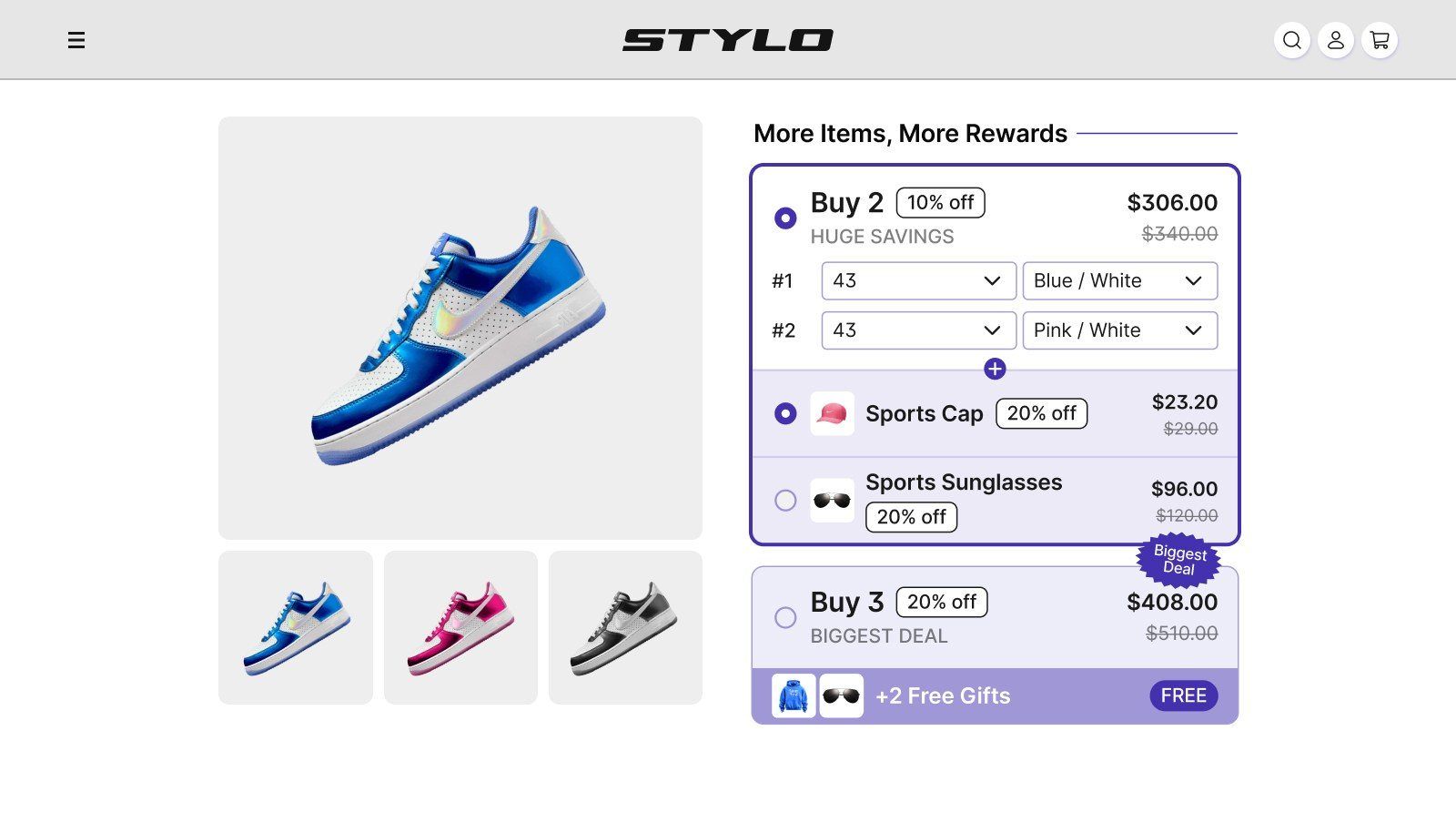
For quantity tier offers like the one above, our quantity breaks guide walks through the setup, and how to choose quantity break tiers helps you pick the numbers.
FAQ
Why does my bundle discount show on the product page but not at checkout?
The product page display comes from the app. The final price at checkout depends on Shopify's discount rules. The usual causes are a combination setting that blocks the discount, a Buy Now button that skips the cart, or another app changing the same item.
Can I use a discount code with a bundle discount?
Often yes, if both discounts are set to combine in the Combinations section. Shopify allows up to 5 product or order discount codes and 1 shipping discount code on one order. Test the cart with and without the code to see the final result.
Why is my quantity discount not applying on Shopify?
Check that the cart meets the quantity exactly, that the product or variant is included in the offer, and that the offer is published and within its dates. Then check for a conflicting discount.
Does the Shopify Bundles app work with discount codes?
Some merchants report that codes that work on normal products fail on bundles made with that app. Test your exact setup, and consider a discount-based app if you need flexible tiers.
How do I test a bundle discount without losing orders?
Use a private browser window and test the full path from product page to checkout. Duplicate your theme before turning other apps off, so live shoppers are not affected.
Where to start
Run the clean test first. It shows you whether the problem is on the product page, in the cart or at checkout. Then work through the checks that match. In most stores, the answer is in the discount combinations or a checkout button, and fixing it takes a few minutes.