

Before you install a bundle app, you want to know one thing: will it show up and work on my theme?
The honest answer for any Shopify app is that it depends on how the app connects and on how your theme is built. This guide explains how WowBundle connects to your theme, the steps to switch it on, what to test, and the cases where you need to look closer. It does not promise that every theme will work, because no app can promise that.
Quick answer
WowBundle connects to your storefront through a Shopify app embed. You switch it on in your theme from the app's Theme setup page. You can also add the optional WowBundle Bundles block if you want to choose exactly where the offer appears on a compatible product template.
You do not paste code into your theme for the standard setup. After you turn it on, test your own product page, cart and checkout on desktop and mobile. Our bundle launch checklist lists the same check as a required step.
WowBundle is also completely free, for life, so testing it on your theme costs nothing.
App embed vs app block: what is the difference?
Shopify apps can add themselves to a theme in two ways. Knowing both makes the setup easier to follow.
The app embed is the base connection. It is switched on in the theme editor and loads the app on your storefront. For WowBundle, it is the storefront connection that the offer needs to appear and apply. If the embed is off, the offer can look perfect in the app and show nothing to shoppers.
The app block is optional. It is a block you place inside a section of a compatible product template, so you decide where the offer sits, for example under the price or above the Add to cart button. In WowBundle, this is the WowBundle Bundles block. Even if you use the block, you keep the app embed enabled.
A simple rule: turn on the embed first, check where the offer appears, and add the block only if you want it somewhere else.
Step-by-step: enable WowBundle on your theme
- Install the app from the Shopify App Store listing and open it from your Shopify admin.
- Open Theme setup. In the app, go to the Theme setup page.
- Turn on the app embed for your published theme. Save the change in the theme editor if Shopify asks you to.
- Create an offer. Choose the product, add your tiers or bundle and check the live preview. Our quantity breaks guide shows a full example.
- Check the storefront placement. Open the product page in your store. The offer should appear in the default spot.
- Optional: add the app block. In the theme editor, open a compatible product template, add the WowBundle Bundles block where you want it, and save.
- Publish the offer. Use Publish for a new draft, Save for an active or paused offer and Resume to restart a paused one.
- Run your tests. See the next section.
What to test on your theme
A theme can look fine in the editor and still behave differently for shoppers. Run these tests on the live, published theme.
- Placement: the offer appears once, in the right place, on the right product template.
- Variants: pick each variant in the offer and confirm the selection carries into the cart.
- Mobile: test on a narrow screen, around 320 and 375 pixels wide. Tap through with real taps, not a mouse. Labels and totals should be readable without sideways scrolling.
- Cart: the items, quantity and price in the cart match the offer you selected.
- Checkout: the merchandise subtotal matches. Check shipping and tax separately. The listing says WowBundle works with Checkout.
- Cart drawer and Buy Now button: test both with your own theme. Different themes handle them differently, so do not assume.
If a discount differs between the cart and checkout, our guide on why a Shopify bundle discount is not working lists the common causes.
Does WowBundle need theme code edits?
For the standard setup, no. You switch on the app embed in the theme editor, and you can place the optional block with the drag and drop editor. That is the point of using Shopify's app embed system instead of asking you to paste snippets.
Custom changes are a separate matter. If your theme has been heavily edited, you may need a developer to check how the product form and cart work. That is true for any app, not only this one.
What can still go wrong on a compatible theme
Even with the embed on, these cases need a closer look.
- A customized product form. If your product form was rebuilt, the offer may not connect to it the way it does on a standard form.
- Page builders. Product pages built with a page builder can ignore the default placement. Place the app block inside the builder section, if the builder supports app blocks, and test again.
- A custom or slide-out cart. Cart apps and custom carts can change how line items are shown. Test the cart you actually use.
- Another app on the same product. Two apps changing one item can conflict. See our troubleshooting guide for how to find it.
- Headless storefronts. A custom storefront, such as one built on Hydrogen, does not use theme app embeds in the same way. Treat it as a separate project and test from the start.
- Theme changes. If you switch your published theme, check again. The app embed may need to be turned on for the new theme, and any app block you added may need to be placed again.
Theme migration checklist
Use this when you launch a new theme or copy a duplicate to live.
- Open Theme setup in WowBundle and confirm the app embed is on for the new theme.
- Re-add the WowBundle Bundles block if you used one.
- Open each product that has an offer, and check placement.
- Test one offer from product page to checkout on mobile.
- Check your theme's cart drawer and Buy Now button again.
- Compare the prices with your old theme before you publish.
Which offers to test first
Start with the simplest offer, so a problem is easy to trace.
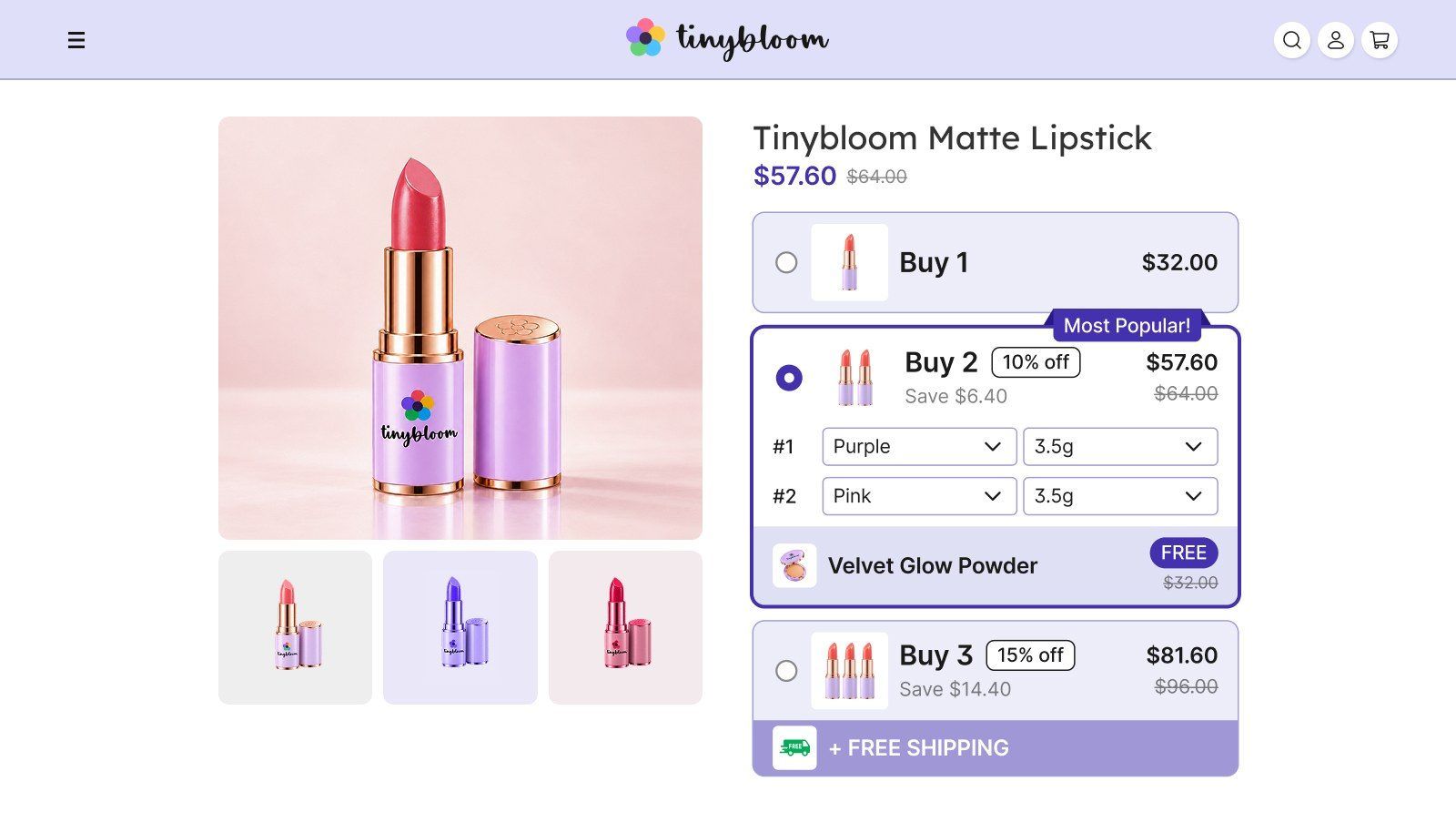
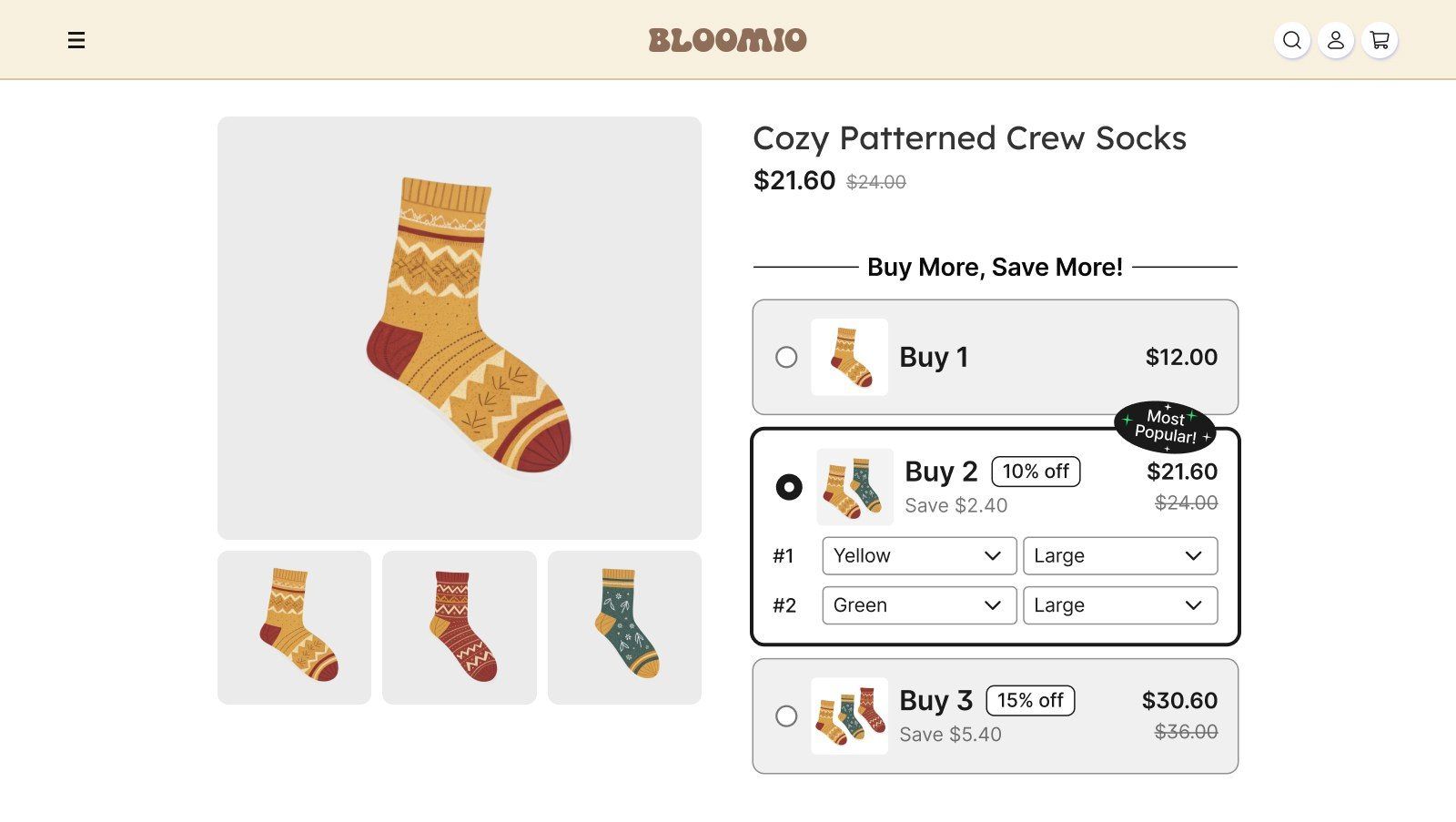
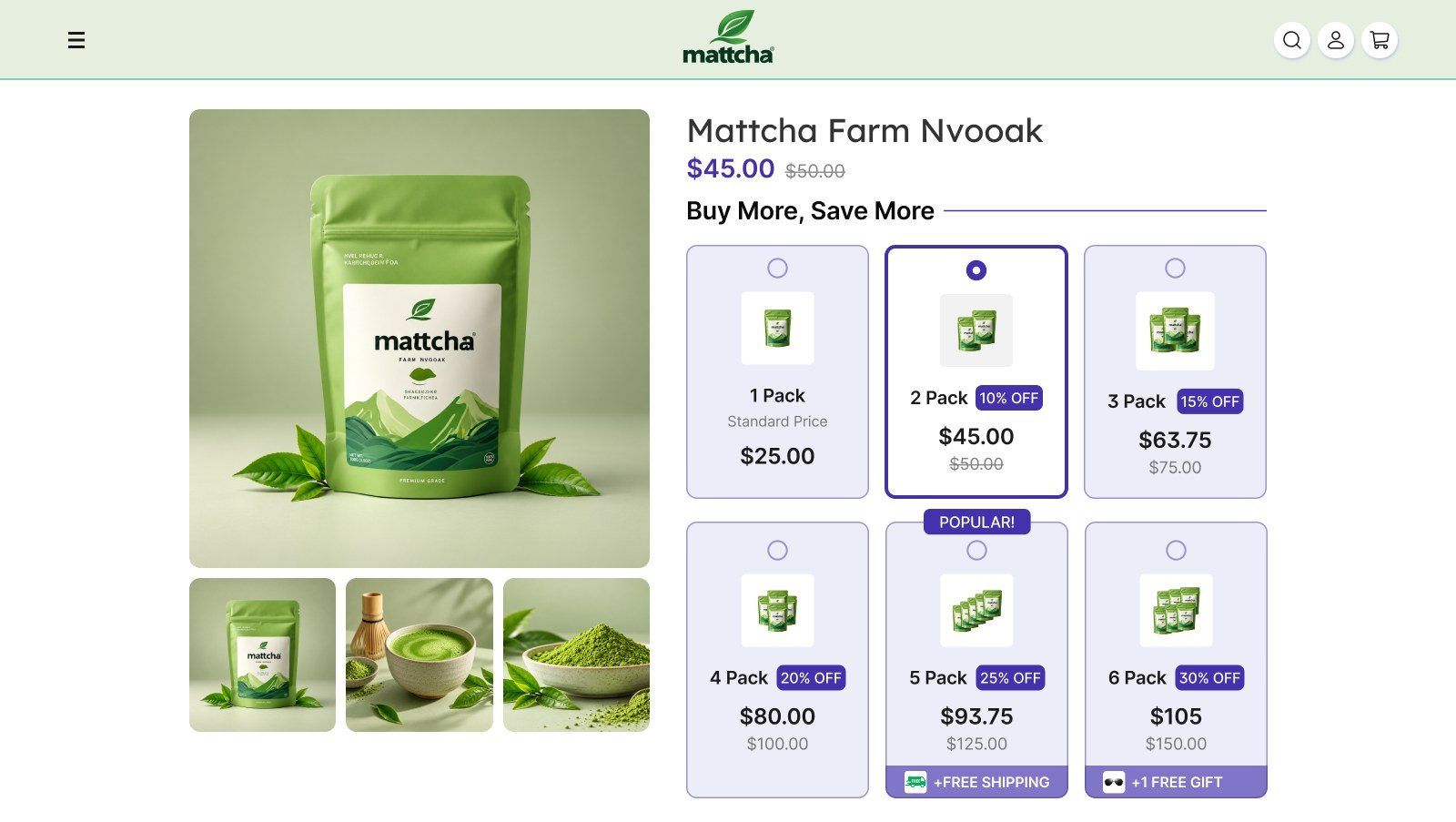
- A quantity break on one best seller, like the Buy 2 and Buy 3 tiers above. Our guide on choosing quantity break tiers helps you pick the numbers.
- Then a bundle with variants. See Shopify bundle variants.
- Then gifts and add-ons. See our free gift with purchase guide.
If you are still comparing apps, our bundle app comparisons and the guide to the best free bundle apps for Shopify cover how the options differ.
FAQ
Does WowBundle work with every Shopify theme?
It connects through a Shopify app embed, which is the standard way for apps to load in a theme. But no app can promise every theme, because themes are customized in different ways. Turn on the embed, test your product page, cart and checkout, and you will know for your store.
Do I need to edit my theme code to use WowBundle?
Not for the standard setup. You turn on the app embed in the theme editor. The optional WowBundle Bundles block can be placed in a compatible product template without code.
What is the difference between the app embed and the app block?
The embed is the base connection that loads the app. The block is optional and lets you choose where the offer appears. Keep the embed on even if you use the block.
Why is my WowBundle offer not showing on my product page?
Check that the app embed is on for the published theme, that the offer is published and applies to that product, and that you are viewing the right product template. If you recently changed themes, check the embed again.
Do I need to do anything when I change themes?
Yes. Open Theme setup, confirm the embed is on for the new theme, re-add the app block if you used it, and run a full test.
Is WowBundle free?
Yes. WowBundle is completely free, for life, with no paid plans.
Where to start
Install WowBundle, turn on the app embed from Theme setup, and create one quantity offer on a best seller. Test it on mobile and through checkout. If it works, add the next offer. If it does not, the troubleshooting list above will show you where to look.