
The Checkbox option lets customers select multiple options, such as add-ons, accessories, or extra features.
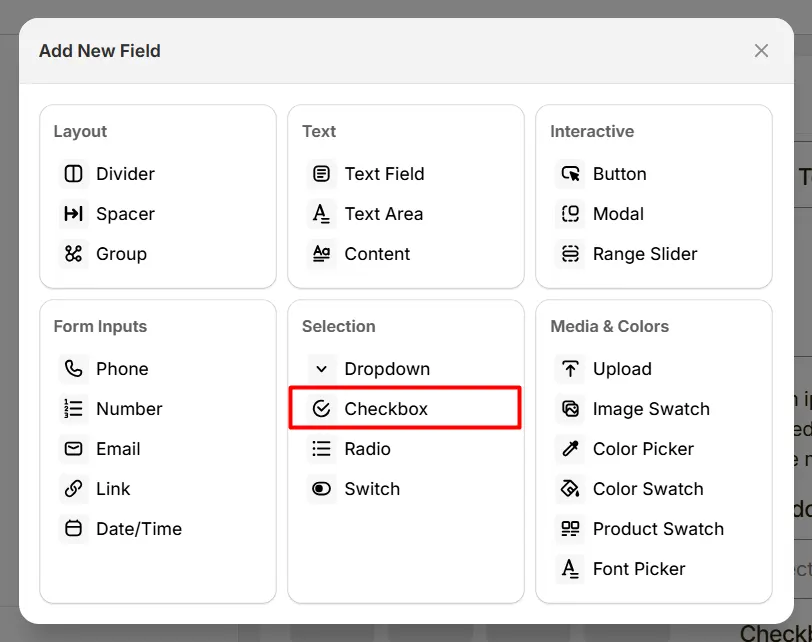
Here’s an example of how the Checkbox appears on the frontend
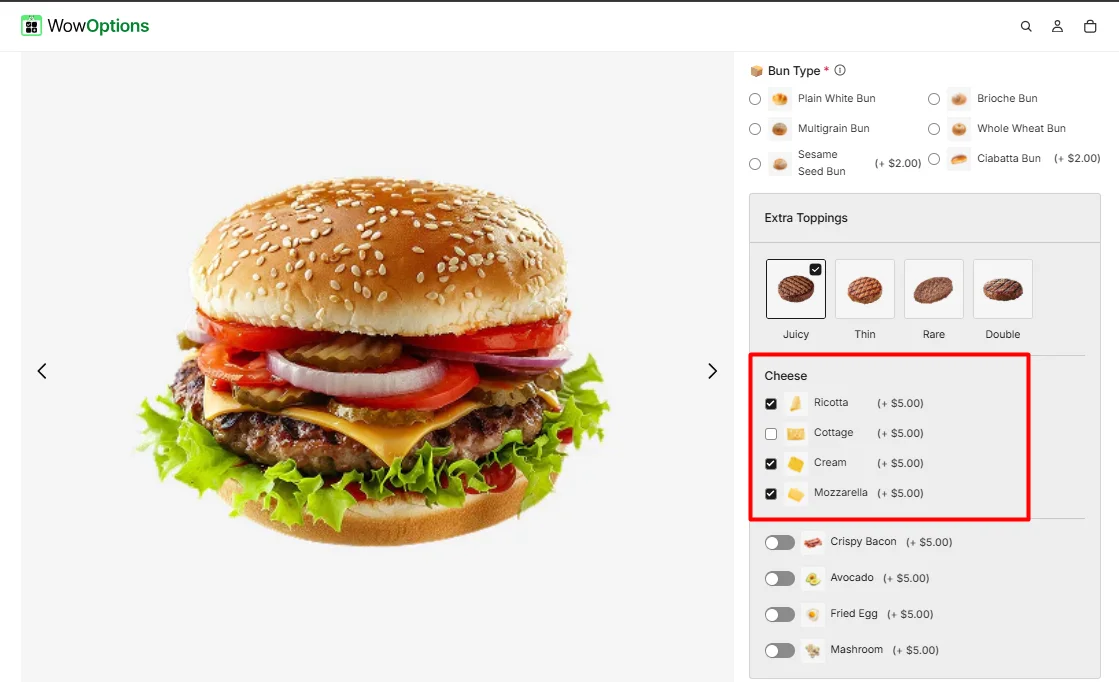
This tab controls the core configuration of the Checkbox field, including the label, help text, selectable options, pricing behavior, and selection limits.
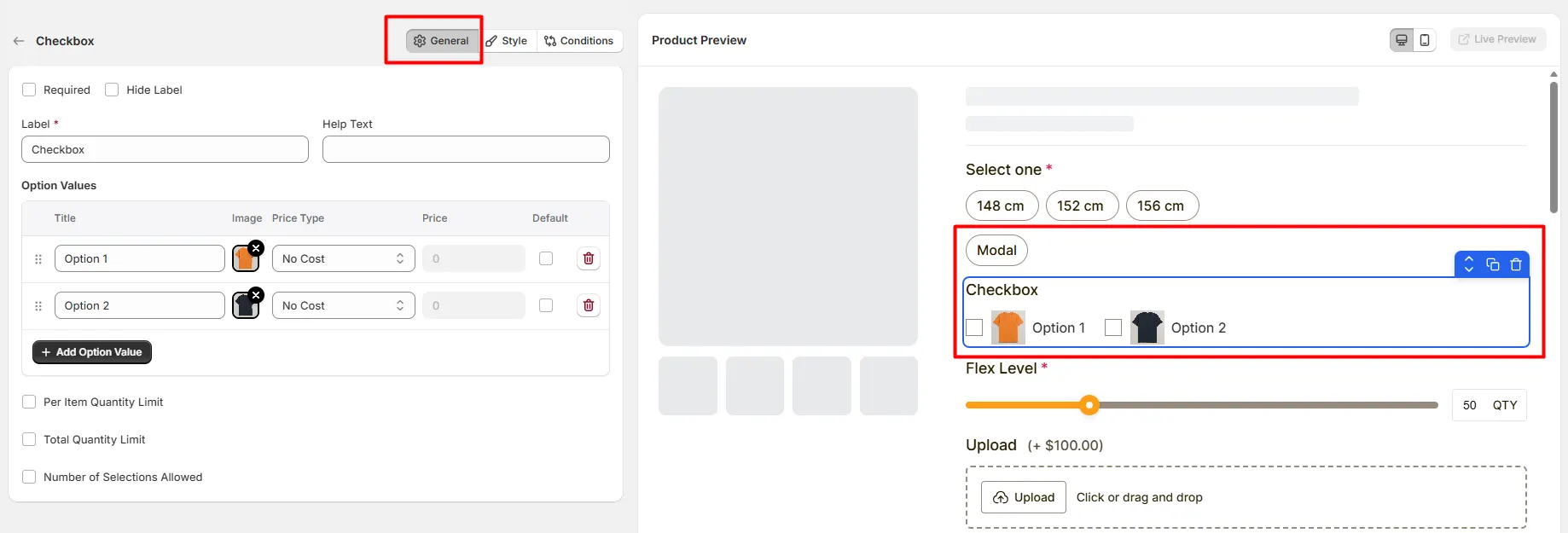
Enable this option to make the checkbox selection mandatory. Customers must select at least one option before they can add the product to the cart.
Hide the field label from customers. Enable this when the purpose of the checkbox group is already clear or when you want a minimal layout.
The visible name shown to customers (for example: "Add-ons", "Extra Features", or "Select Options"). Keep the label short and descriptive so customers understand what they can select.
Short instructional text shown to customers to guide their selection. For examples:
The display position of the help text can be controlled in the Style Tab.
Defines the list of selectable checkbox options. Each option includes the following settings:
Available price types include:
Use Add Option Value to create additional checkbox options.
Allows you to restrict how many times each individual option can be selected.
Limits the total number of selected items across all checkbox options.
For Example: Limit the total selections to 3 add-ons across all options.
Controls how many checkbox options customers can select.
This tab controls how the Checkbox field appears on the product page, including help text placement, layout columns, option image style, field width, and custom styling.
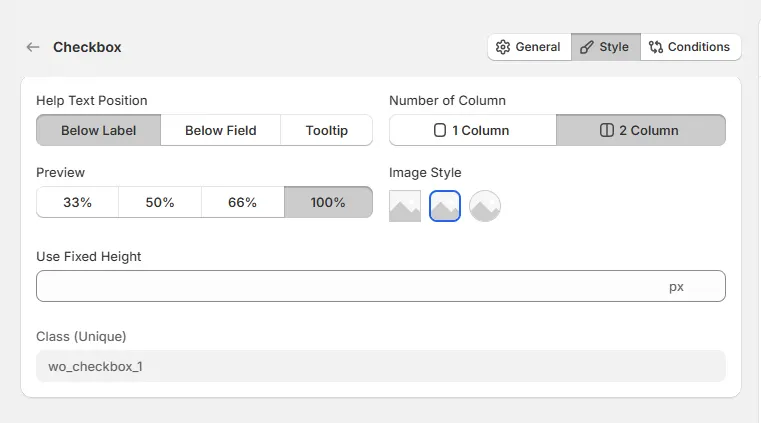
Controls where the help text appears relative to the field.
Controls how the checkbox options are arranged.
Controls how wide the checkbox field appears within the options layout.
Controls how option images appear next to the checkbox options.
Defines a fixed height for the checkbox option container. This helps maintain consistent layout when options contain images or long labels.
A unique CSS class assigned to the checkbox field (example: wo_checkbox_1).
Use this if you want to:
Use this tab to control the visibility of the Checkbox option. You can show or hide it only when specific custom options or Shopify variants are selected. To learn how to configure conditional logic, follow this guide.
If you experience any issues while configuring the Checkbox option, reach out to the WowApps support team via the in-app chat or email support@wowapps.io. You can also reach the dedicated manager at nayeem@wowapps.io.
Explore the FAQ to learn about common issues and solutions
