
The Upload option lets customers upload files or images, such as logos, photos, or design references.
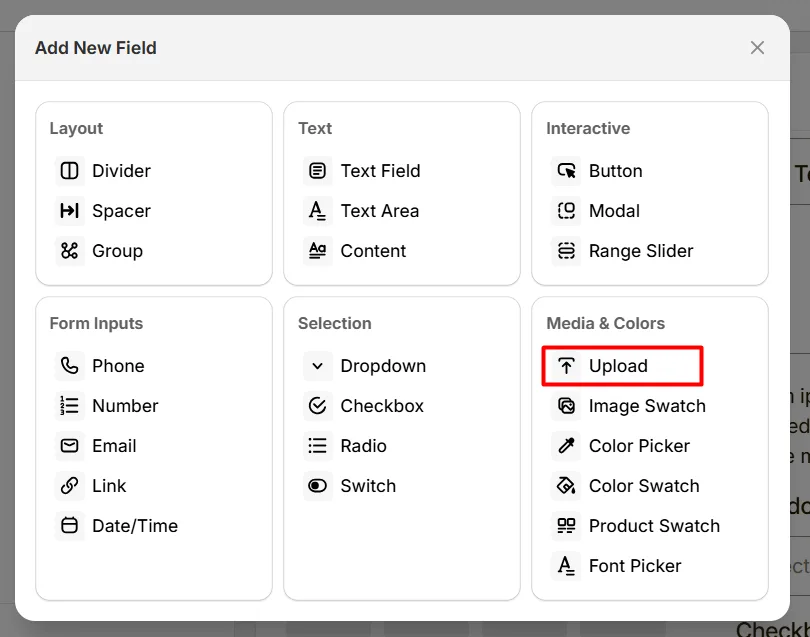
Here's an example of how the Upload Field appears on the frontend
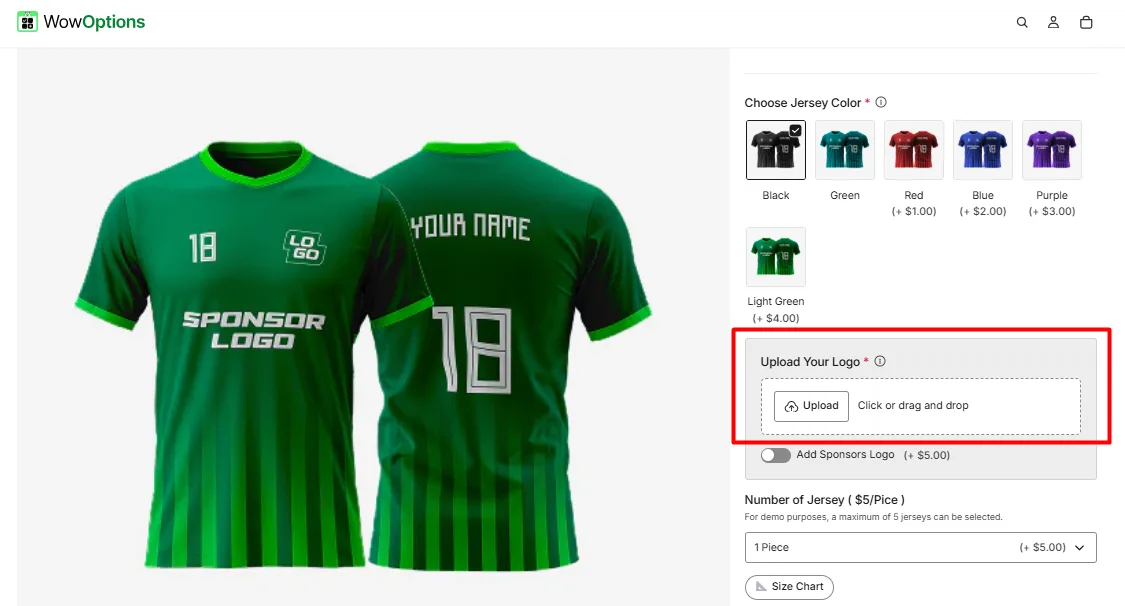
This tab controls the main configuration of the Upload field, including the label, help text, pricing behavior, allowed file types, file size limits, and the maximum number of files customers can upload.
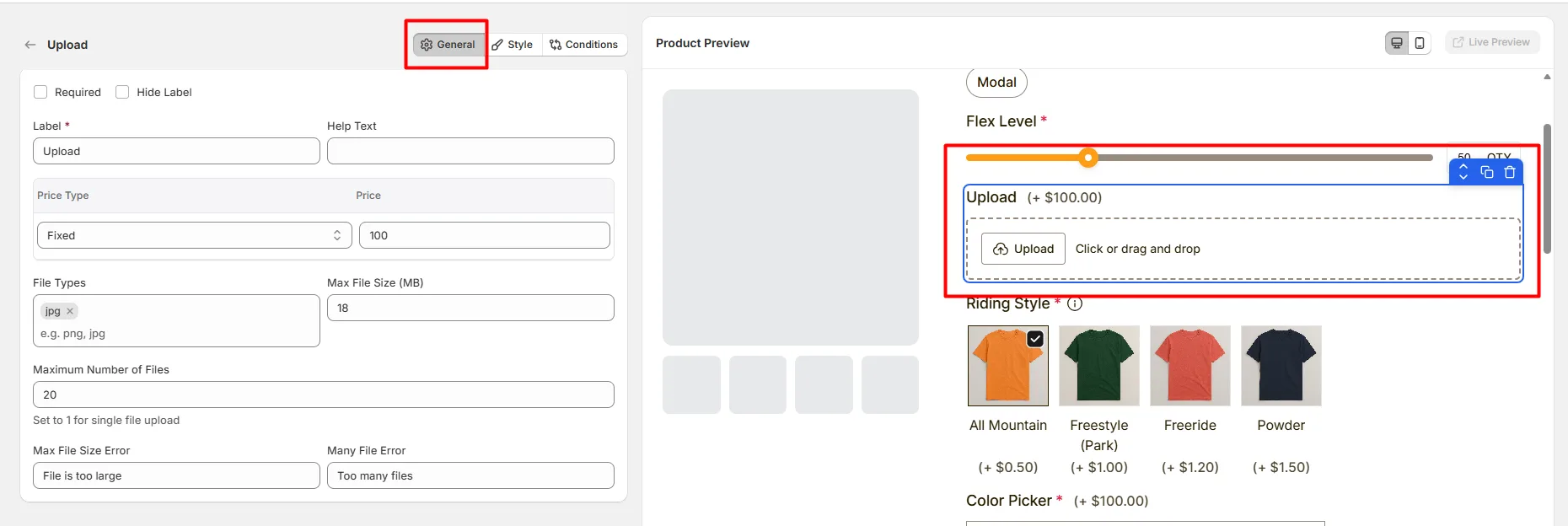
Enable this option to make the file upload mandatory. Customers must upload at least one file before they can add the product to the cart.
Hide the field label from customers. Use this when the upload purpose is already clear from surrounding instructions or layout.
The visible name shown to customers (for example: “Upload Image”, “Upload Logo”, or “Upload Design File”). Use a clear label so customers understand what type of file they need to upload.
Short instructional text displayed to guide customers when uploading files. The position of the help text can be adjusted from the Style Tab.
Determines whether uploading a file affects the product price.
Available options include:
Defines the additional cost applied when the upload option is used.
Defines the file formats customers are allowed to upload. You can allow one or multiple formats depending on your use case. There are 19 file types supported in WowOptions.
Only files matching the allowed extensions will be accepted.
Defines the maximum allowed file size for each uploaded file.
Controls how many files a customer can upload.
Note: The allowed limits depend on your plan. Pro users can upload up to 15 files with a maximum size of 10 MB per file. Advanced users can upload up to 25 files with a maximum size of 20 MB per file.
Custom error message shown when a customer uploads a file that exceeds the allowed file size. For example: File is too large
Custom error message displayed when the number of uploaded files exceeds the allowed limit. For example: Too many files
This tab controls how the Upload field appears on the product page, including help text placement, field width, and custom styling.
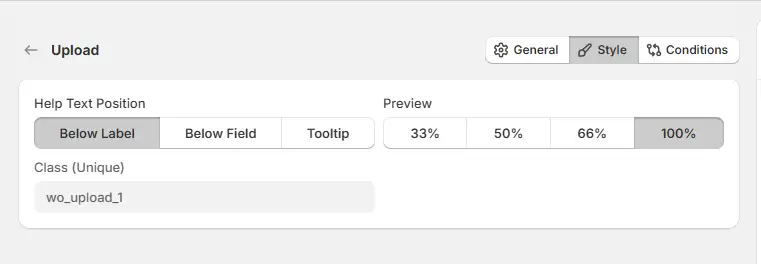
Controls where the help text appears relative to the upload field.
Controls how wide the upload field appears within the options layout.
A unique CSS class assigned to the upload field (example: wo_upload_1).
This can be used to apply custom CSS styling or to target the upload field using scripts.
Use this tab to control the visibility of the Upload option. You can show or hide it only when specific custom options or Shopify variants are selected. To learn how to configure conditional logic, follow this guide.
If you experience any issues while configuring the Upload option, reach out to the WowApps support team via the in-app chat or email support@wowapps.io. You can also reach the dedicated manager at nayeem@wowapps.io.
Explore the FAQ to learn about common issues and solutions
