
The Group option lets you collect related product options inside a single visual block. It’s perfect for organizing extras such as size + fit fields, gift options, or any set of fields that belong together. You can present the block as a static group or as a collapsible accordion for a cleaner product page.
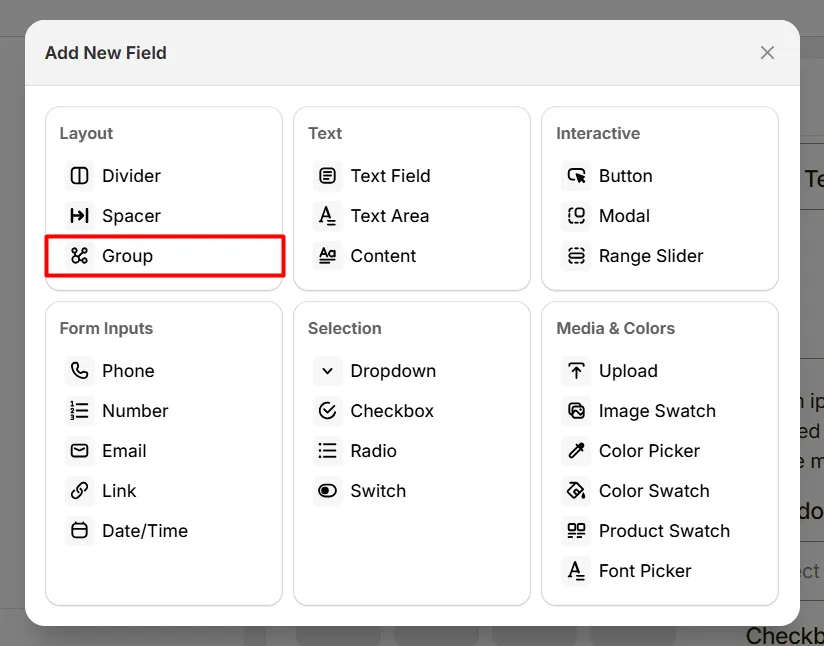
Here’s an example of how the Group appears on the frontend
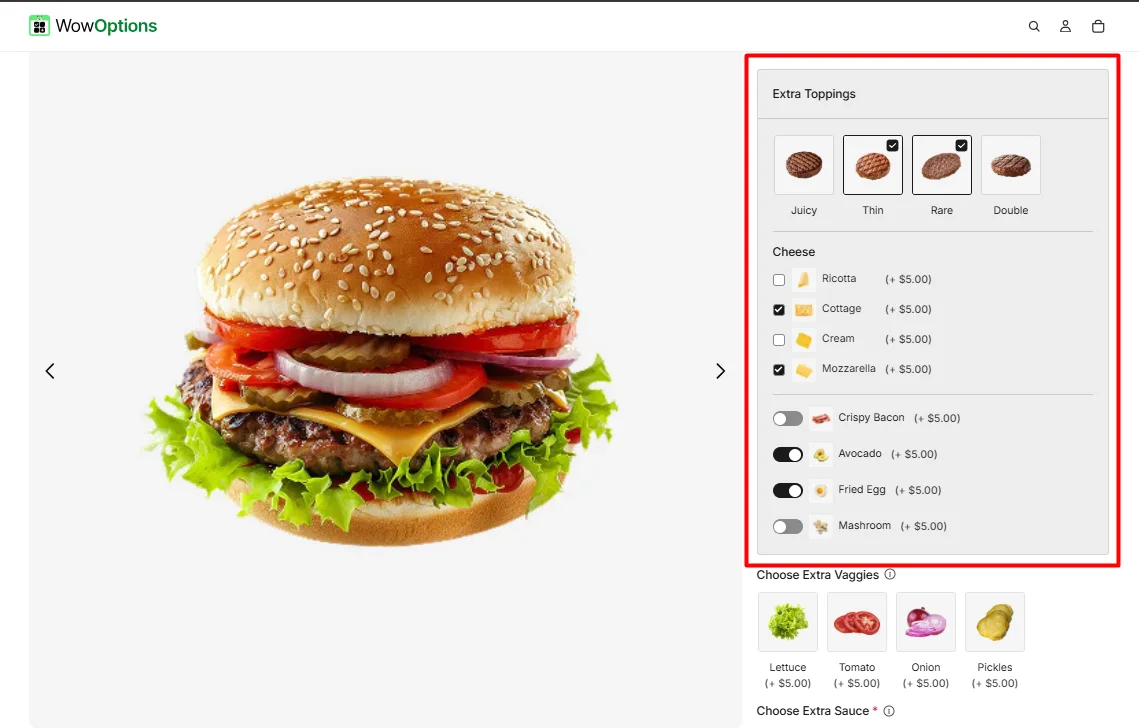
This tab controls the group’s basic configuration, including the group label, help text, header visibility, and how option fields are added inside the group.
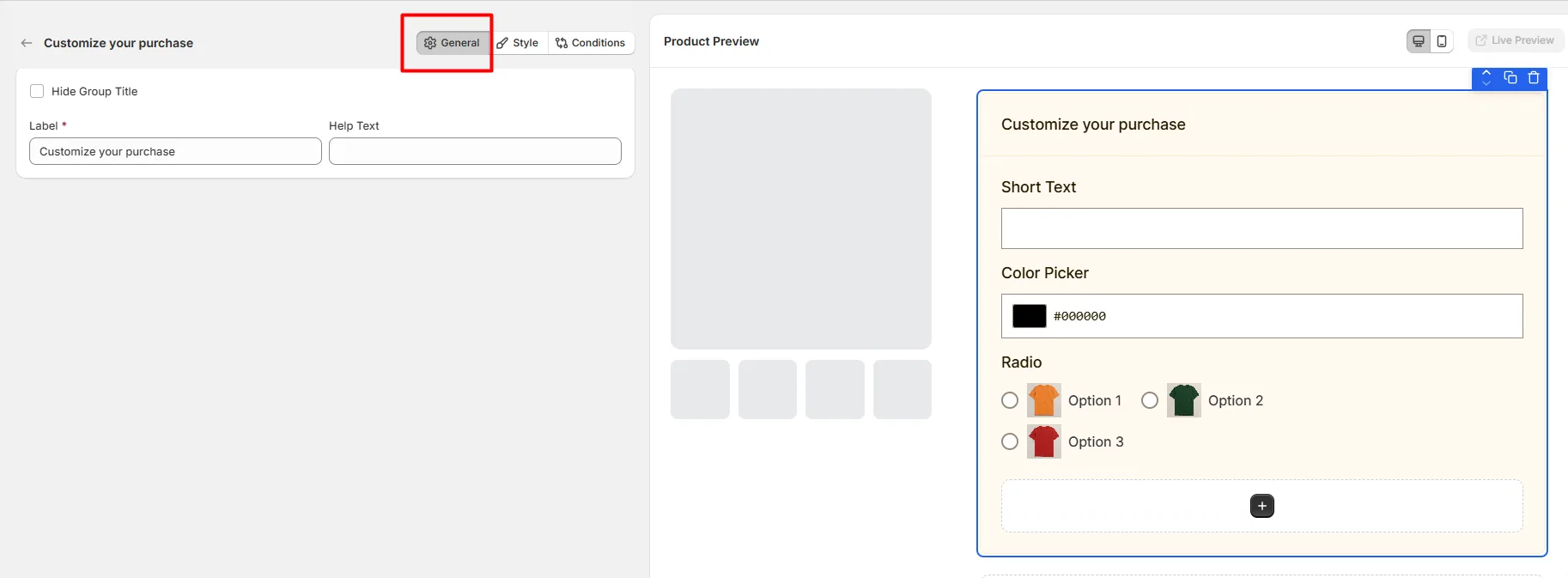
Check to hide the group label/header from customers. Use when you want a clean block without a header.
The visible name shown to customers (e.g., “Gift Options”, “Customization”). Keep it short and clear.
Short instructional text shown to customers (if you choose “Below Label” in Style). Use for simple guidance like “Max 200 characters” or “Choose one.”
Note: A Group contains other option fields. After creating the group, click Add Option inside this group area, choose the option types you want (checkbox, text, dropdown, file, etc.), and configure each child option normally.
This tab controls where help text appears, whether the block is an accordion, column width, and a unique CSS class.
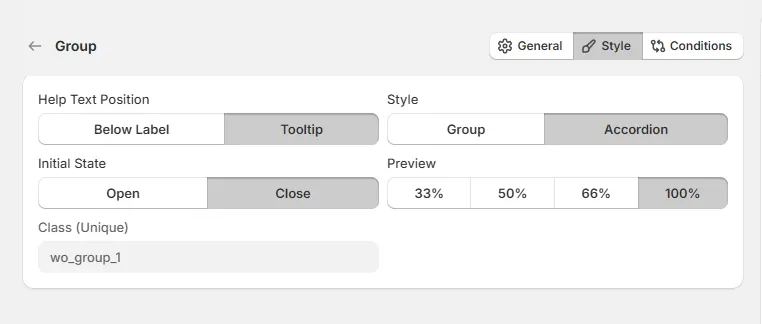
If Accordion selected → Initial State — Open | Close: Choose whether the accordion starts expanded or collapsed when the product page loads.
Sets how wide the group block is relative to the available option area (column width).
A unique CSS class for this group (example shown: wo_group_1). Use this when you want to style the group with custom CSS or target it with scripts.
Use this tab to control the visibility of options inside the Group option. You can show or hide them only when specific custom options or Shopify variants are selected. To learn how to configure conditional logic, follow this guide.
If you experience any issues while configuring Group options, reach out to the WowApps support team via the in-app chat or email support@wowapps.io. You can also contact the dedicated manager at nayeem@wowapps.io.
Explore the FAQ to learn about common issues and solutions
